


Identic AI SketchUp Extension: The Ultimate Test for Creating 3D Models from Just a Photo
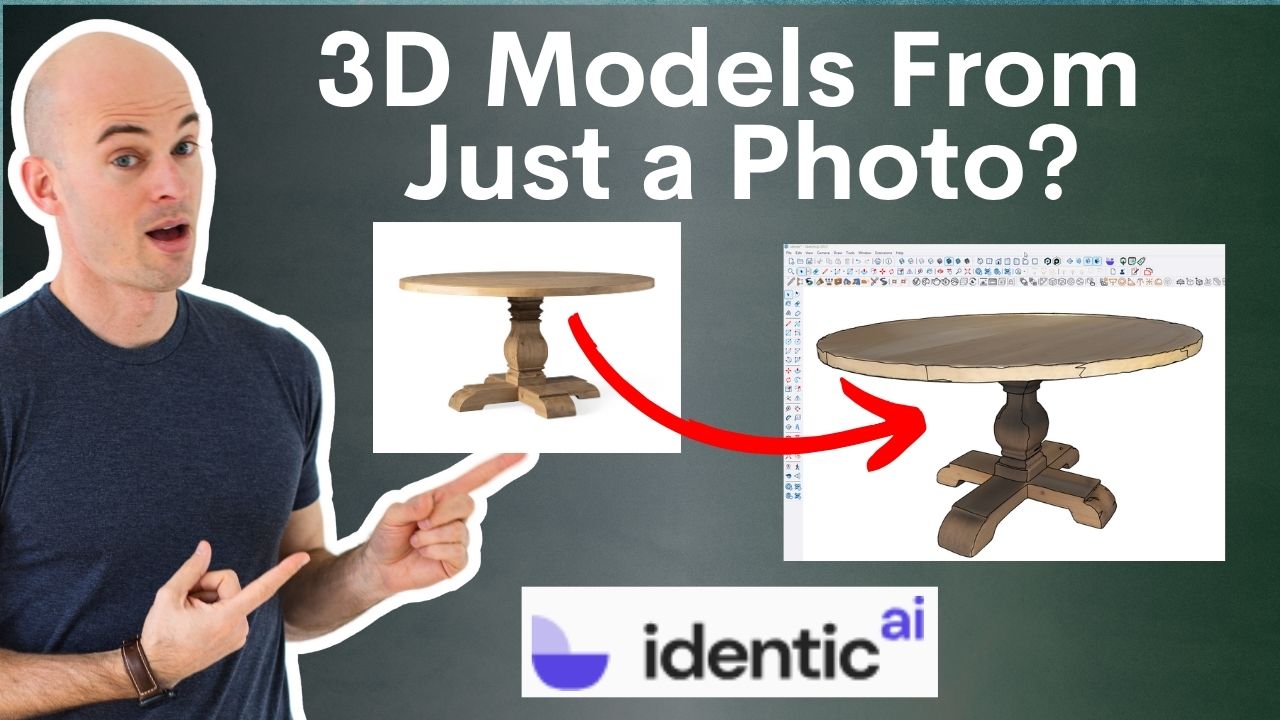
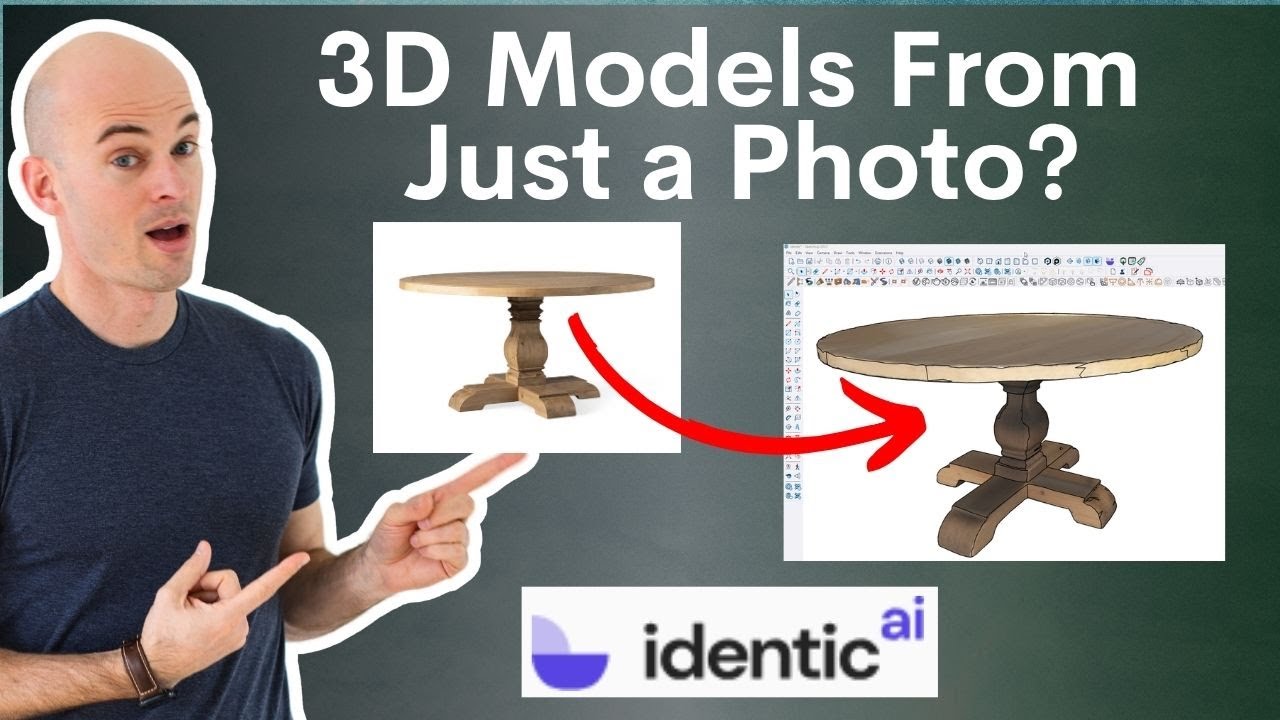
Imagine being able to create a detailed and accurate 3D model of any product using only a single photograph. Sounds like science fiction, right? Thanks to the Identic AI SketchUp Extension, this futuristic idea is becoming a reality for designers and SketchUp users everywhere. In this comprehensive review, I’ll take us through an extensive hands-on test of this innovative tool, putting it to the ultimate test with 10 different objects ranging from stools to sectional sofas.
Whether you’re an interior designer, kitchen designer, landscape professional, or a SketchUp enthusiast looking to save time and money, this article will break down everything you need to know about Identic AI’s capabilities, limitations, pricing, and practical usability in real-world projects. Let’s dive in and discover if this AI-powered extension lives up to its promise.
Key Takeaways:
- Fast 3D from One Photo: Identic AI lets you generate SketchUp models in minutes using just a single product image—no modeling skills required.
- Not Perfect, But Practical: Simpler objects like stools, lamps, and sofas come out well, but complex shapes and transparent materials can be hit or miss.
- Manual Scaling Required: Models don’t come to scale, so you’ll need to resize using product dimensions inside SketchUp.
- Budget-Friendly Tool: At roughly 14¢ per model, Identic AI is a low-cost way to build up your 3D asset library without breaking the bank.
Table of Contents
*Affiliate links may be used throughout this article. Read our Privacy Policy for more information.
Introduction to Identic AI and Installation
Identic AI is an exciting new SketchUp extension that promises to revolutionize how 3D models are created. Traditionally, building detailed 3D models of furniture or appliances requires time-consuming manual modeling or expensive outsourcing. Identic AI aims to change that by generating 3D models from just a single product image, leveraging advanced artificial intelligence.
I’m going to test this tool with 10 different objects to explore its accuracy and usefulness for professionals like interior designers and kitchen designers who frequently work in SketchUp and V-Ray.
Getting started with Identic AI is straightforward. After opening SketchUp, users can install the extension directly from the Extension Warehouse by searching for “Identic” and clicking install. Once installed, a convenient AI identic button appears on the toolbar. If it doesn’t, users can enable it via the View > Toolbars menu.
Upon clicking the button, users are prompted to log in or register. The extension connects to the Identic AI website, where pricing plans, free trials, and account management are handled. Having a SketchUp-specific extension is a major advantage over competitors, which often require exporting models through external tools.
Learn to Create These Renders in 7 Days
My 7-Day SketchUp Bootcamp for Kitchen Design will take you step-by-step from installing and configuring SketchUp, all the way to using V-Ray to create the photorealistic images you see below…all in 7 days!


How Identic AI Works: From Photo to 3D Model
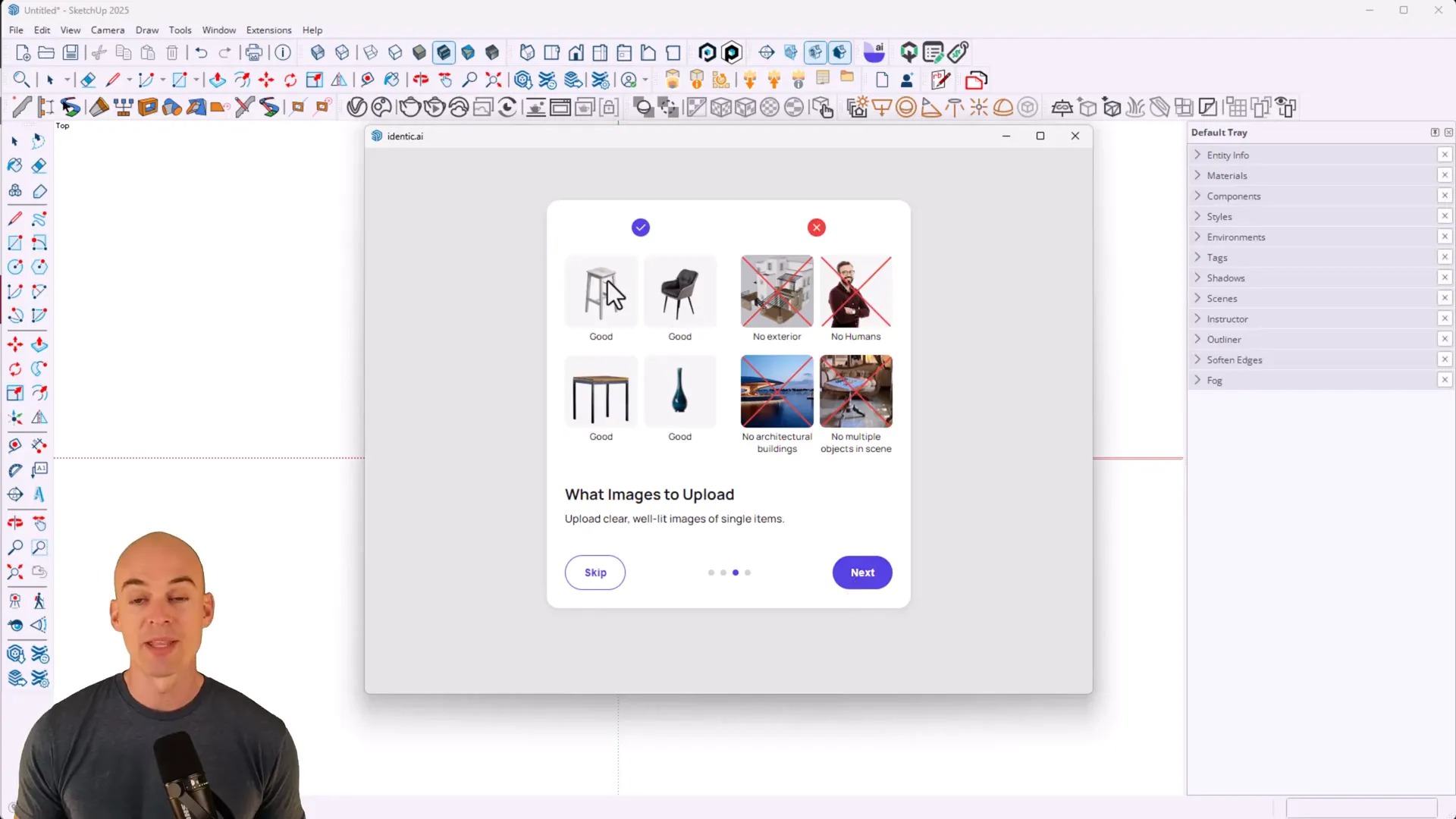
The core functionality of Identic AI is its ability to generate a 3D model from a single product image. This is accomplished using AI algorithms trained on vast datasets of product shapes and textures, allowing the software to infer depth, contours, and geometry from a flat photo.
Here are some practical tips for optimal results:
- Choose images with a white background: This helps the AI isolate the product from distractions.
- Use corner or angled shots: Images that show two sides of the object give the AI better clues about the shape.
- Avoid glass or transparent materials: The AI struggles with reflective or transparent surface.
Currently, Identic AI only supports one image per model generation, which is a limitation compared to some competitors allowing multi-image inputs. This means the AI has to infer the unseen sides of the object based on one perspective, which can affect accuracy.
Once the image is uploaded into SketchUp and the “Generate in 3D” button is clicked, the AI processes the image and creates a 3D model. Depending on the plan, this can take from under a minute to a couple of minutes. After generation, the model can be previewed and directly imported into the SketchUp workspace.
Testing the Identic AI SketchUp Extension: 10 Product Trials
To truly evaluate the effectiveness of Identic AI, John decided to put it through its paces by testing 11 different products spanning a variety of categories, including furniture, appliances, lighting, and décor. Each product was modeled from a single image, and the results were assessed for accuracy, detail, material application, and ease of use within SketchUp and V-Ray rendering.
To quickly download product images from web pages, use a free Chrome extension called ImageEye. This extension scans the webpage, organizes images by size, and allows for easy downloading, making it simple to find the best images for modeling.
Here’s a quick overview of the products tested:
- Kimbrell Counter Stool
- Arlo Upholstered Square Bed
- Thor Freestanding Double Oven Gas Range
- Amelie Grand Floor Mirror
- Casen Linear Chandelier
- Edward Shelf Floor Lamp (65″)
- Kensington Round Dining Table
- Tremont Modular Bookcase
- Lakeview Upholstered Sofa (94″)
- Monterey Modular Sectional Sofa L-Shaped with Ottoman
Each product was chosen for its shape complexity, material variety, and design details to see how well the AI could interpret different challenges.

Get My SketchUp Cheat Sheet!
A 2-sided PDF that you can print and reference as you learn and use SketchUp!
Detailed Product Reviews and Results
1. Kimbrell Counter Stool
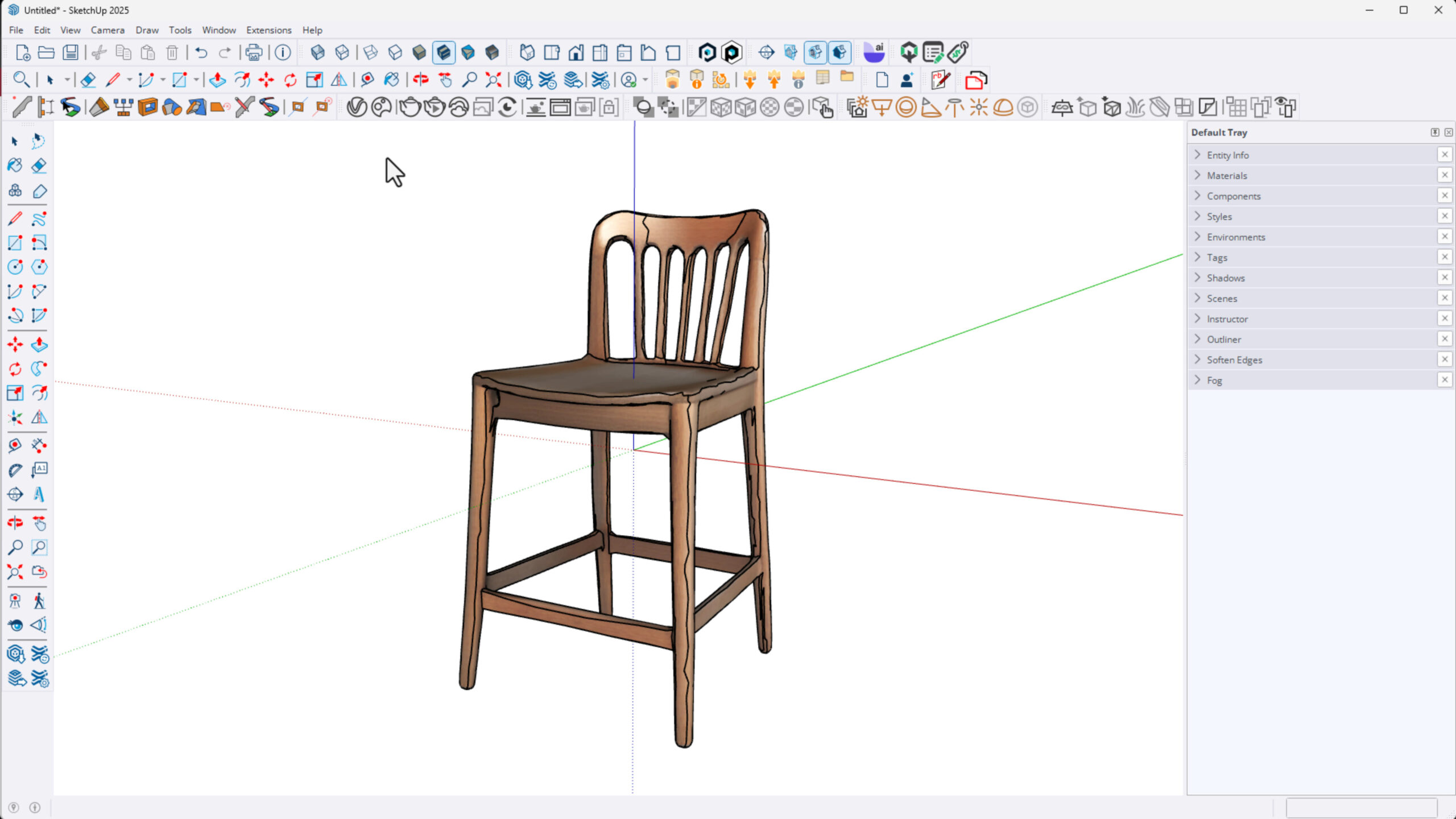
The stool was the first test subject. I selected a corner shot with a white background and uploaded it to Identic AI. The generation took about a minute, and the model preview looked promising.
Once imported into SketchUp, the stool’s shape was mostly accurate, with minor choppiness on the edges. I ran a quick V-Ray render that showed the model was usable for client presentations despite some imperfections. He noted that the AI applied materials loosely, but those could be refined later.
Scaling was off initially, but I used the tape measure tool to match the product’s actual height (35 ¾ inches) and scaled the model accordingly. This correction made the stool resemble the actual product dimensions.
2. Arlo Upholstered Square Bed
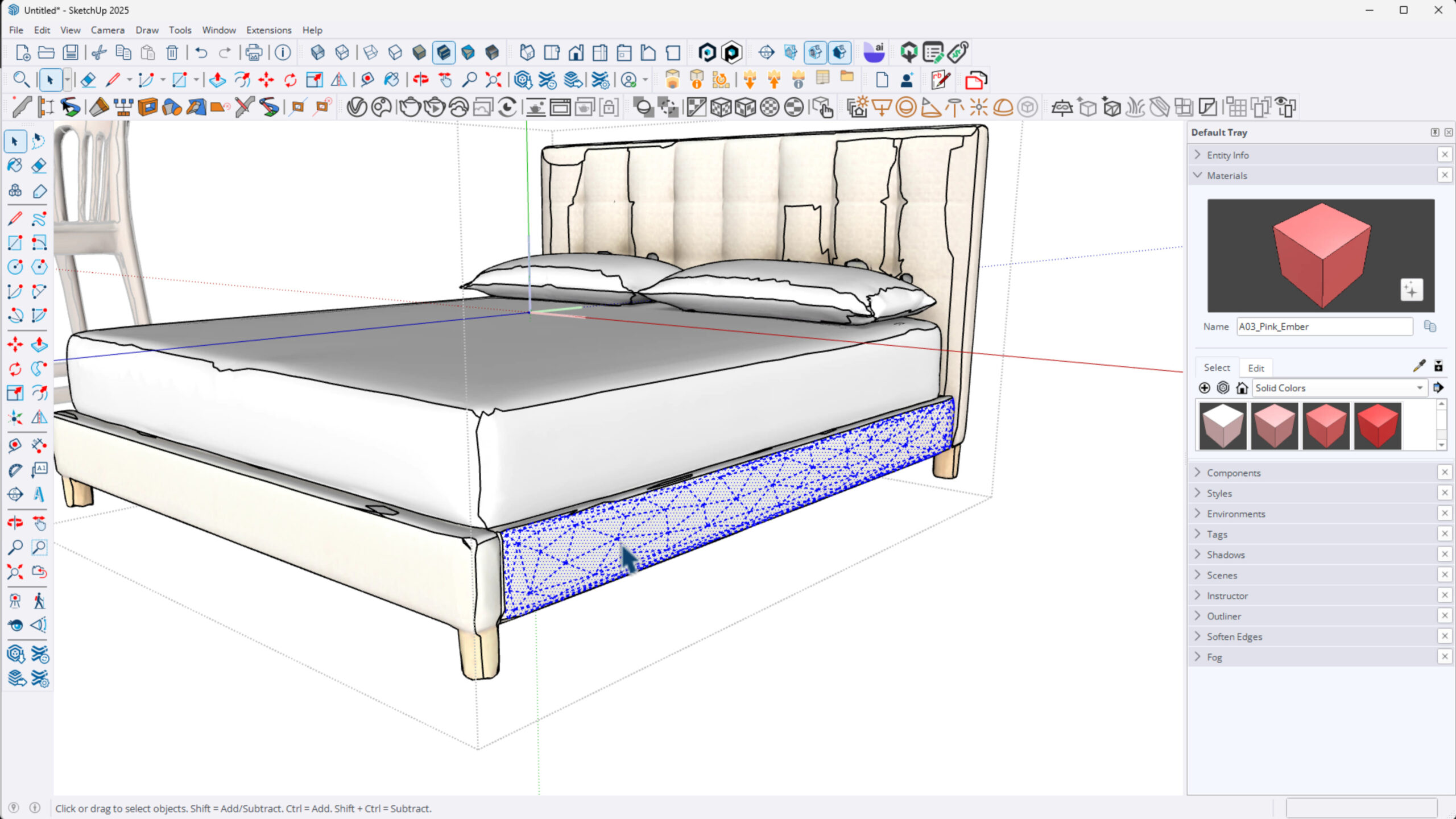
The bed represented a more complex shape with multiple materials: upholstery, wood frame, and legs. I chose an angled image showing both front and side profiles. The AI generated the model quickly and imported it into SketchUp.
While the model captured the general shape well, the AI didn’t separate the materials distinctly. For example, the bed frame and legs were combined, making texture application somewhat challenging. However, I was able to manually paint different parts with materials for better realism.
Scaling again required adjustment. The bed’s actual dimensions were 59.5 inches wide, 80.5 inches deep, and 40 inches tall. I used SketchUp’s scale tool to resize the model accurately.
Learn to Create These Renders in 7 Days
My 7-Day SketchUp Bootcamp for Interior Design will take you step-by-step from installing and configuring SketchUp, all the way to using V-Ray to create the photorealistic images you see below…all in 7 days!


3. Thor Freestanding Double Oven Gas Range
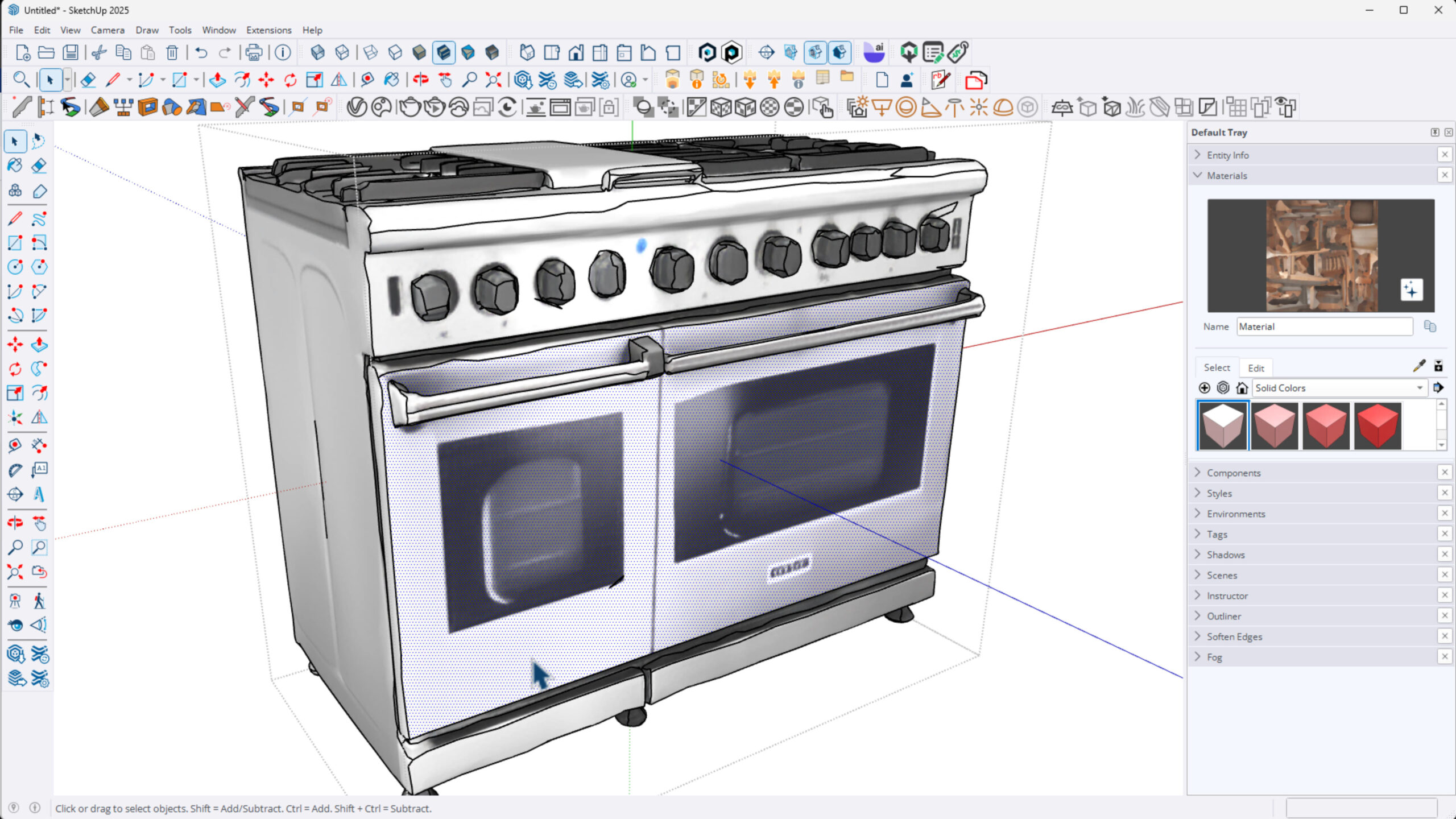
This appliance tested the AI’s ability to handle detailed geometry with many nooks and crannies. The image used was a side corner profile, but the AI took longer to generate this model, roughly a couple of minutes.
The resulting model was less clean than previous ones, especially around the grates and oven doors, where details became choppy. The glass doors were merged with surrounding geometry, making texture application for glass surfaces difficult.
Despite imperfections, the model was usable for quick design needs in a pinch. Scaling was off but fixable, matching product dimensions of 47 7/8 inches wide, 36.5 inches tall, and 27.5 inches deep.
4. Amelie Grand Floor Mirror
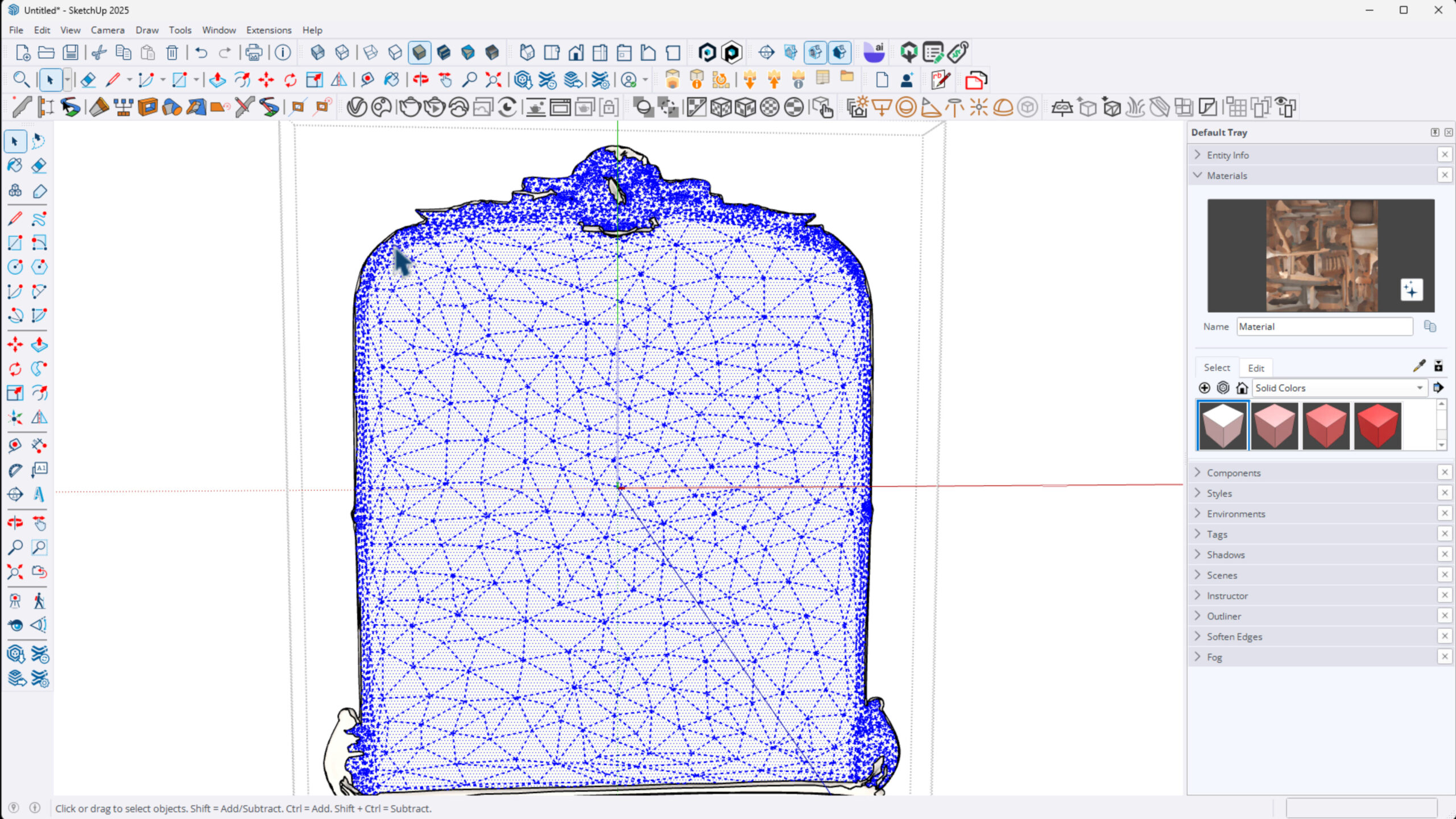
The mirror proved to be a challenge due to its reflective surface and detailed metal border. The AI struggled with glass, as expected, and created some unnatural curvature at the bottom that was inaccurate.
Moreover, the metal border and mirror glass were combined into one object, making it impossible to isolate and apply mirror materials properly. Scaling was also incorrect, but I adjusted it to the product specs (64 inches wide by 84 inches tall).
Overall, the mirror model was not very impressive or usable for high-quality renders.
5. Casen Linear Chandelier
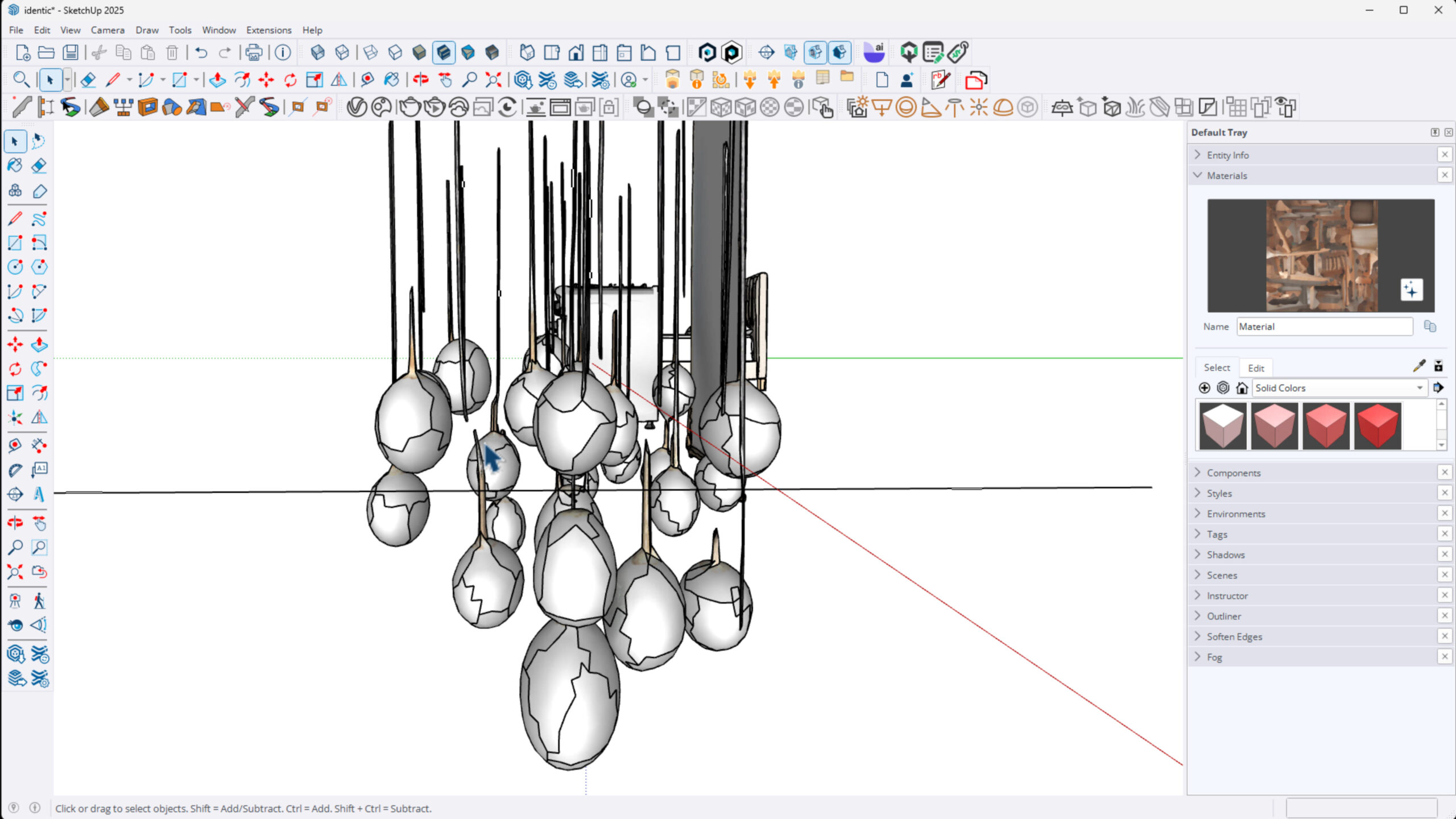
This complex lighting fixture had multiple hanging orbs and wires. The single image didn’t show the top ceiling plate or complete wire attachment points, which led to a fragmented model with disconnected wires and floating orbs.
Scaling the model to product dimensions (65 inches wide by 23 inches deep) revealed issues with orb shapes and depth. John concluded that for this type of intricate lighting design, Identic AI was not a suitable tool.
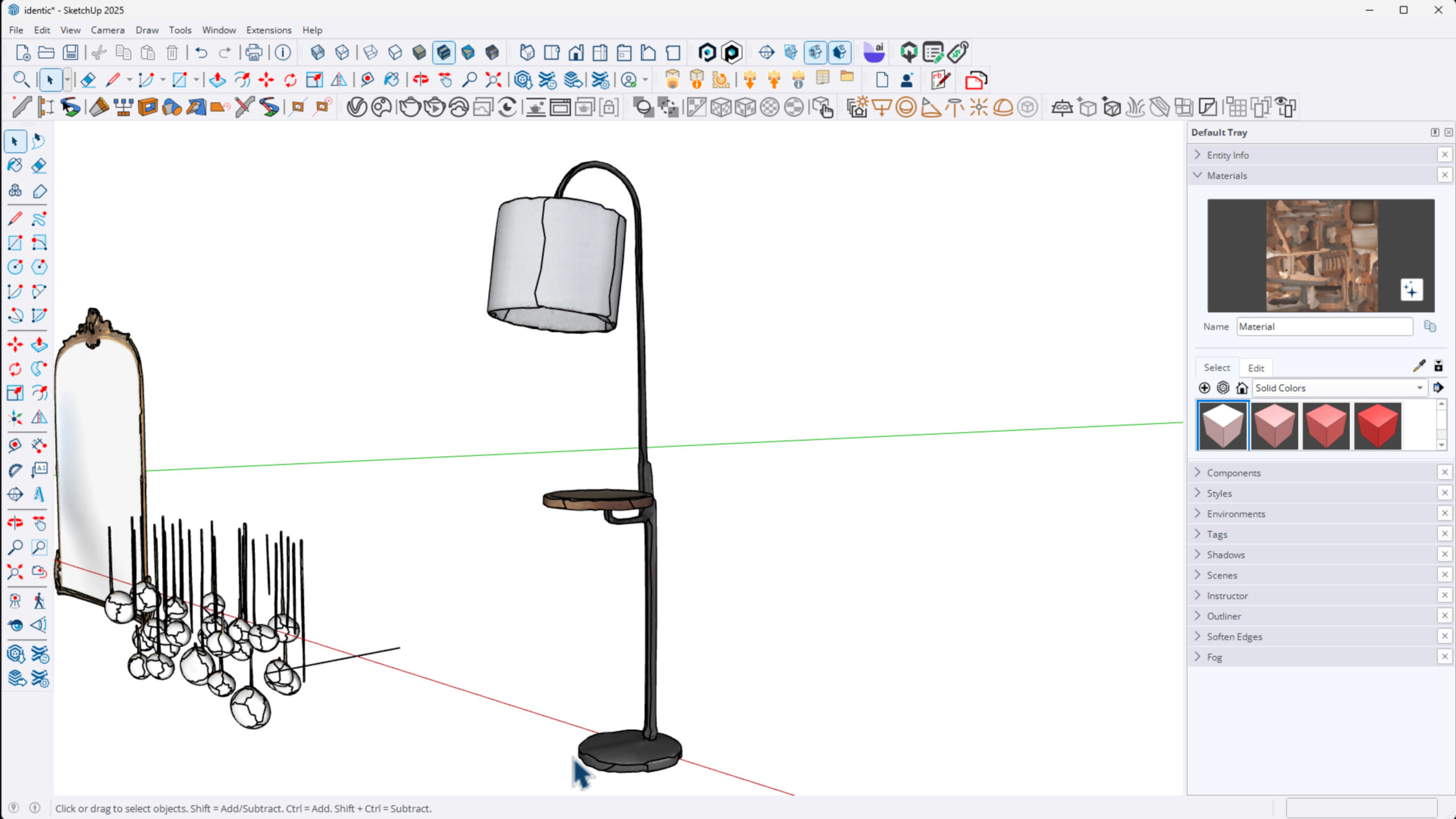
6. Edward Shelf Floor Lamp
This floor lamp had a simple design with a lamp shade and attached shelf. The AI did a surprisingly good job capturing the hollow lamp shade and shelf geometry, despite minor wobbling on the shelf edges.
I scaled it to 65 inches high and 12 inches wide, matching product specs, and rendered it with V-Ray. The model was clean enough for client presentations and texture application, with materials isolated well for editing.

Shop Computers for SketchUp & V-Ray
Download my FREE SketchUp and V-Ray Hardware Guide to get links to my favorite computers for SketchUp!
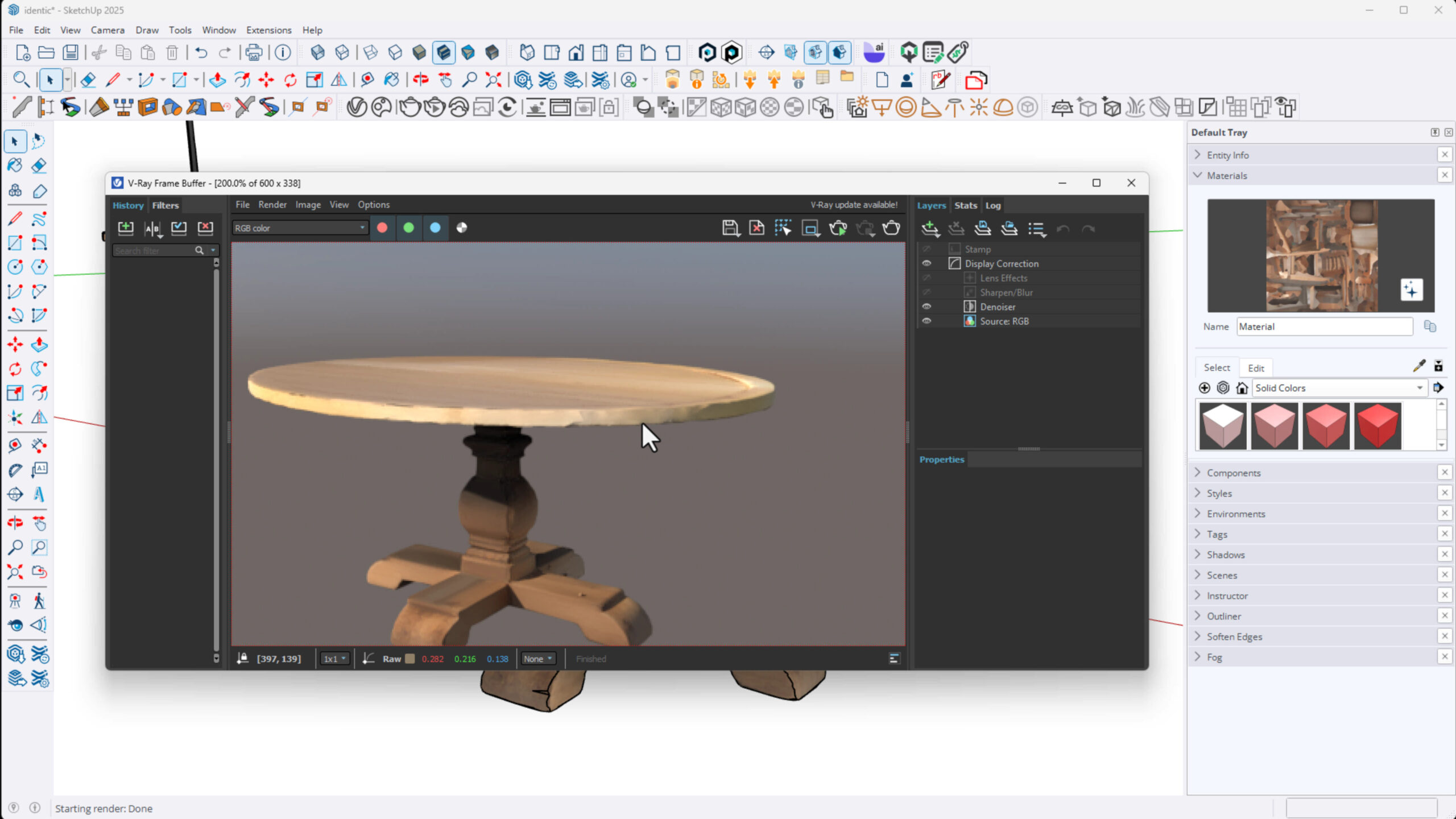
7. Kensington Round Dining Table
The round dining table was modeled with decent accuracy, especially the base shape. The AI struggled a bit with the circular top edges, making them choppy, but the overall model was usable.
I scaled it to 54 inches diameter and 30.25 inches height and suggested a workaround: replacing the top with a manually created circle and push/pull tool for cleaner edges.
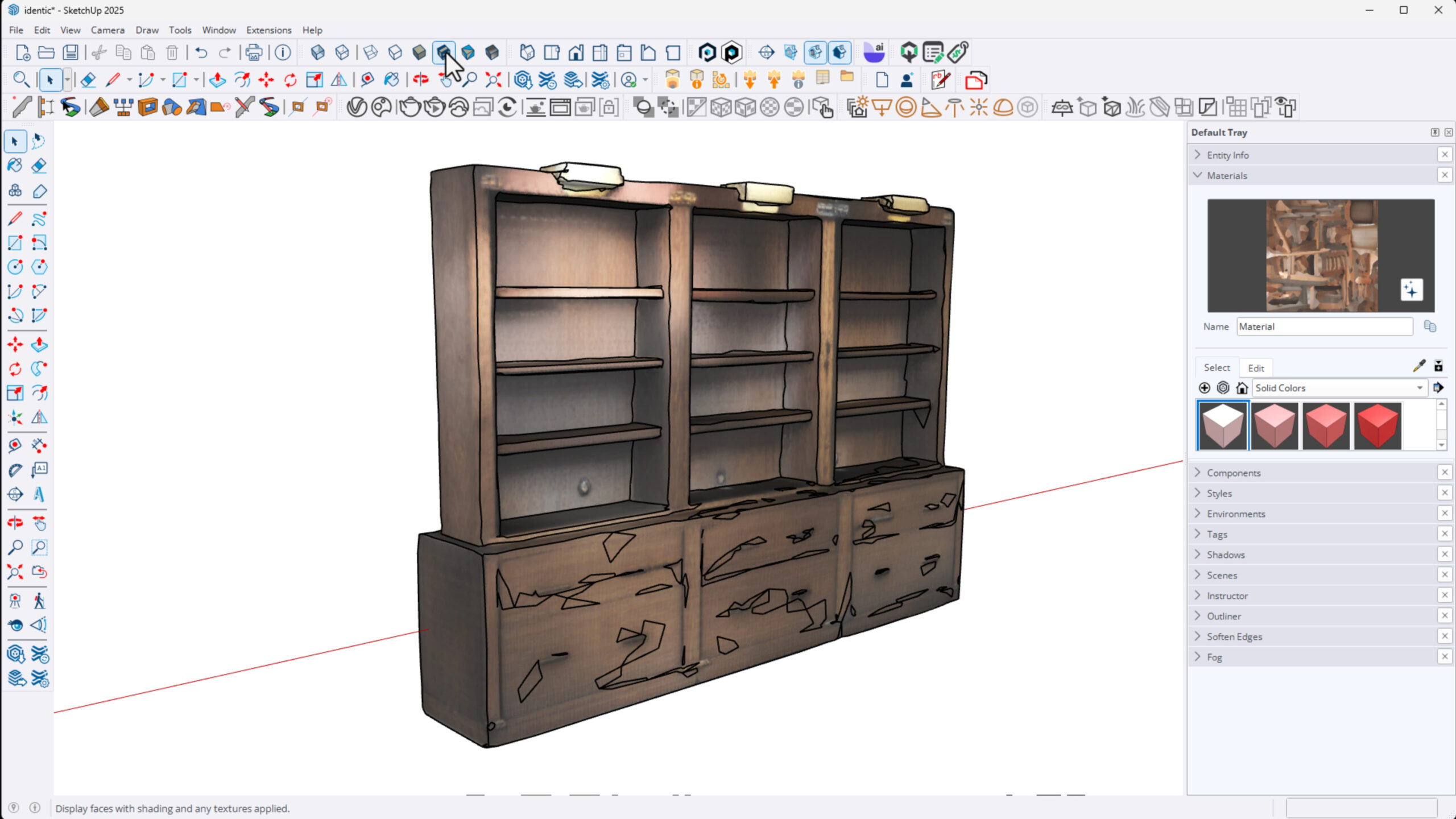
8. Tremont Modular Bookcase
This large, detailed bookcase was a tough challenge. The AI generated a very small, flat model that missed details like handles and shelf lines. The lighting elements were also poorly represented.
Despite scaling to 120 inches wide, 84 inches tall, and 20 inches deep, the model was not usable for professional work. I would not recommend Identic AI for detailed large furniture like this.
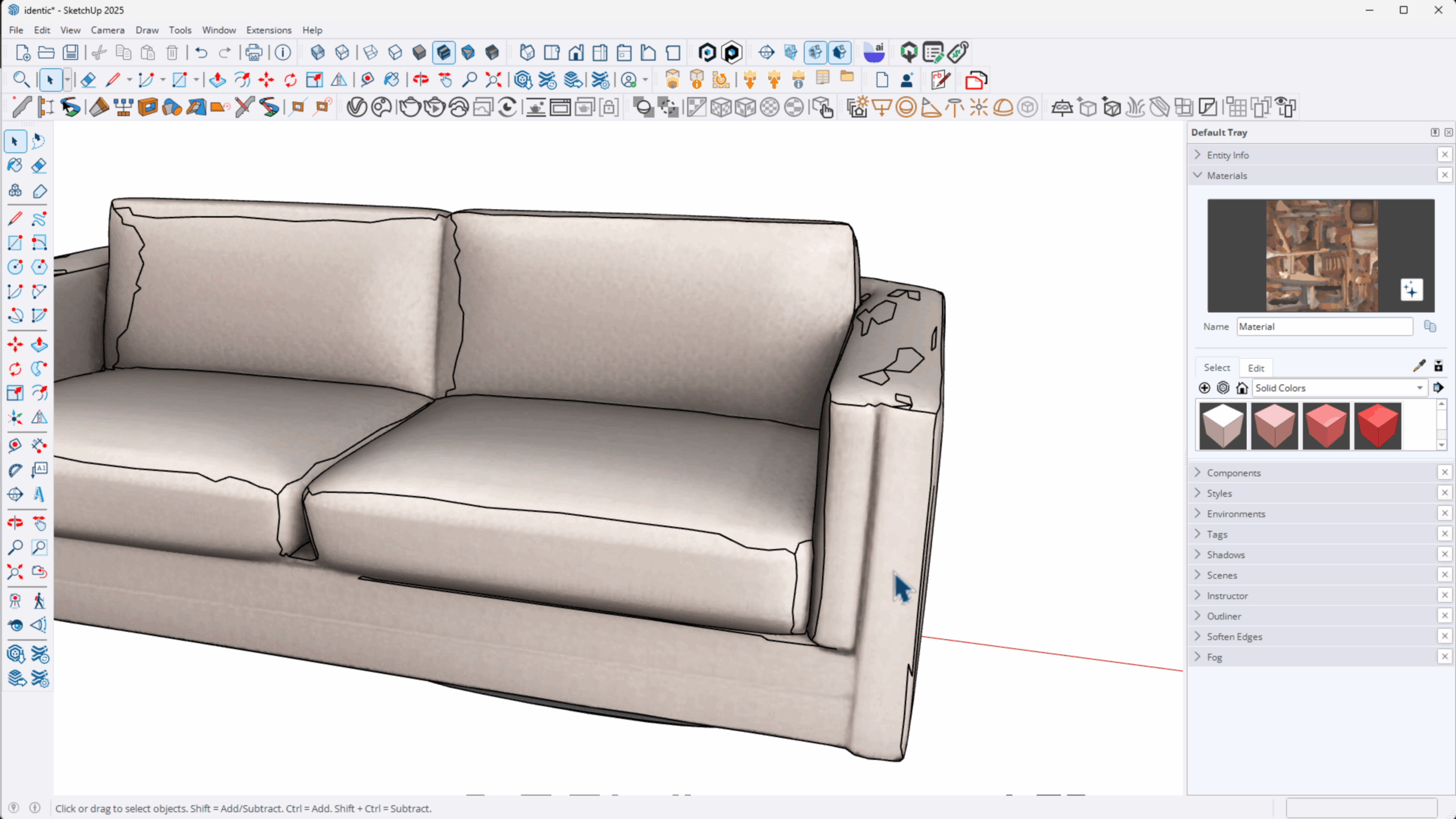
9. Lakeview Upholstered Sofa
The sofa model was simple but showed good detail on the arms and cushions. Some minor geometry issues appeared near the bottom, but these were hidden when placed on a flat surface.
Scaling was off initially, but I adjusted it to approximately 65 inches wide. The cushions were connected but looked fine for most design purposes, and the model rendered well with V-Ray.

Easily Create Virtual Tours
Bring your designs to life with immersive experiences. My Virtual Tours & VR course shows you how to create stunning 360° renders and interactive walkthroughs using SketchUp and V-Ray — all in just a few hours.
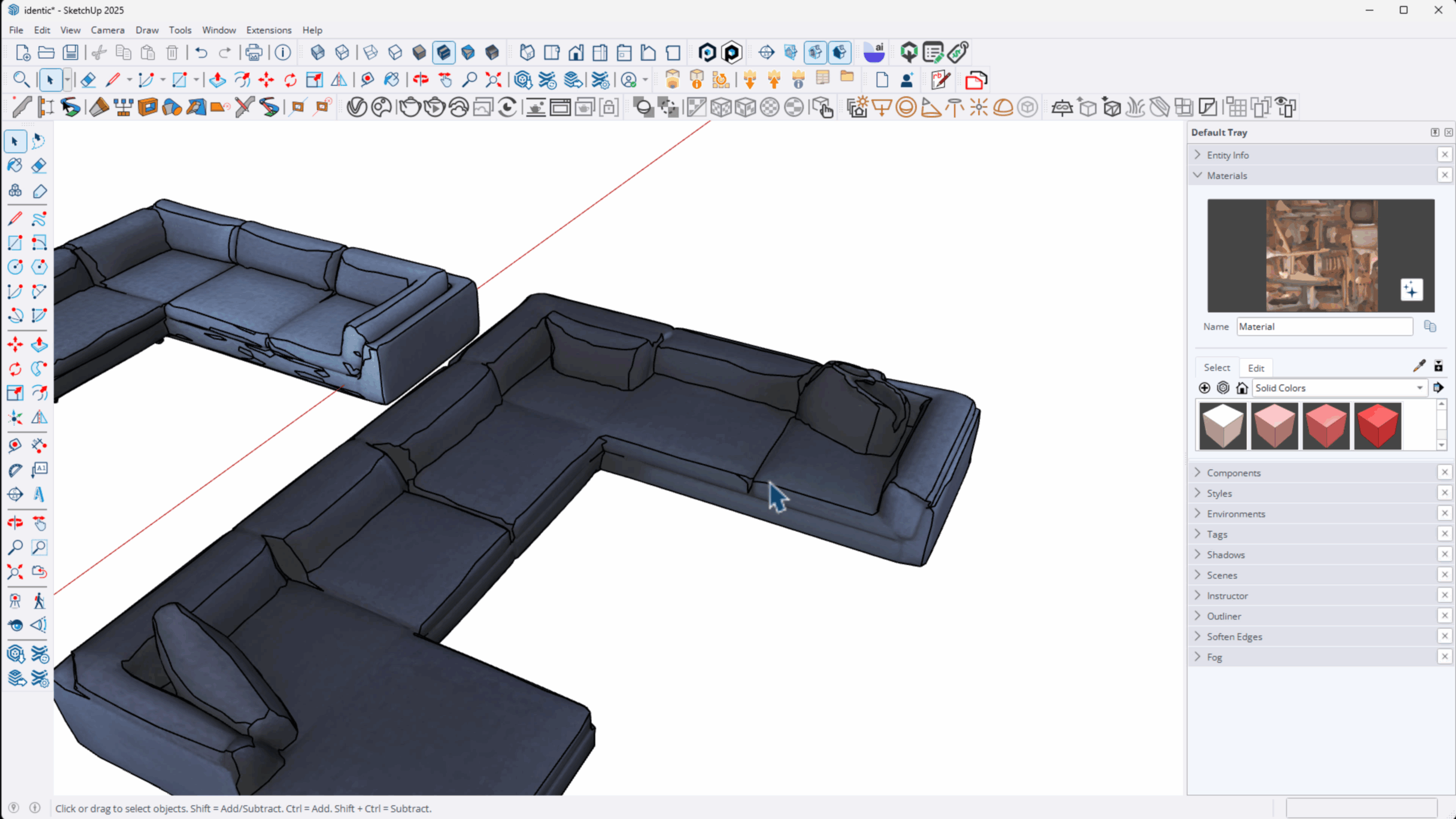
10. Monterey Modular Sectional Sofa L-Shaped with Ottoman (Two Images Tested)
I tested the sectional sofa twice using two different images: one straight-on and one with a corner angle. The first model was small and lacked detail. After purchasing additional credits ($14 for 100 credits, about 14 cents per model), he uploaded the corner image.
The corner image yielded a much better result, with pillows and arms more accurately modeled. It’s important to choose a picture that gives AI as much detail as possible.
Scaling Models and Applying Materials
One consistent theme across all product tests was the need to manually scale the generated models to match actual product dimensions. Identic AI does not currently produce models with accurate real-world scale, so using SketchUp’s tape measure, Line tool, and Scale tool is essential.
Regarding materials, the AI applies basic textures to mimic the product image’s look, but these are often rough approximations. Users will likely want to replace or refine materials in rendering tools like V-Ray for photorealistic results.
Some models combined multiple materials into one geometry group, complicating texture application, especially with products featuring glass or metal borders. Lampshades and cushions were often segmented well enough for separate material application.
Pricing and Subscription Plans
Identic AI offers several pricing plans accessible on their website:
- Creator Plan
- Basic Plan
- Pro Plan
Each plan varies by generation speed and monthly credits. I had free credits initially, which allowed me to test a few models before purchasing additional credits. The cost was very affordable at $14 for 100 credits, breaking down to approximately 14 cents per model generation.
This pricing structure makes Identic AI a budget-friendly option for designers who need occasional 3D models without investing in expensive freelancers or modeling software.
Learn to Create 🔥 Documentation
My 7-Day SketchUp Bootcamp for Kitchen Design not only teaches how to create photorealistic renders, but also how to create amazing documentation using LayOut…all in 7 days!


Pros and Cons of Identic AI SketchUp Extension
Pros
- Ease of use: Simple installation and integration directly into SketchUp.
- Fast model generation: Models generated within minutes.
- Affordable pricing: Low cost per model, suitable for freelancers and small studios.
- Decent accuracy: Good shape recognition on simpler objects like stools, lamps, and sofas.
- Direct import: Models import directly into SketchUp with minimal hassle.
Cons
- Single image limitation: Only one photo can be used, which limits accuracy for complex shapes.
- Scaling issues: Models require manual scaling to real-world dimensions.
- Material separation: Materials are not always separated logically, complicating texture application.
- Glass and reflective surfaces: AI struggles with transparent materials, leading to poor results on mirrors and glass components.
- Noise and distortions: Some models show choppiness or inaccurate geometry on details.
Final Thoughts: Is It Worth It?
After putting Identic AI through a rigorous test using 10 different products, it’s clear that Identic AI is a promising addition to the SketchUp ecosystem, especially for users needing quick, low-cost 3D models of furniture and fixtures.
While some models were unusable (like the chandelier and bookshelf), many were good enough for client presentations and design work once scaled and textured properly. The tool shines with simpler, solid objects like stools, lamps, sofas, and tables.
Identic AI’s SketchUp plugin is a major advantage, streamlining the workflow and saving valuable time. The low cost per model generation means users can experiment without breaking the bank.
I recommend keeping expectations realistic and using Identic AI as a time-saving tool rather than a perfect modeling solution. As AI technology advances, this tool will likely improve, making it an essential resource for designers.
Overall, Identic AI SketchUp Extension is a valuable tool that can save money and speed up design workflows, especially for those who need to generate multiple product models quickly.
Frequently Asked Questions
It is a SketchUp plugin that uses artificial intelligence to generate 3D models from a single product image, allowing users to quickly create 3D assets within SketchUp.
The accuracy varies by product complexity and image quality. Simple shapes like stools and sofas are modeled well, while complex objects like chandeliers or glass mirrors show distortions and inaccuracies.
Currently, the tool only supports one image per model generation, which limits the AI’s ability to capture all sides of an object.
No, models are not generated to scale. Users must manually scale models in SketchUp using product dimensions.
Identic AI offers a free trial with limited credits. Beyond that, users must purchase credits, with pricing starting at about $14 for 100 credits.
Yes, but the AI-generated models may not have separated materials, so manual editing and material application in SketchUp or rendering software like V-Ray will be necessary.
No, the AI struggles with glass and reflective surfaces, often producing poor results.
I offer online training programs specifically for interior designers, kitchen designers, and landscape professionals on using SketchUp and V-Ray efficiently. More info can be found at focusedsketchup.com/courses/.
Open SketchUp, go to Extensions > Extension Warehouse, search for “Identic,” and click install. Then enable the AI toolbar button via View > Toolbars if needed.
Yes, by quickly generating 3D models in-house, you can avoid costly outsourcing or freelance modeling, saving both time and money.

Ready to Learn SketchUp?
Check out my SketchUp & V-Ray courses to find the right one for your skillset and your design specialty. Online, self-paced, and lifetime access!
Tags