V-Ray vs. D5 Render: What Designers Need to Know
As a designer, choosing the right rendering software can feel overwhelming. Two of the most popular options right now are V-Ray and D5 Render. Both can help you create stunning visuals for clients, but they differ in approach, pricing, ease of use, and hardware needs. In this post, I’ll walk you through how they are similar, how they are different, and what you should know before choosing one.
Key Takeaways:
- Both tools create photorealistic renders: V-Ray is the industry standard, while D5 Render is a newer real-time rendering engine.
- Ease of learning: D5 is easier for beginners to pick up, while V-Ray has a steeper learning curve but offers more control.
- Animations: D5 makes it simple and cost-effective to create animated walkthrough videos, while V-Ray animations require more time and resources.
- Hardware: D5 is GPU-dependent and requires a strong graphics card, while V-Ray can run on CPU or GPU.
- Platform support: V-Ray runs on both Windows and Mac, but D5 is Windows-only.
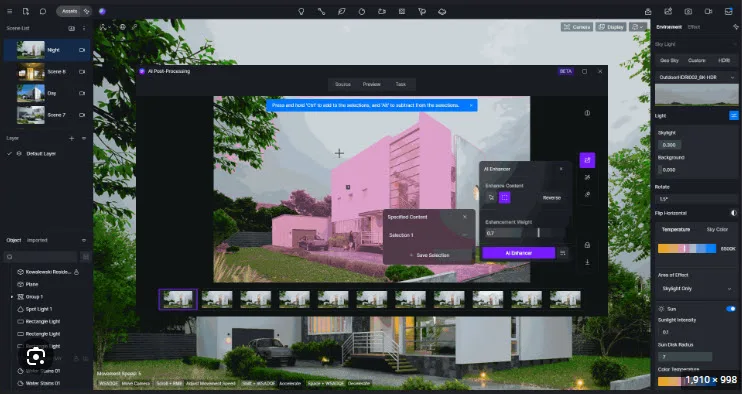
- AI Tools: D5 has more AI-powered features built in, including AI Atmospheric Match, AI Material Snap, and AI Post Processing.
- SketchUp Integration: V-Ray runs directly inside SketchUp, while D5 uses LiveSync for real-time model updates.
- Workflow differences: V-Ray integrates deeply with SketchUp, Rhino, Revit, and 3ds Max, while D5 is streamlined for speed and real-time feedback.
*Affiliate links may be used throughout this article. Read our Privacy Policy for more information.
Table of Contents
How They Are the Same
- Both produce high-quality, photorealistic renders.
- Both have libraries of ready-to-use materials, lighting, and 3D assets.
- Both can be used in architectural visualization, interior design, and landscape projects.
- Both offer cloud rendering and AI-assisted tools to speed up workflows.
How They Are Different
1. Rendering Approach
- V-Ray: Traditional rendering engine, known for accuracy, realism, and flexibility. It gives you full control over lighting, materials, and settings. However, this also means more time spent tweaking.
- D5 Render: Real-time rendering engine. You see changes instantly, similar to working inside a video game engine. It trades some precision for speed and interactivity.
2. SketchUp Integration
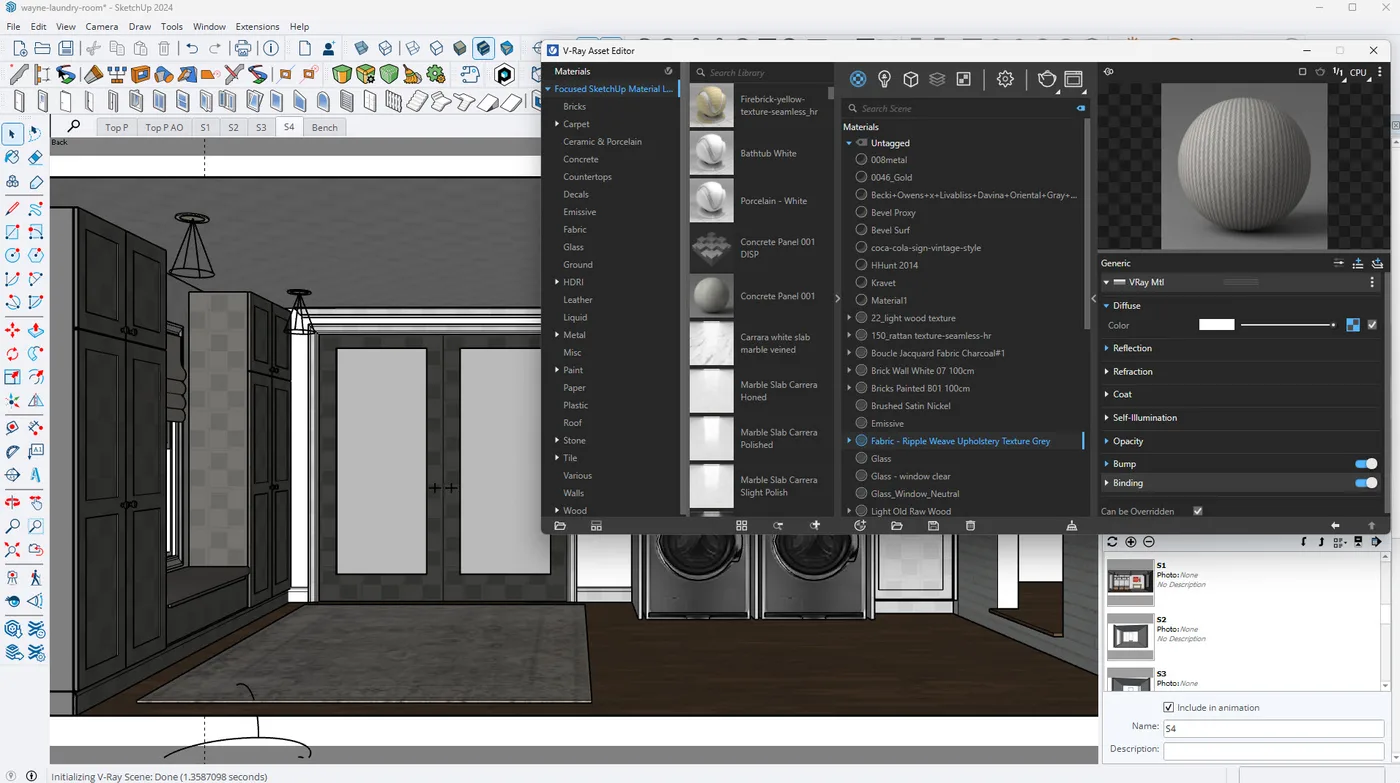
- V-Ray: Works directly inside SketchUp as a plugin. This means you never need to leave SketchUp to adjust materials, lighting, or render settings. You can build your model, apply V-Ray materials, set up lights, and render — all in one workspace. This tight integration makes it powerful for designers who want a streamlined workflow without switching between programs.
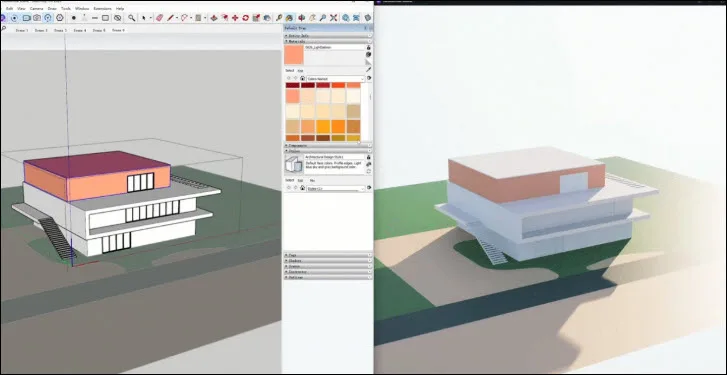
- D5 Render: Uses LiveSync for SketchUp, which allows you to link your SketchUp model to D5 and see changes in real time. For example, if you move a wall or add a sofa in SketchUp, it updates instantly in D5’s real-time rendered environment. The benefit here is speed — you can model in SketchUp while presenting live to a client in D5, adjusting materials, lighting, or even the time of day on the fly.
3. Ease of Learning
- V-Ray: Steeper learning curve. It takes time to understand settings like exposure, GI, and render passes, but once you learn it, you can fine-tune every detail.
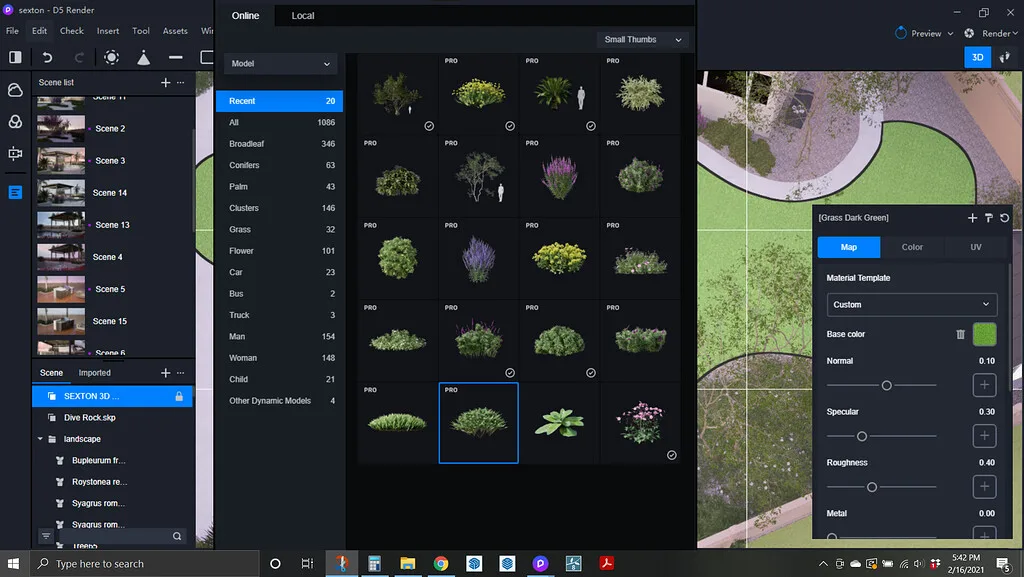
- D5 Render: Beginner-friendly. Drag-and-drop materials and real-time lighting make it easier for newcomers to create good results quickly.
4. Animations
- V-Ray: Can create high-quality animations, but it requires long render times and often Chaos Cloud credits to process efficiently. It’s powerful but not quick.
- D5 Render: Designed with simplicity in mind. Animations are as easy as setting a camera path and exporting — much faster, easier, and more affordable for walkthroughs and videos.
5. Hardware Requirements
- V-Ray: Can run on CPU or GPU, which means even mid-range machines can use it (though rendering will be slower). Chaos Cloud is a huge plus — you can offload heavy rendering tasks to the cloud and keep working without stressing your computer.
- D5 Render: GPU-only. You need a strong graphics card (NVIDIA RTX recommended). Without it, performance drops dramatically.
6. Platform Compatibility
- V-Ray: Works on both Windows and Mac.
- D5 Render: Windows-only. If you’re a Mac user, this is a dealbreaker.
7. AI Tools
- V-Ray: Limited AI features, mostly in denoising and Chaos Cloud optimizations.
- D5 Render: Packed with built-in AI tools:
- AI Atmospheric Match for realistic sky and environment matching
- AI Material Snap for faster and more accurate material placement
- AI Post Processing for quick image enhancements inside the program
- AI Atmospheric Match for realistic sky and environment matching
8. Pricing
- V-Ray: Around $540/year for the Solo license. It’s more expensive but considered the industry standard, especially for firms and pros who need reliability. (see details)
- D5 Render: Around $360/year. Lower cost upfront, but you may need to invest more in hardware. (see details)
Features Breakdown Table
Feature | V-Ray | D5 Render |
Rendering Style | Traditional (CPU & GPU rendering) | Real-time (GPU only) |
Ease of Learning | Steeper learning curve | Beginner-friendly |
Animations | Possible but time/resource heavy | Simple, fast, affordable |
Hardware Needs | Works on CPU or GPU; Chaos Cloud offloading available | Requires strong GPU (RTX card recommended) |
Platform Support | Windows + Mac | Windows only |
SketchUp Integration | Runs directly inside SketchUp | LiveSync for real-time updates |
AI Tools | Basic (denoising, Chaos Cloud optimizations) | Advanced (AI Atmospheric Match, AI Material Snap, AI Post Processing) |
Pricing | ~$540/year | ~$360/year |
Material Library | Chaos Cosmos library (large & pro-grade) | Built-in material & model library (easy drag-and-drop) |
Lighting Options | Full control: HDRI, IES lights, LightMix | Real-time lighting, IES, sun & sky, HDRI |
Cloud Rendering | Chaos Cloud (for rendering – major advantage) | D5 Cloud (for storage & collaboration, not for rendering) |
Best For | High-end control, precision rendering | Fast, interactive design presentations |
Which One Should You Choose?
It really depends on your workflow:
If you want maximum realism and control (and don’t mind a small learning curve), V-Ray is the safer choice. My 7-Day SketchUp Bootcamp for Landscaping, Pools & Patios uses V-Ray for its operating-system compatibility, ease of use (once I teach you what settings to change), and its Chaos Cloud rendering power. My FOCUSED SketchUp + AI for Interior Design and FOCUSED SketchUp + AI for Kitchens & Baths courses lean on AI rendering instead.
However, If you want speed, ease, built-in AI tools, and easy video making (animation) tools, and you work on a Windows PC with a strong NVIDIA graphics card, D5 Render is the better choice.
Frequently Asked Questions
Can I use both V-Ray and D5 Render together?
Yes, some designers model in SketchUp, render with V-Ray for final presentations, and use D5 Render for quick client previews or animations.
Do clients care which rendering engine I use?
Not usually. Clients care about the result. What matters is whether your visuals help them understand and fall in love with your design.
Which is faster—V-Ray or D5 Render?
D5 Render is faster for interactive previews and animations since it’s real-time. V-Ray is slower but produces slightly higher accuracy and detail in final renders.
Do I need a high-end PC for both?
For V-Ray, a mid-range machine is fine, though rendering will take longer. Chaos Cloud lets you offload work to avoid stressing your computer. For D5 Render, a strong GPU is essential.
Which one is better for interior design vs. landscape design?
Both can handle both tasks. V-Ray is often preferred for interiors (because of detailed lighting control), while D5 is popular for landscapes and walkthroughs (because real-time previews and AI tools speed up vegetation and atmosphere work).
I work on a Mac — do I have both options?
V-Ray works on Mac and Windows. D5 is Windows-only, so if you’re Mac-based, V-Ray is your only option between the two.
Tags