New 3D Library Extension
The free FOCUSED 3D Library Extension puts your own components and the whole FOCUSED 3D Library in one panel inside SketchUp. Search, click, and place, with rotation built in.

For years, my component workflow has run through a third-party extension, Component Finder by FlexTools. It's a good tool. I've recommended it to my students more times than I can count.
But it only knows about the files on your hard drive. It has no idea the FOCUSED 3D Library exists, so getting one of my cabinets or range hoods into a model always meant a trip outside SketchUp first.
That's over. The FOCUSED 3D Library Extension is live, it's my first released SketchUp extension, and it's free to download with a FOCUSED account. Here's the whole thing in 35 seconds:
Key Takeaways:
- Free to download: you need a free FOCUSED account, and the Local Library, the placement tool and every Free-tagged object cost nothing.
- Two libraries, one panel: flip between your own components (Local) and the FOCUSED 3D Library (Online) with one switch.
- Place and rotate in one motion: click a card, drop it, turn it into position with 15° and 45° snapping, or keep placing copies with Import Repeat.
- Your library grows from inside SketchUp: Add from model saves a selection straight into the folder you're browsing, thumbnail included.
- Membership unlocks everything Online: $47/month or $397/year imports every object in the library, including every new pack.
*Affiliate links may be used throughout this article. Read our Privacy Policy for more information.
Table of Contents
One Panel, Two Libraries
The extension is a panel that lives inside SketchUp. You can dock it to the side of the window or leave it floating, and it remembers where you put it.
The most important control is the Online / Local switch at the top. Everything below it changes when you flip it:
- Local is the components already on your computer. Point the panel at a folder and it gives you a searchable, visual browser over it.
- Online is the FOCUSED 3D Library: cabinets, appliances, doors, windows, lighting, curtains, range hoods and more, kept up to date by us.
Same search bar, same cards, same click to place, whichever side you're on.
Your Own Components, Finally Organized
Most designers I teach have components scattered everywhere. Download folders, desktop folders, old project files. The Local Library fixes that without moving a single file.
Open the account menu, choose Local Library folder…, and pick the folder where your components already live. The extension reads it as it sits on disk, builds the thumbnails, and turns every sub-folder into a folder tile you can click through. It doesn't move, rename or convert anything.
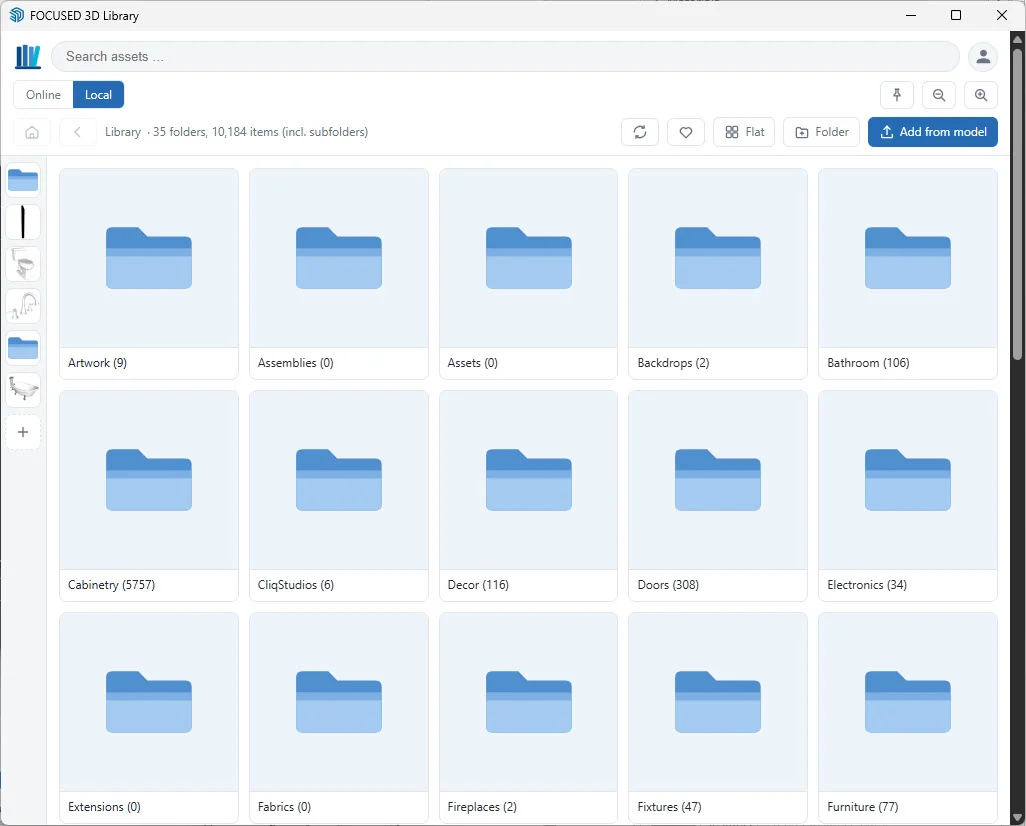
The Local Library is free on every plan, has no item limit, and keeps working offline. It also handles SketchUp .skm materials, which show up as swatches and load straight into your model as the active paint.
Add from model
This is the feature that actually makes a library grow. Select a component in your model, press Add from model, and the extension saves it into the folder you're looking at with a fresh thumbnail. No save dialog, no trip to Explorer.
Every time you build a cabinet you'll use again, add it before you move on. After a month you'll have a library of the things you actually use. Improve a piece later? Right-click its card and choose Overwrite with Selected Component to update the saved copy.
The FOCUSED 3D Library, One Click Away
Switch to Online and you're browsing the FOCUSED 3D Library: categories at the top, packs inside them, components inside those. The category dropdown jumps straight to a top-level category, and Flat shows everything inside a category in one grid when you know roughly what you want but not which pack it's in.
Or skip the browsing entirely. Search covers the whole Online Library from wherever you're standing, so you don't need to open a category first.
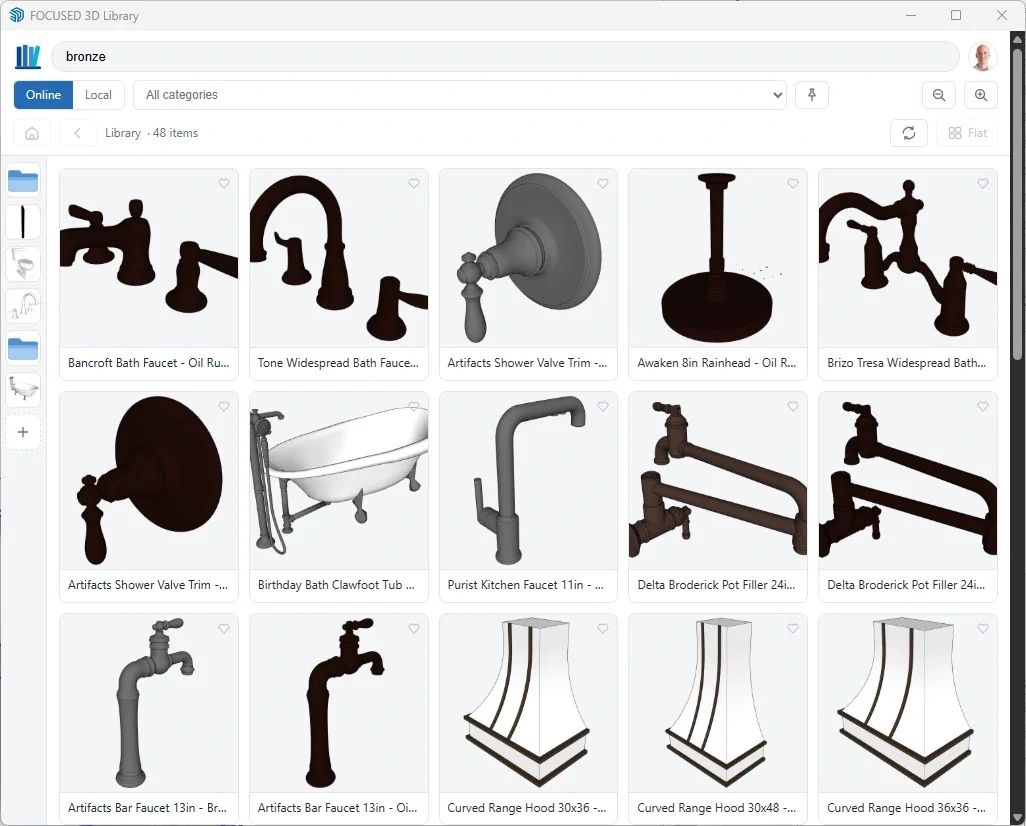
Everything you import from Online is also saved into your Local Library, so it's there next time, even offline.
What's free and what's members-only
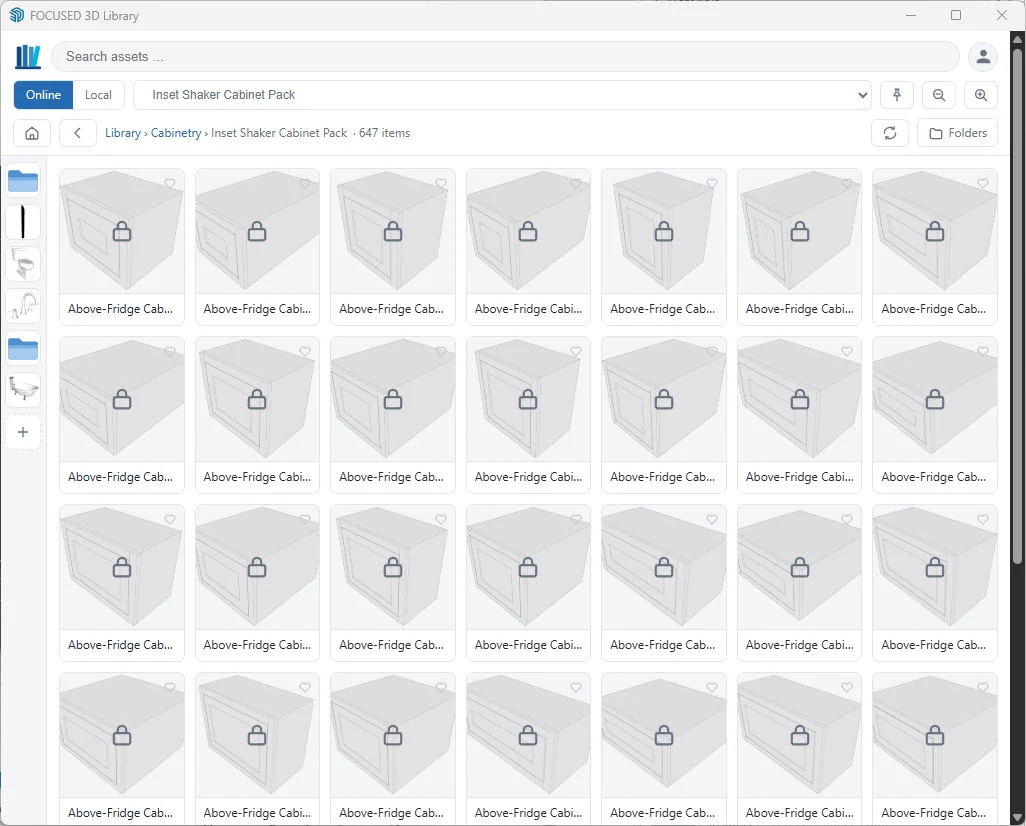
Browsing and searching the Online Library is free for everyone. Placing most of it needs a 3D Library membership, with one exception: anything marked Free can be placed by anyone. A component you can't place yet shows a padlock.
Place and Rotate in One Motion
Click any card and the component lands on your cursor, with SketchUp's usual inference and snapping. Click to drop it, then move the mouse to turn it into position. Rotation snaps softly at 15° and hard at 45°.
Need six chairs or a run of base cabinets? The second place button on the card, the one with the small plus, is Import Repeat. It keeps handing you the same component after every click, each copy keeping the same rotation, until you press Esc.
A few keys worth knowing while you place:
- Up / Down arrows switch the rotation axis.
- Left / Right arrows rotate 90°.
- R resets the rotation.
- Shift moves it to a new spot.
- Type an angle in the Measurements box for an exact rotation.
- Esc finishes placing.
Pins and Favorites
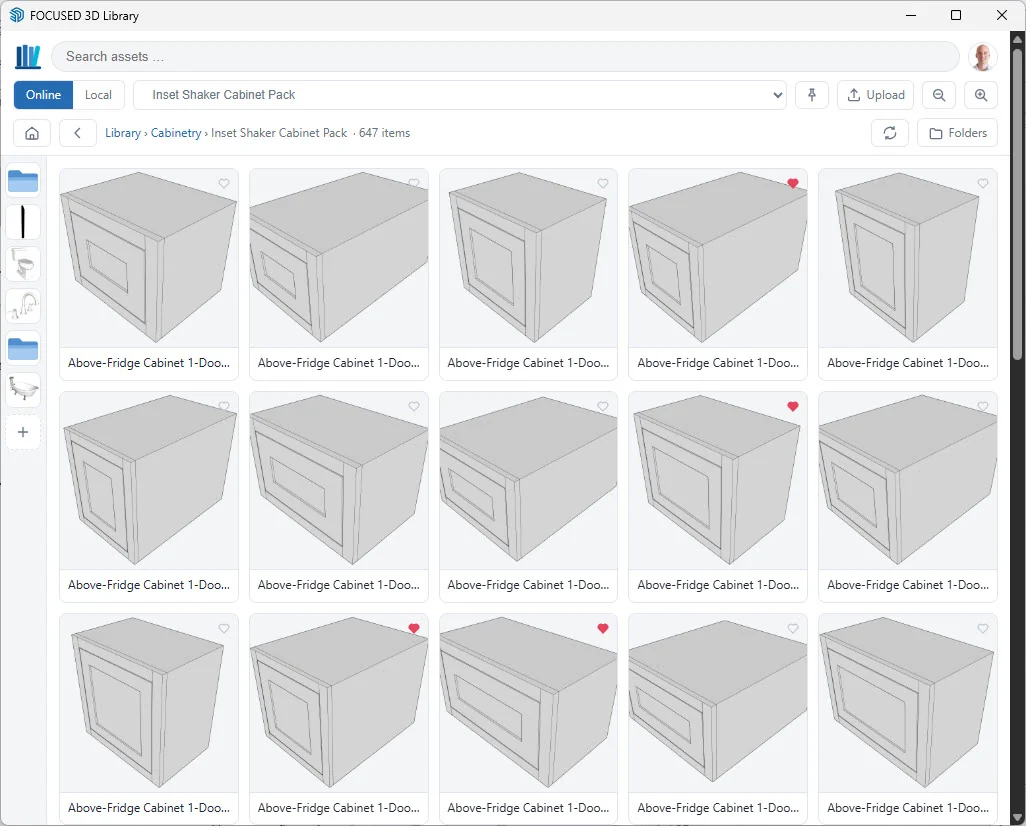
Most of us work out of a handful of folders. Pins put those folders one click away instead of four. Open a folder you use all the time, press the pin button, and it lands on the rail down the left side of the panel. Drag pins to reorder them. Local and Online each keep their own set.
A pin remembers a folder. A favorite remembers a single component. Click the heart on any card. Your Online favorites are saved to your account, so they follow you to your second computer.
Already Using Component Finder?
Then switching takes about a minute. Component Finder scans a folder of .skp files, and so does the Local Library. Point the FOCUSED 3D Library at the same folder and both show the same components. Nothing to import, nothing to convert, nothing to rebuild.
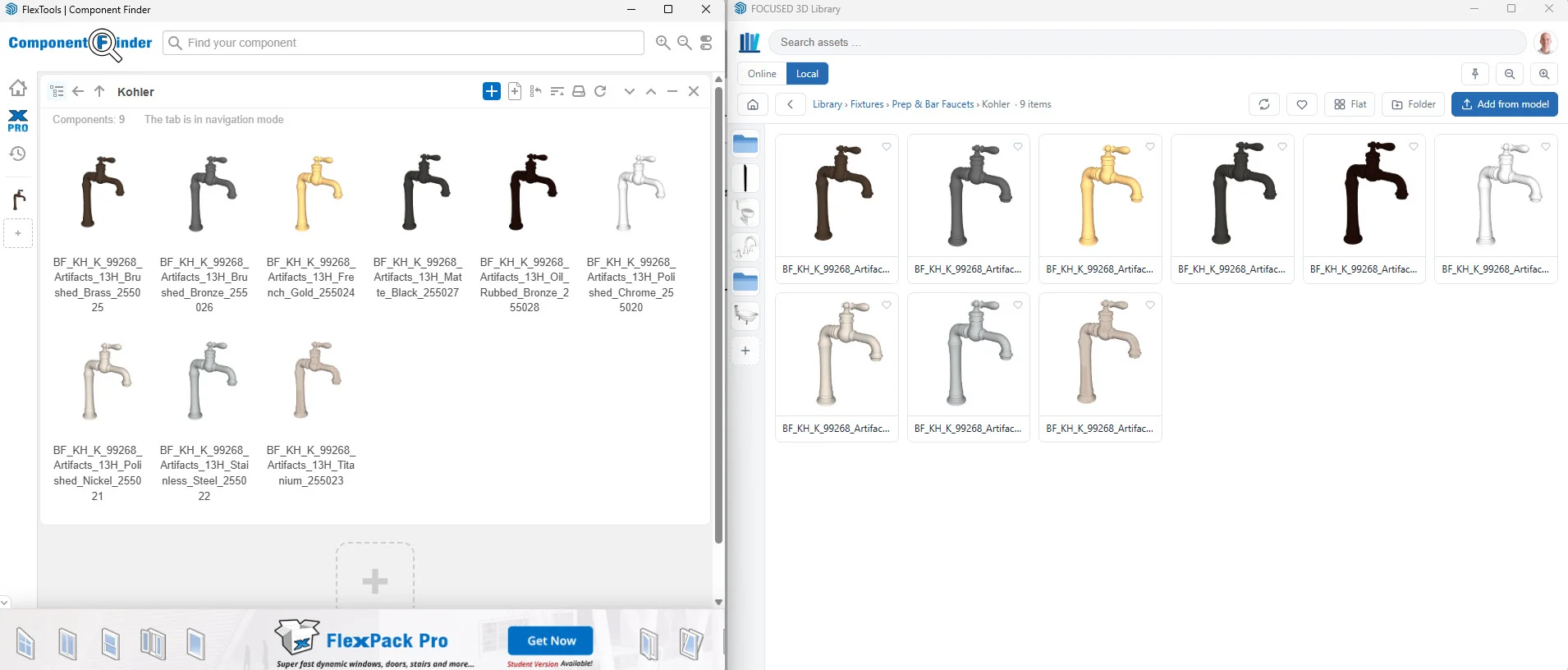
Both can stay installed while you decide. They read the same files and neither locks anything. Two honest notes: Component Finder's own favorites and tags don't carry over, and the 3D Library reads one folder at a time. If you scan several, put them inside one parent folder.
What you get on top is the part I couldn't get anywhere else: the whole FOCUSED 3D Library in the same panel, rotate-as-you-place, Import Repeat, and favorites that travel with your account.
Getting the Extension
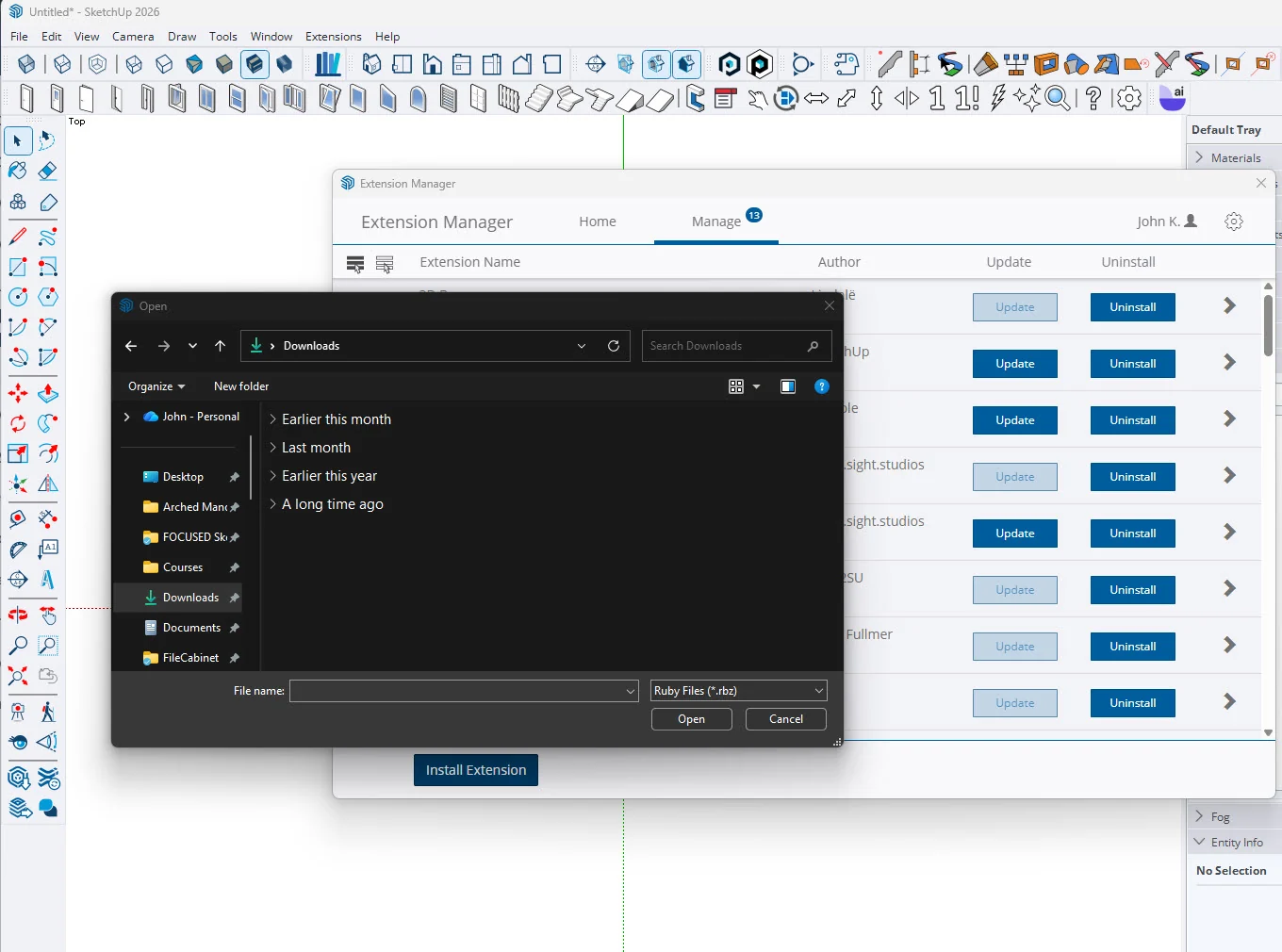
- Download the
.rbzfile from the FOCUSED 3D Library Extension page. You'll sign in with your FOCUSED account (a free one works). - In SketchUp, open Extensions → Extension Manager and press Install Extension.
- Pick the
.rbzfile, confirm when SketchUp asks, and restart SketchUp. - Click the FOCUSED button in your toolbar to open the panel, and sign in with the same email and password you use for your FOCUSED account.
Can't find the button? It's also under Extensions → FOCUSED 3D Library → Open Library. On a Mac, toolbars live under View → Tool Palettes.
Frequently Asked Questions
Is the FOCUSED 3D Library Extension free?
Yes. Download it and sign in with a free FOCUSED account. The Local Library, the placement tool and every Free-tagged object in the Online Library cost nothing. A 3D Library membership ($47/month or $397/year) unlocks every Online object.
Will it work with the components I already have?
Yes. Choose the folder where your components live and the Local Library indexes it with thumbnails, folders and favorites. Your files are never moved, renamed or converted, and there's no item limit.
Does it work on a Mac?
Yes, it runs on SketchUp for Windows and Mac. On a Mac, the toolbar button lives under View → Tool Palettes.
How many computers can I use it on?
Two at a time per account, usually a desktop and a laptop. You can deactivate a computer from the Devices page whenever you switch machines, and the slot frees up immediately.
Does it work offline?
Your Local Library works offline, and your sign-in stays valid for 7 days without a connection. Browsing and importing from the Online Library needs the internet, but anything you've already imported is saved in your Local Library.
Can I keep using Component Finder?
Yes. Point both at the same folder and they show the same components. Neither locks your files, so you can run both while you decide.
I've wanted this panel since the day I started building the library. Everything you own and everything we've built, in one place, inside SketchUp, one click away. Download it, point it at your components, and see how much faster your next model goes.
Tags