


5 Expert Tips for Learning SketchUp Quickly (Even If You’re Not Techy)

When I first opened SketchUp as an interior designer, I had no idea what I was doing. The interface felt foreign, the tools didn’t make sense, and I honestly wondered if it was worth the hassle. But fast-forward to today—SketchUp is one of the most valuable tools in my design business. It’s helped me land higher-paying clients, close projects faster, and deliver visuals that stop clients in their tracks.
If you’re new to SketchUp or you’ve tried it before and bounced off it, I want to help you skip the overwhelm. In this post, I’ll break down how to get started with SketchUp quickly and efficiently—without feeling like you’re learning a whole new language.
This guide is tailored for interior designers who want to level up their visuals and build a streamlined 3D modeling workflow that actually supports their business—not just their creativity.
Key Takeaways:
- SketchUp is powerful—but only if you learn it the right way. Random tutorials on YouTube rarely work for professionals.
- You don’t need a technical background to get started. With the right setup and training, SketchUp becomes intuitive.
- Interior designers using SketchUp are closing more projects, charging higher fees, and building serious client confidence.
- Photorealistic rendering and professional presentations can be layered on top of your SketchUp workflow.
Table of Contents
*Affiliate links may be used throughout this article. Read our Privacy Policy for more information.
Step 1: Choose the Right Version of SketchUp
There are a few versions out there, and you’ll want SketchUp Pro or SketchUp Studio, depending on your rendering goals. Avoid SketchUp Free or the web-based version—they’re limited and not suitable for professional interior design work.

PRO TIP: Use the desktop version of SketchUp. It’s faster, more powerful, and works seamlessly with extensions and rendering tools.
Step 2: Set Up SketchUp Properly (This Part Matters)
This is where most people go wrong. They install SketchUp, start clicking around, and immediately feel lost. That’s because they skipped setup.
Here’s what to do:
- Install SketchUp on your main design machine
- Configure your workspace with your preferred units, templates, and toolbars
- Create custom keyboard shortcuts to speed up modeling
- Use a 3-button mouse (left click, right click, and scroll wheel). This may seem like a small thing, but it’s essential. SketchUp is built for a scroll-wheel mouse—without it, you’ll struggle with navigation.
Setup only takes 20–30 minutes, but it sets the stage for a smooth, frustration-free experience.
Step 3: Add Extensions That Make SketchUp Easier and Faster
One of the best-kept secrets in SketchUp is the Extension Warehouse. Extensions are add-ons that automate complex tasks, reduce repetitive clicks, and give you tools that aren’t built into SketchUp by default.
With the right extensions, you can:
- Quickly draw baseboards, crown molding, and trim
- Build cabinet runs in seconds
- Create custom profiles for rails, picture frames, and paneling
- Speed up terrain modeling or curved walls
These tools save hours. But here’s the catch: not all extensions are worth your time, and some are downright confusing to install.
In my Bootcamps, I give you the exact extensions I use in my own design work—plus video walkthroughs showing you how to install and use each one. You don’t have to figure it out alone or wonder if you’re using the right tools.

Get My SketchUp Cheat Sheet!
A 2-sided PDF that you can print and reference as you learn and use SketchUp!
Step 4: Learn the Tools That Matter for Interior Design
SketchUp has dozens of tools—but as a designer, you only need a core set to do amazing work.
Here’s what I teach in the first two days of my Bootcamp:
- Select, Move, Push/Pull, Offset, Rotate, Scale
- Groups and Components to keep your model organized and editable
- Tags and Outliner to separate layers of the design
- The 3D Warehouse for bringing in pre-made furniture, fixtures, and lighting
- Applying materials like fabrics, wood grains, tile, and paint
You don’t need to learn everything—you just need to learn the right things in the right order.
Step 5: Model a Real Room—Not Just a Cube
If you’ve ever watched a SketchUp tutorial that teaches you how to model a box or a random object, you know how unhelpful it is when your goal is to build a real room.
In my 7-Day SketchUp Bootcamp for Interior Design, you’ll model a primary bedroom from start to finish. This isn’t a demo project—it’s a real-world space with real-world challenges.
You’ll learn how to:
- Start from dimensions or a floor plan (PDF or DWG)
- Build accurate walls, doors, windows, and trim
- Add beds, nightstands, lighting, artwork, rugs, and more
- Organize your file so it stays clean and professional
By the end, you’ll have a portfolio-worthy room you actually built yourself—from scratch.
Learn to Create These Renders in 7 Days
My 7-Day SketchUp Bootcamp for Interior Design will take you step-by-step from installing and configuring SketchUp, all the way to using V-Ray to create the photorealistic images you see below…all in 7 days!


Bonus Step 6: Render Your Design Using a Rendering Engine
SketchUp creates the structure, but if you want it to look real, you’ll need to render it.
Rendering software simulates natural light, material textures, reflections, and shadows. It’s what takes your flat model and turns it into something that looks like a photograph.
Some popular rendering tools include:
- V-Ray (my top pick for quality and control)
- Enscape (fast and real-time rendering)
- D5 Render (great for ease of use)
In my Bootcamps, I walk you through rendering with V-Ray step-by-step. You’ll learn how to light a room, apply realistic materials, and output professional-grade visuals your clients will love.
Bonus Step 7: Create a Presentation Packet for Clients
Once your model is complete—and optionally rendered—you’ll want to create a professional presentation.
That’s where LayOut comes in. It’s SketchUp’s 2D presentation companion, and it allows you to create:
- Floor plans, elevations, and dimensions
- Labeled renderings and product notes
- Custom templates and branded presentation packets
Instead of sending JPGs or Word docs, you send a beautiful PDF that sells your vision. Clients love it, and it instantly raises your perceived professionalism.
Learn to Create 🔥 Documentation
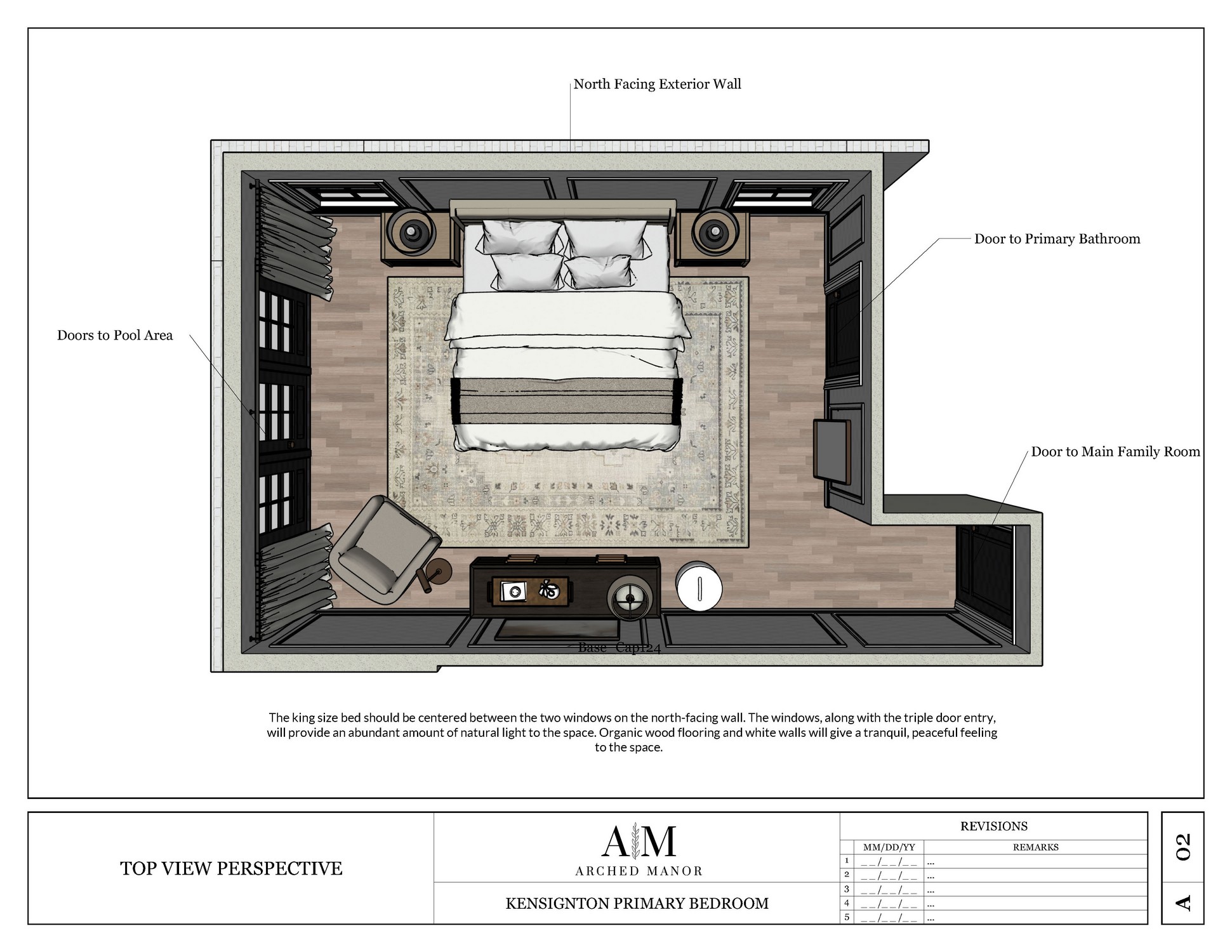
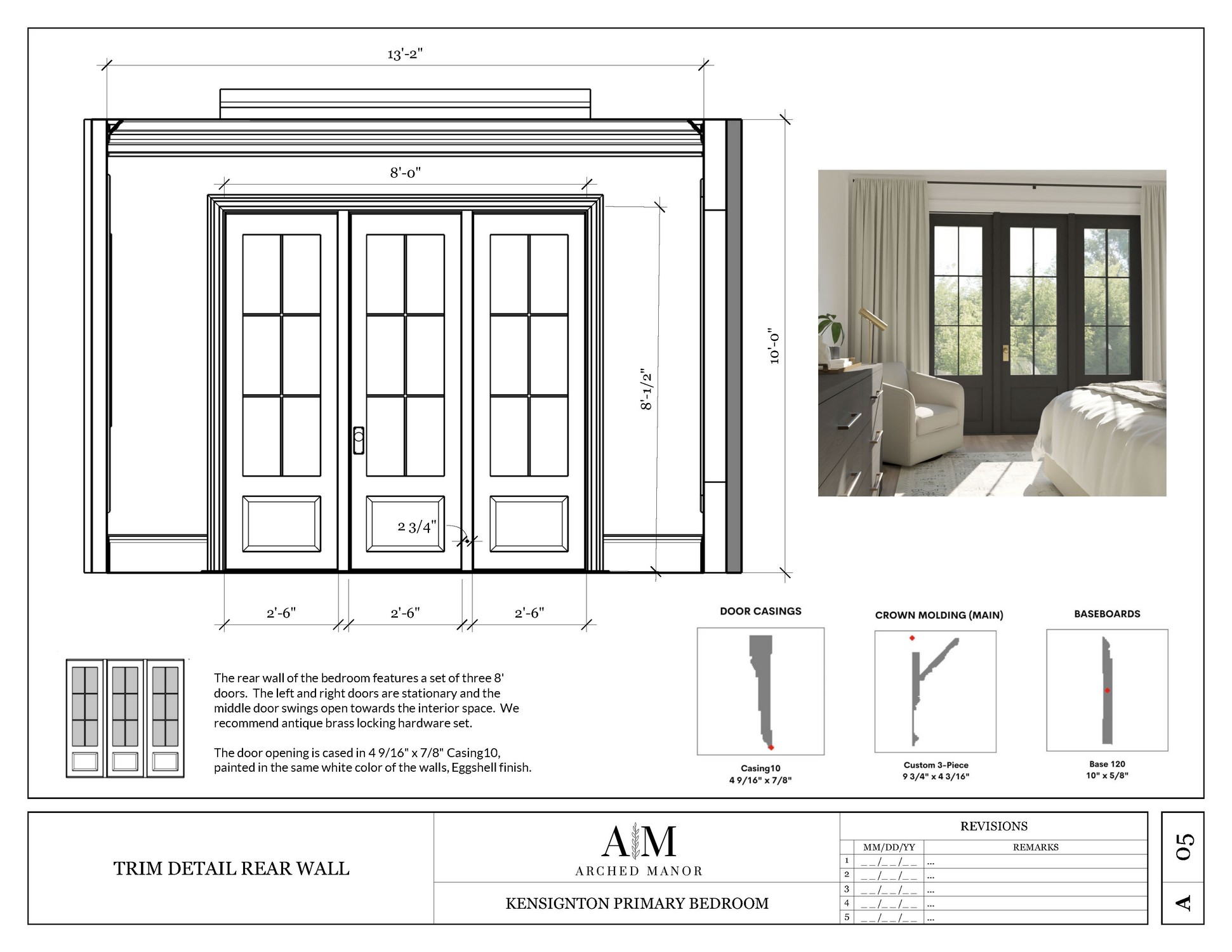
My 7-Day SketchUp Bootcamp for Interior Design not only teaches how to create photorealistic renders, but also how to create amazing documentation using LayOut…all in 7 days!






Want Help Doing All of This, Fast?
If you’re serious about using SketchUp in your design business—but don’t want to spend weeks fumbling through tutorials—I’d love for you to join my 7-Day SketchUp Bootcamp for Interior Designers.
We go step-by-step from setup to full-room model, and then on to rendering and presentation (if you want to go that far). It’s fast, focused, and designed specifically for interior designers.
You’ll get:
- A full primary bedroom project to build and render
- My favorite extension list with guided install videos
- Printable SketchUp cheat sheets
- Access to private coaching and community support
- 14-day money-back guarantee

Ready to Learn SketchUp?
Check out my SketchUp & V-Ray courses to find the right one for your skillset and your design specialty. Online, self-paced, and lifetime access!
Frequently Asked Questions
You’ll need at least 16GB RAM and a dedicated graphics card (NVIDIA or AMD). Avoid machines with only integrated graphics like Intel Iris.
Not at all. My Bootcamps are designed for beginners, especially interior designers who don’t consider themselves “techy.”
Most of my students feel confident within 7 days, especially if they follow my training structure of 2–3 hours per day.
Extensions are optional—but they make SketchUp faster, easier, and more powerful. In my Bootcamps, I show you exactly which ones to use and how to install them. No guessing, no wasted time.
SketchUp builds the model. Rendering software (like V-Ray or Enscape) makes it photorealistic with light, shadows, and textures. You don’t need rendering to start, but it’s a powerful next step.
You’re covered by a 14-day money-back guarantee. If you’re not happy for any reason, just email me and I’ll refund you 100%.
Tags