
FOCUSED Tools · Sizing
Scale to an Exact Size and Stretch Without Distortion
Type the size you want instead of a scale factor. Stretch a cabinet from 18" to 30" and the doors, handles and trim keep their size.
Part of FOCUSED Tools · Free 7-day trial
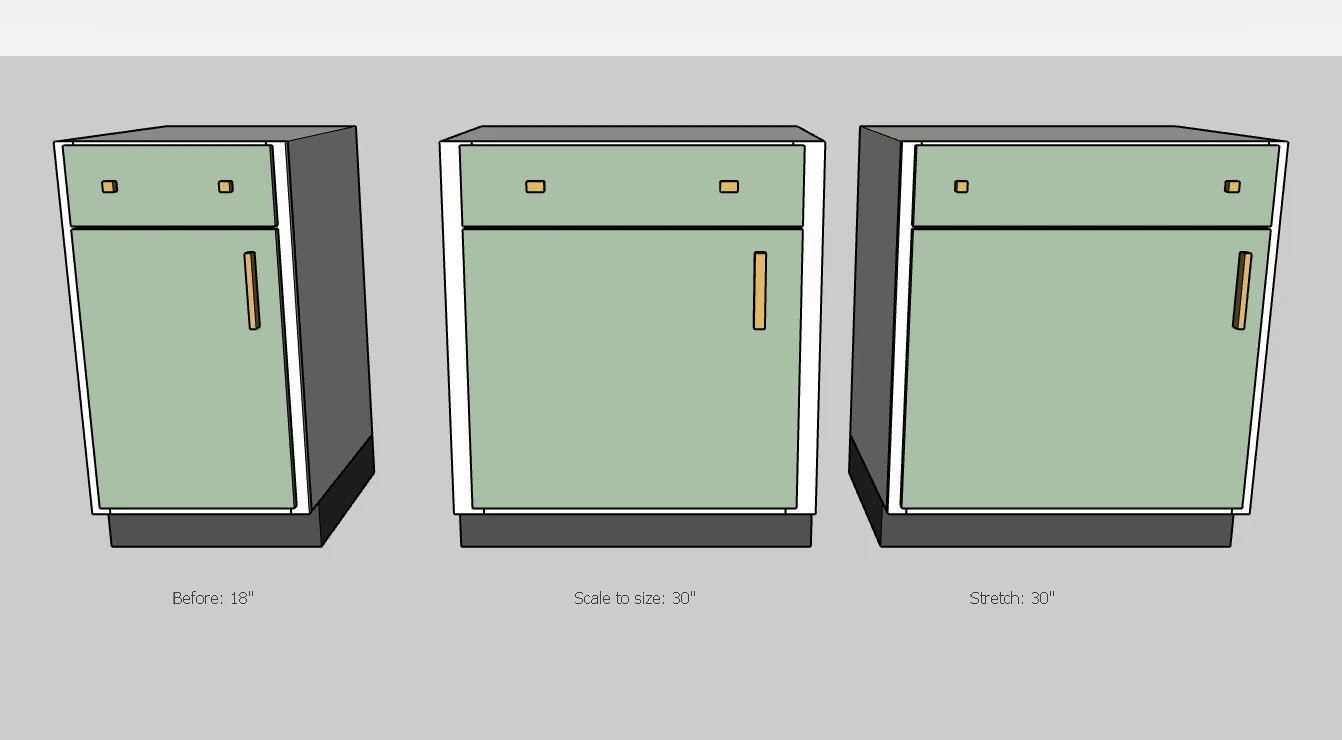
Scale vs. Stretch
See the Difference
Scaling makes everything bigger, including the parts that should not change. Stretch only lengthens what crosses the cut, so a wider cabinet still has 1-1/2" stiles and the same hardware.
Scale to Size
Type the Length, Not the Math
Click a grip, drag, and type the final length: 36, 3', 90cm. Or a factor like 1.5x.
- The opposite face stays put, so it stays against the wall.
- Ctrl scales about the center; Shift keeps proportions.
- Groups and components scale in their own axes.
Stretch
Wider Cabinets, Same Hardware
Point at a grip to choose width, depth or height, and the cut goes through the middle. Click the object to move it. Both halves move out equally, or Ctrl moves just one side.
Why It's Better
Resizing the Way Designers Think
| FOCUSED Tools | SketchUp's Scale | |
|---|---|---|
| Type the final length | ✓ | Type a factor |
| Mix units: inches, feet, centimeters | ✓ | — |
| Stretch without distorting hardware and trim | ✓ | — |
| Choose where the stretch happens | ✓ | — |
| Rotated groups scale in their own axes | ✓ | ✓ |
FAQ
Questions, Answered
How is it different from SketchUp's Scale tool?
Can I scale about the center or keep proportions?
Does it work on groups and components?
Download & Pricing
Coming Soon in FOCUSED Tools
Scale to size and Stretch come with FOCUSED Tools, together with Profiles, Bevel, curved Push/Pull and Offset, Drop, Move, Curve to Surface and the Scene Manager.
Free 7-day trial · Included with FOCUSED Pro