
SketchUp Extension + Online Portal
Consistent AI Renders of Your SketchUp Designs, Scene After Scene
Most AI renderers reinvent your room every time you render. FOCUSED AI Rendering keeps the same materials, products and look in every scene, because they are assigned to the objects in your SketchUp model. Then manage the project, create new views and share it with your client on the web.
Free trial when it opens
What It Is
One Tool for the Render and Everything After It
Most render tools stop at one picture. FOCUSED AI Rendering renders the whole project consistently, then keeps going: the project, the variations, the client presentation and the feedback.
In SketchUp
The extension
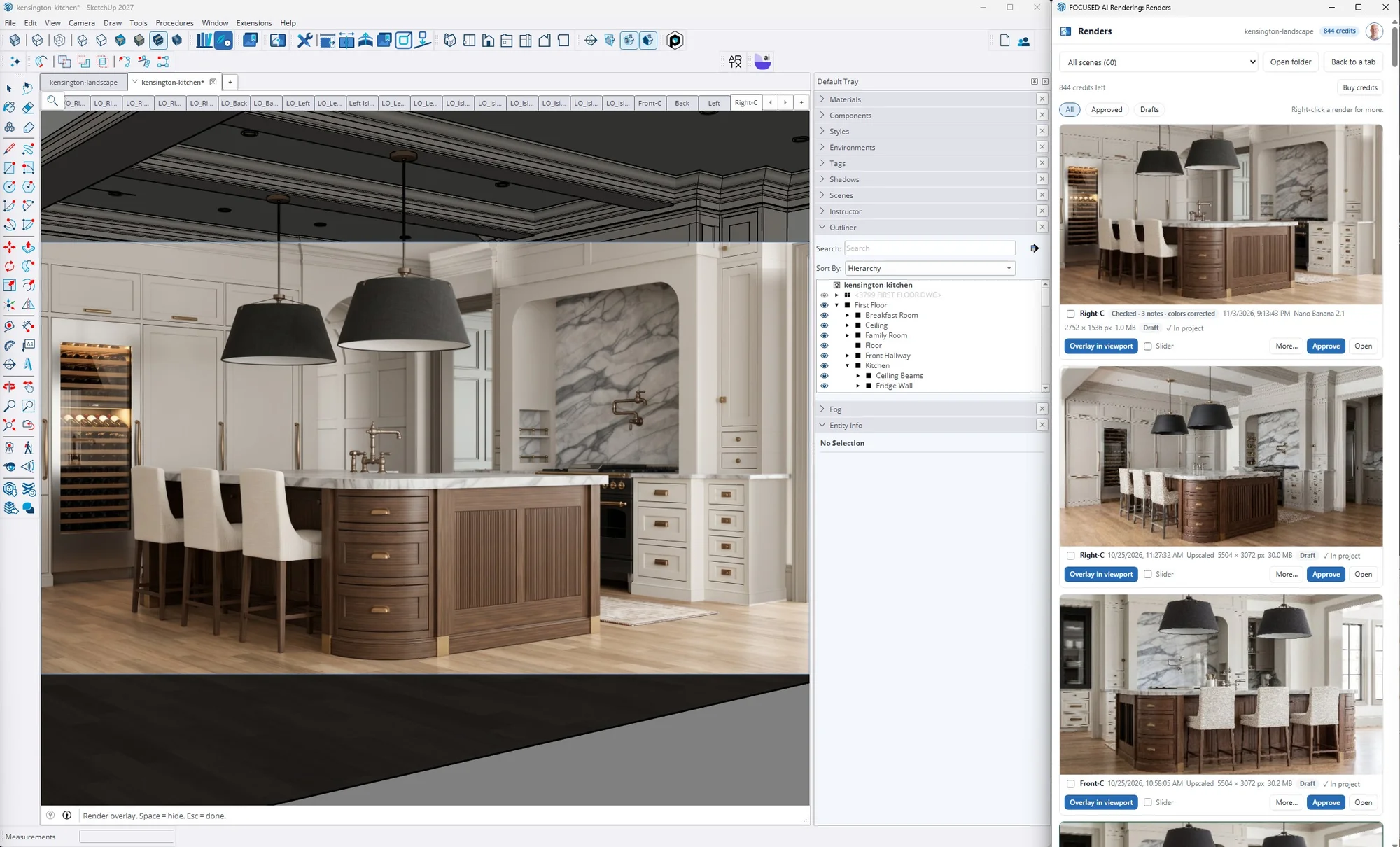
Pick a scene and render it photoreal without leaving SketchUp. Your real products, finishes and paint colors, for interiors and exteriors.
On the web
Your project portal
Every render lands in its project automatically. Organize by level, space and design option, make new camera angles, and keep paints, files and clients together.
For your clients
A page for each project
Send clients their own page with your logo: the approved renders, videos and design documents, with comments, approvals and downloads.
The Rendering Engine
Consistent Renders, Scene After Scene
A client presentation is a set of renders of one design. Every view has to show the same room. That is exactly where AI rendering has always fallen apart, and where FOCUSED AI Rendering was built to win.
The problem
AI forgets your design between renders
A typical AI renderer starts from scratch every time: a screenshot and a sentence of text. It has no idea what the walnut, the marble or the sofa were in the last render, so it guesses again. It was the biggest problem with AI rendering from day one, and with most tools it still is.
- ✕The island is walnut in one view and oak in the next.
- ✕The marble veining, the tile and the paint color drift from scene to scene.
- ✕The pendant you specified becomes a different light; the sofa changes shape.
- ✕Windows, moldings and furniture appear that you never drew.
- ✕You re-roll until it looks close, and the client still asks why the kitchen changed.
The FOCUSED solution
Your design lives in the model, so every scene gets it
In FOCUSED AI Rendering you assign the design to SketchUp itself, once, and every render reads it from there:
- ✓Materials: a photo of the real walnut, marble or tile is attached to the SketchUp material, so every surface painted with it renders the same finish, in every view.
- ✓Products: the photo of the actual pendant, faucet or stool is attached to its component, so that exact product appears wherever the component does.
- ✓Paint colors: brand, name, color code and sheen, per material.
- ✓One look: pick one finished render (or any photo) as the look, and every scene matches its lighting and color grading.
- ✓Design options: each option keeps its own set of finishes, so "Light and bright" and "Dark and moody" never mix.
The FOCUSED AI Rendering Framework
Every Render Is Built From the Same Blocks
A render is not a screenshot and a hopeful sentence. For every scene, the extension assembles the same structured request, in the same order, from what you assigned in the model. The AI gets the same instructions and the same references every time, so it gives the same answer every time.
This is my FOCUSED AI Rendering framework and its prompt block structure, built into the software: you do the design, it writes the prompt.
- Image 1 The SketchUp viewA clean export of the scene: the geometric truth. Walls, openings, cabinets and furniture stay exactly where and how big you drew them.
- Image 2 The material mapThe same view with each finish painted a flat color, and a key naming every one, so the AI knows which surface is which finish.
- Image 3 Product calloutsNumbered markers on the products in view, matched to their photos.
- Boards Your real materials and productsThe photos you assigned, laid out as swatch boards: the actual grain, veining, weave and products to copy.
- Look One photographic lookThe render or photo every scene matches for light, exposure and color grading.
- Rules Guard railsPrompt blocks that keep the room honest: add no windows or fixtures, copy each pattern exactly, keep plants and paving as drawn, light it for the time, weather and season.
The SketchUp Extension
Render Without Leaving SketchUp
Pick a scene, click render. No exporting, no second program, no render engine to learn. The render opens over your model so you can compare the two.
- Your model stays the boss: walls, windows, cabinets and furniture stay where you drew them, at their real sizes.
- Give it photos of the actual sofa, tile, fabric or fixture you specified, and it renders those.
- Paint colors by brand and code, and the sheen per material: flat walls, semi-gloss trim.
- Time of day, weather and season for every scene; outdoors, shadows follow the sun for the time you choose.
- Design options ("Light and bright", "Dark and moody") rendered from the same model.
- Upscale the render you love for print, turn it into a short video, or fix one object that came out wrong.
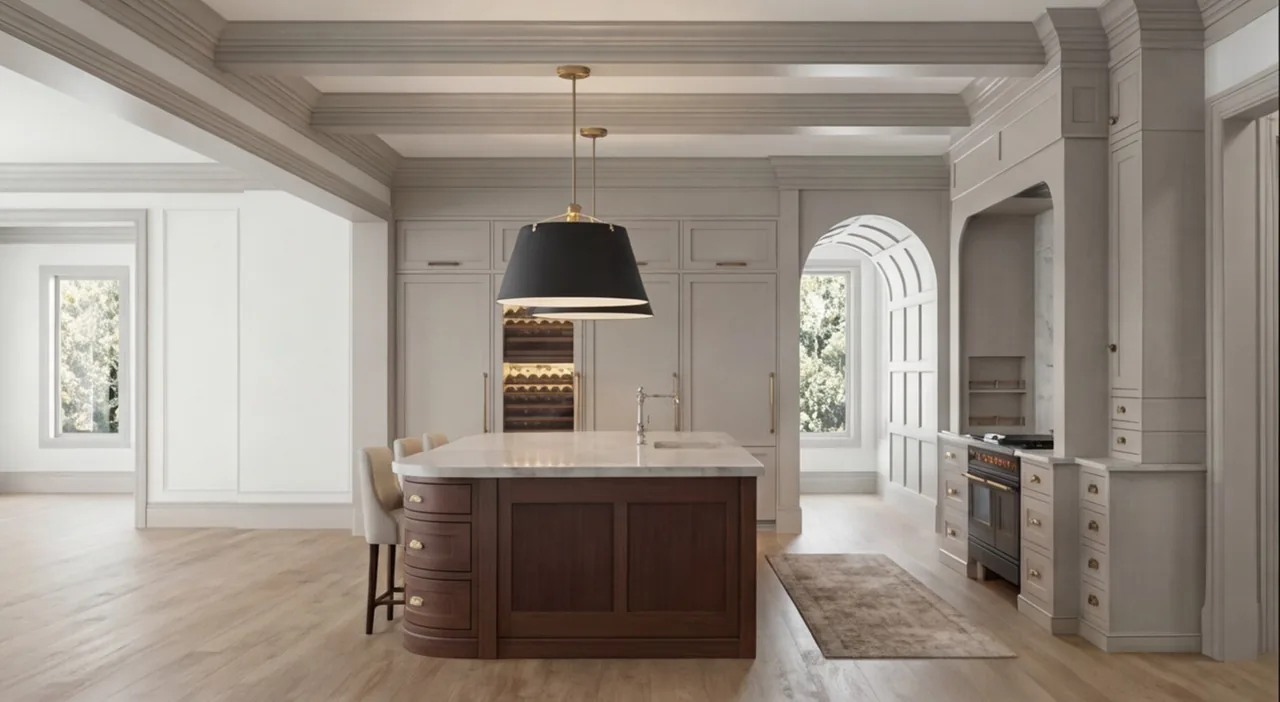
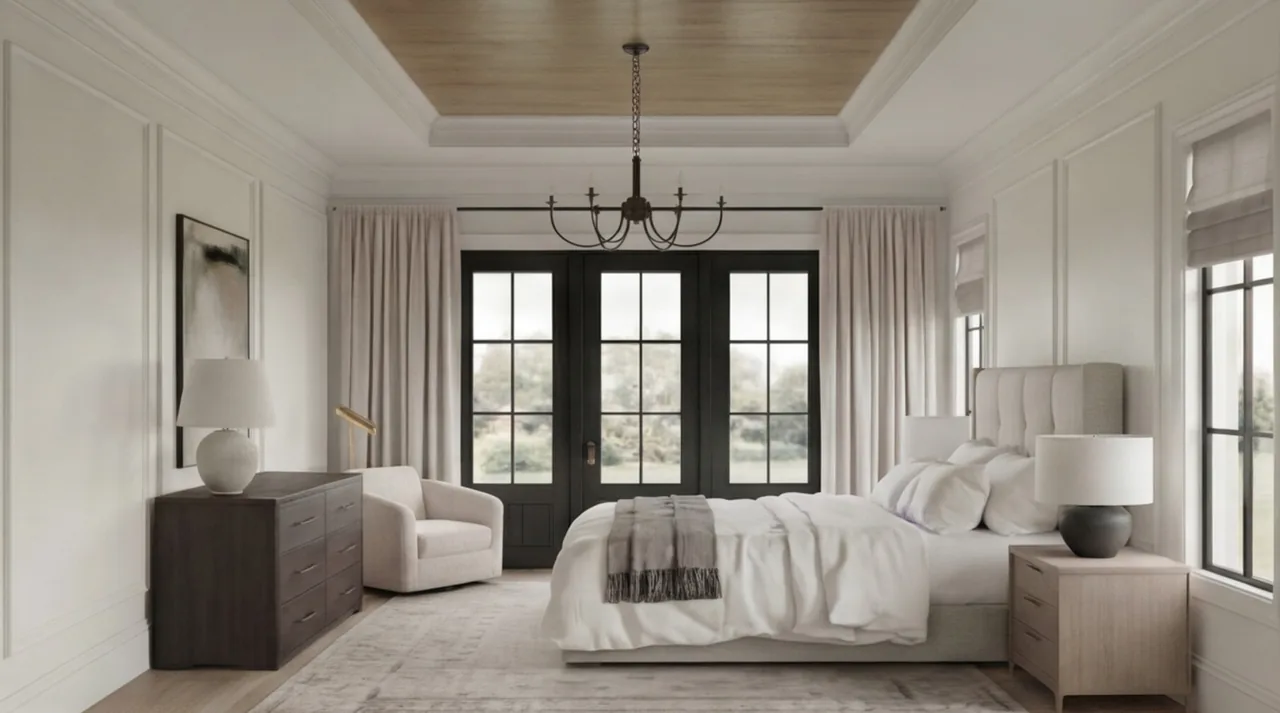
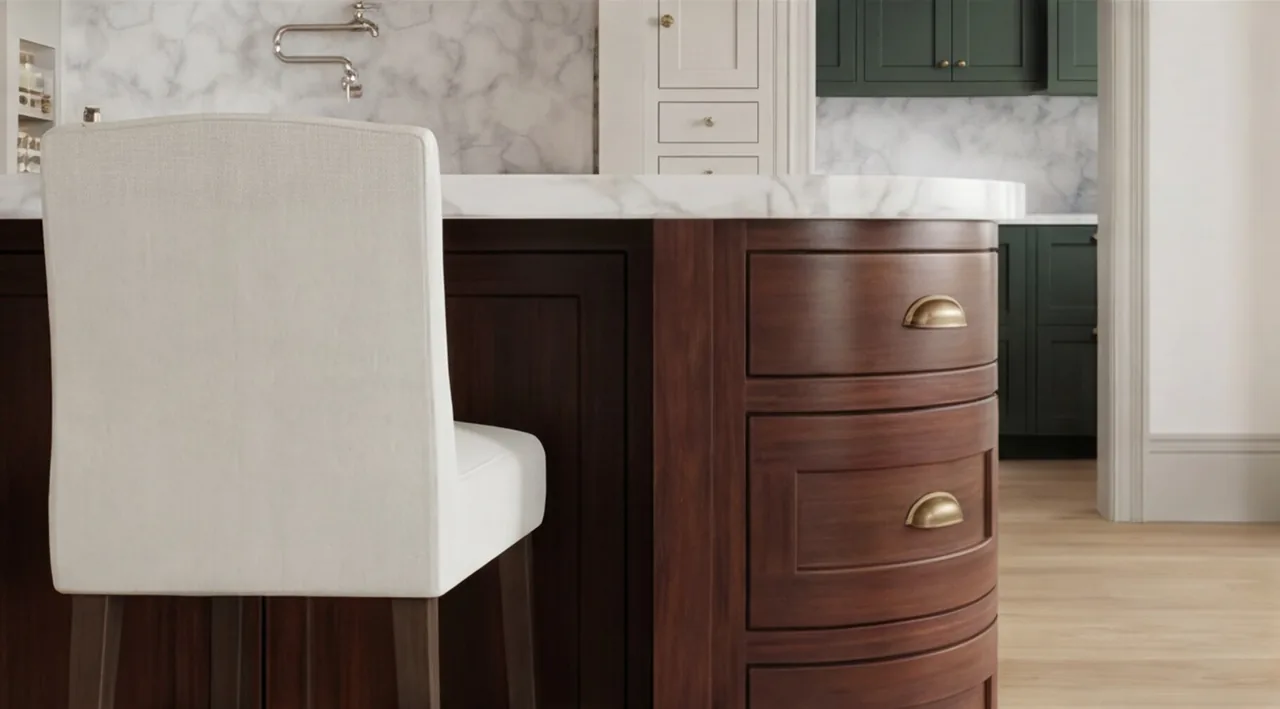
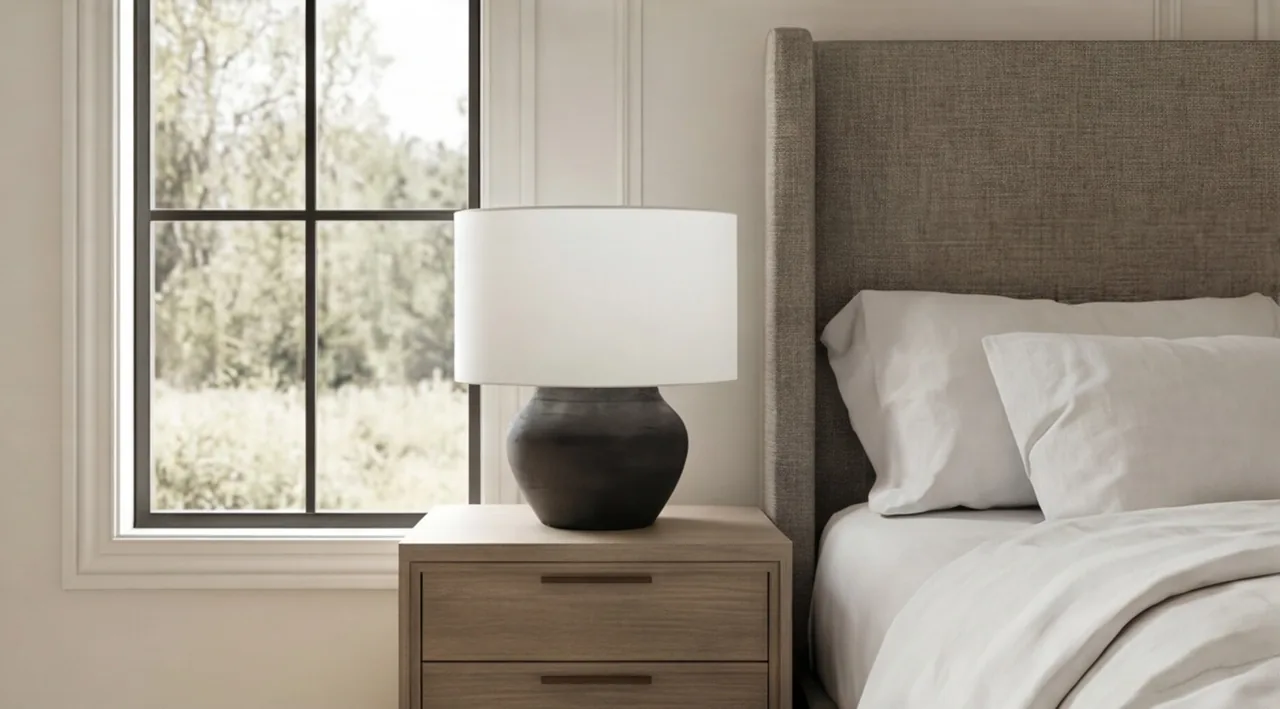
Rendered From SketchUp Models
The Online Portal
Manage Every Project on the Web
Your projects live at projects.focusedsketchup.com. Link a SketchUp model once and everything you render files itself in the right place.
Every render, filed
Renders upload to their project as drafts. Approve the ones the client should see, from the web or from SketchUp: approvals sync both ways.
Levels and spaces
File renders, plans and photos under Basement, First floor, Kitchen, Home theater. One room or fifty, it stays tidy.
Design options
Keep each look of a project apart. The client sees a tab per option and approves each one.
Paint colors
A paint list per project with brand, name, code and color, picked with an eyedropper.
Files and documents
Plans, elevations, PDFs, spreadsheets and Word files beside the renders. Paste a screenshot straight into a project.
Clients and teams
Your clients in one list, each with their own link. Studios share projects, clients and paints with their team.
Variations From the Website
New Camera Angles of the Same Design
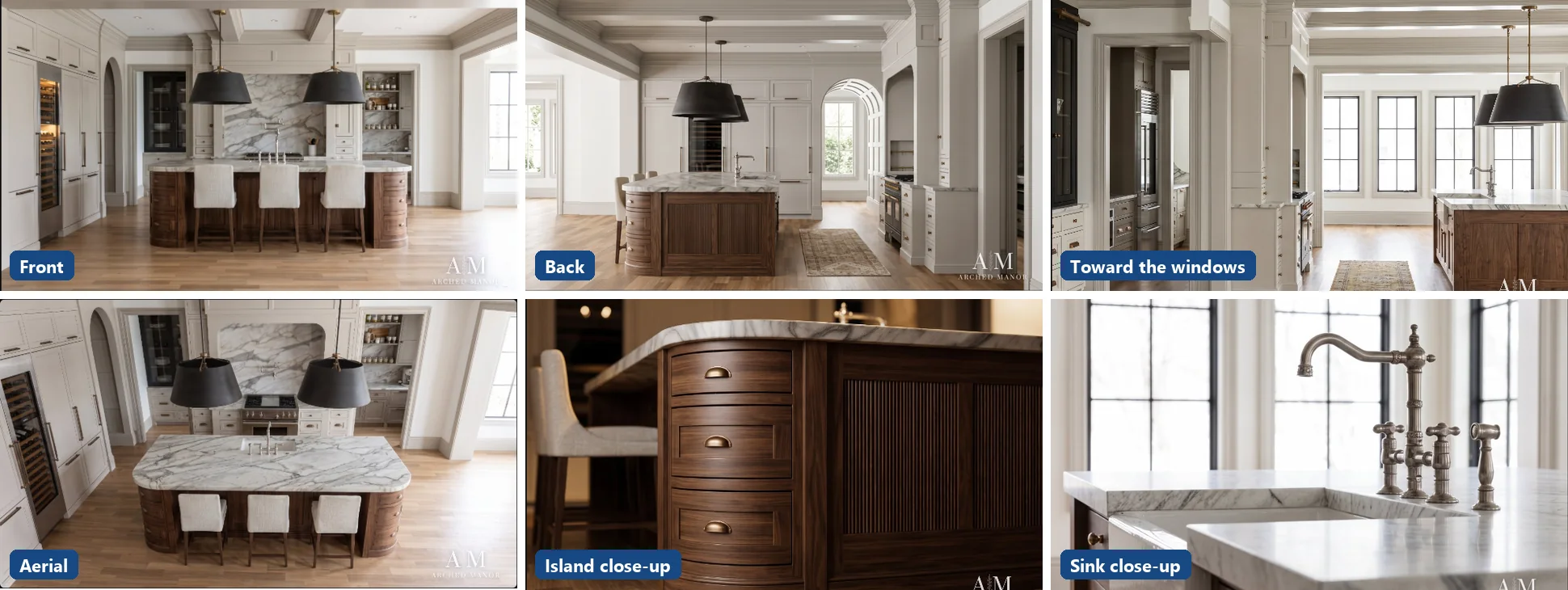
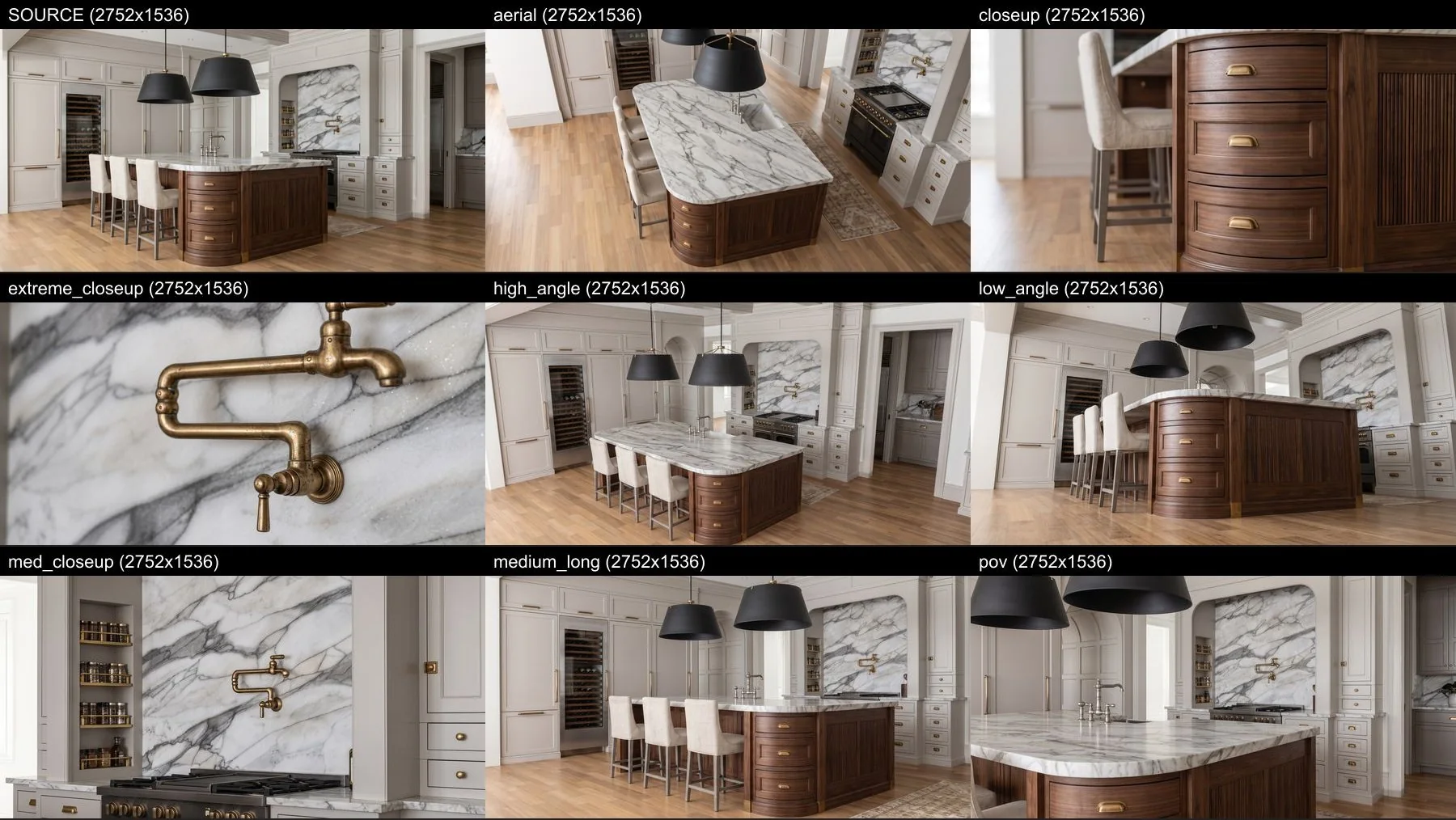
On the website, tick the renders you like and choose Create variations. Pick the shots you want, and the times of day, weather and seasons, and they render side by side.
- Real camera moves, not crops: a true aerial, a close-up of the island, a low angle.
- Every object stays the same: the same cabinets, the same count of stools, the same finishes.
- Only your approved renders of the same design option guide the new ones, so a "Dark and moody" option never leaks into "Light and bright".
- Interiors and exteriors: street, corner, drone and twilight shots for the outside of a house.
Your Client's Website
Send Your Client a Page of Their Renders
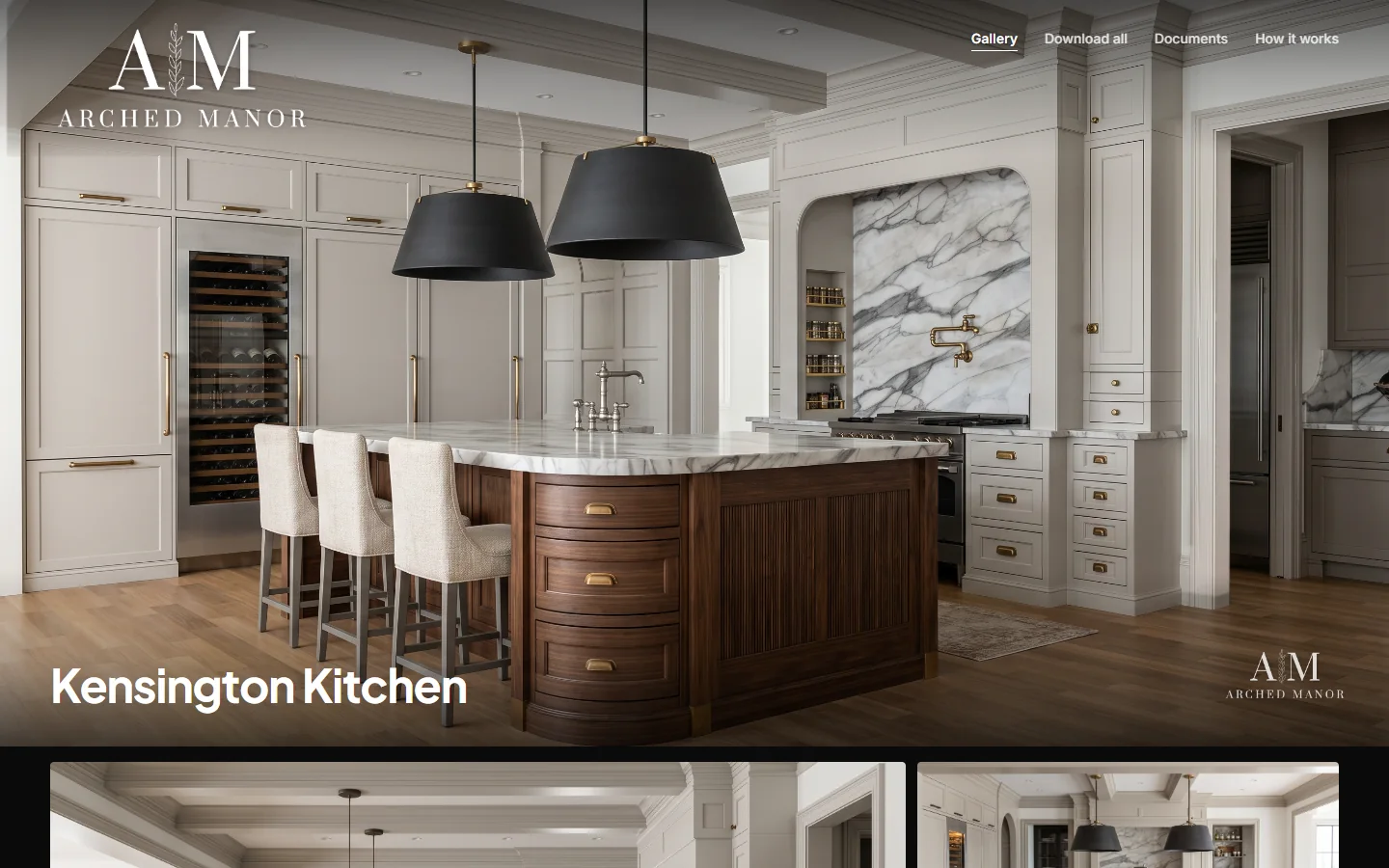
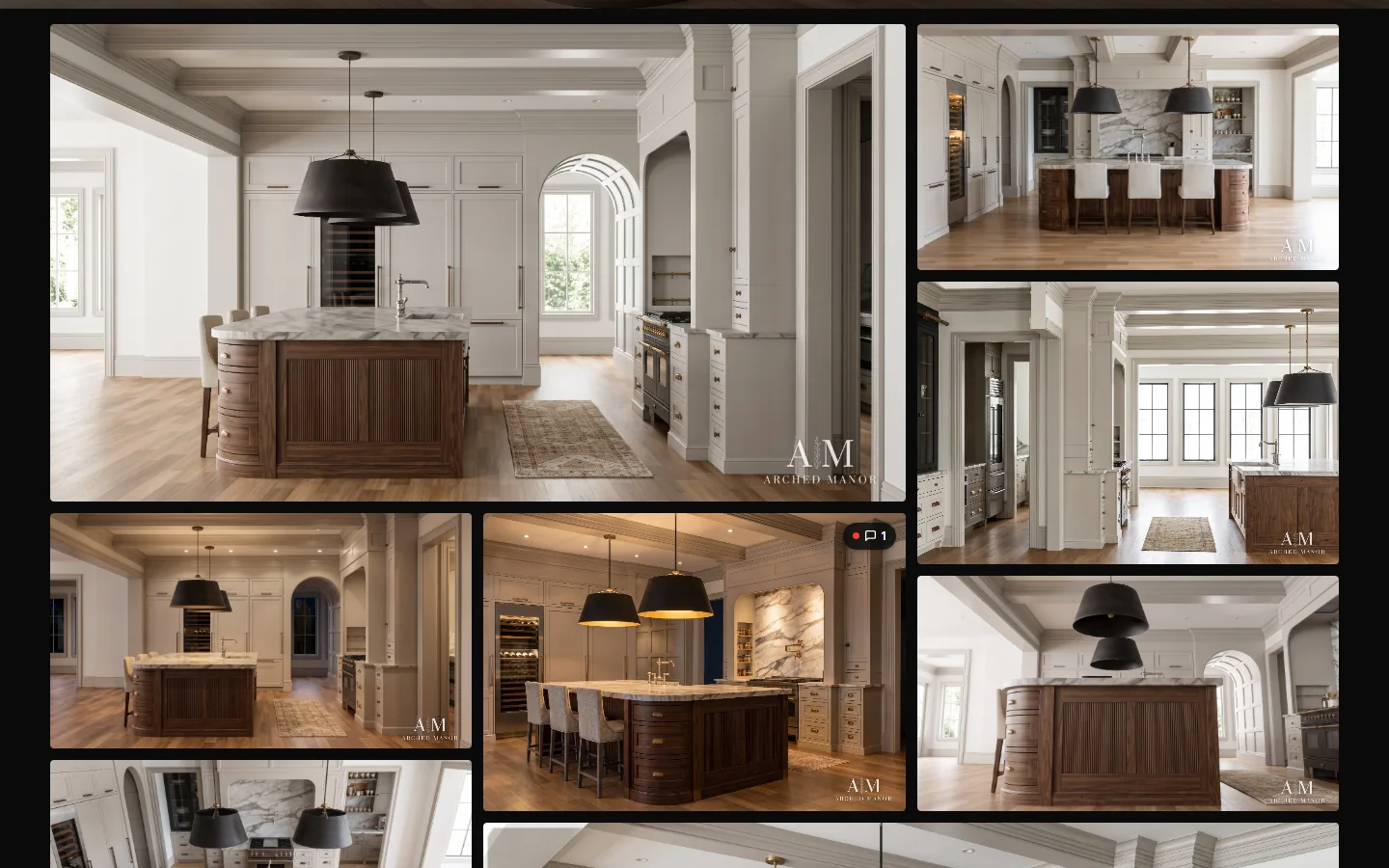
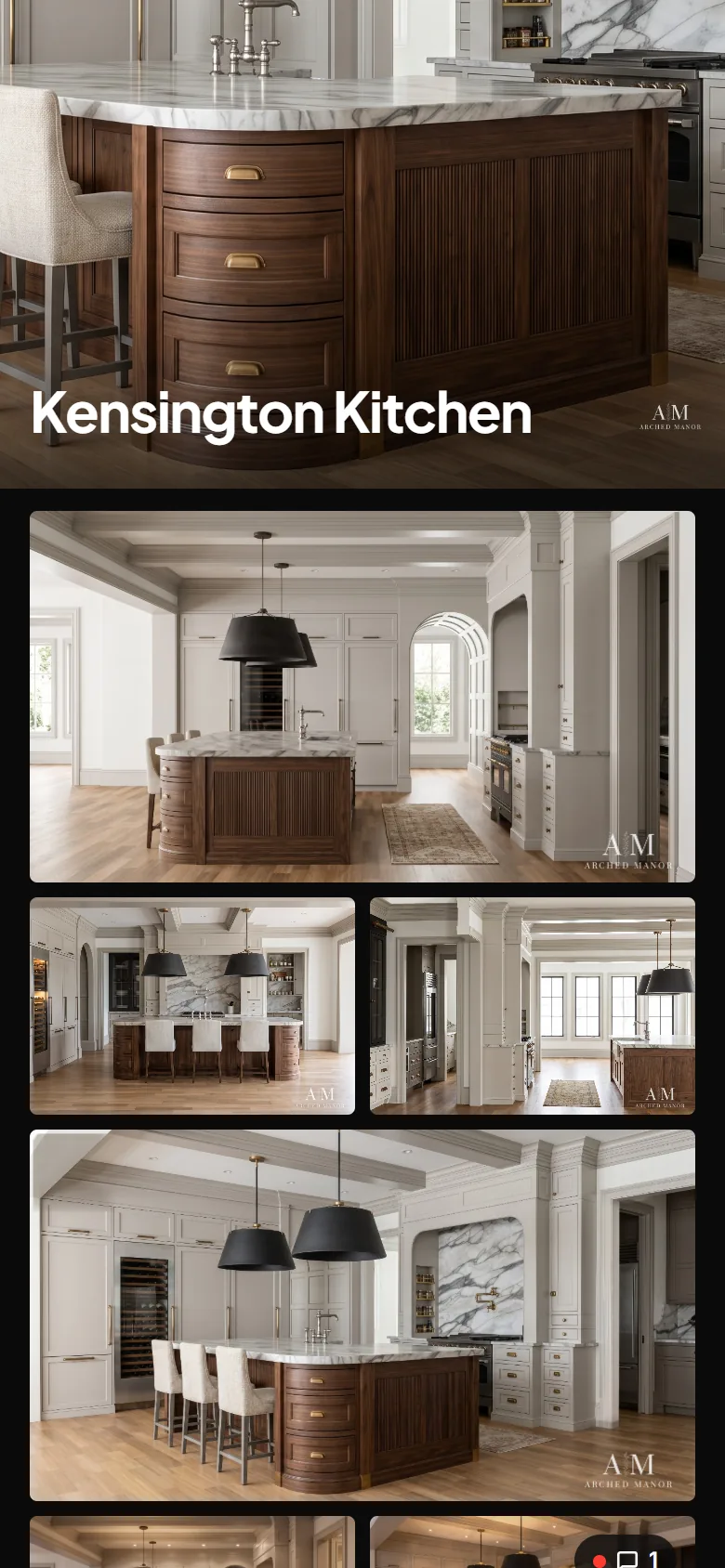
Every project gets its own page on yourrenders.com, with your logo, ready to send. No portfolio site to build, no folder of files to email.
- White or black page, a cover photo and a welcome note.
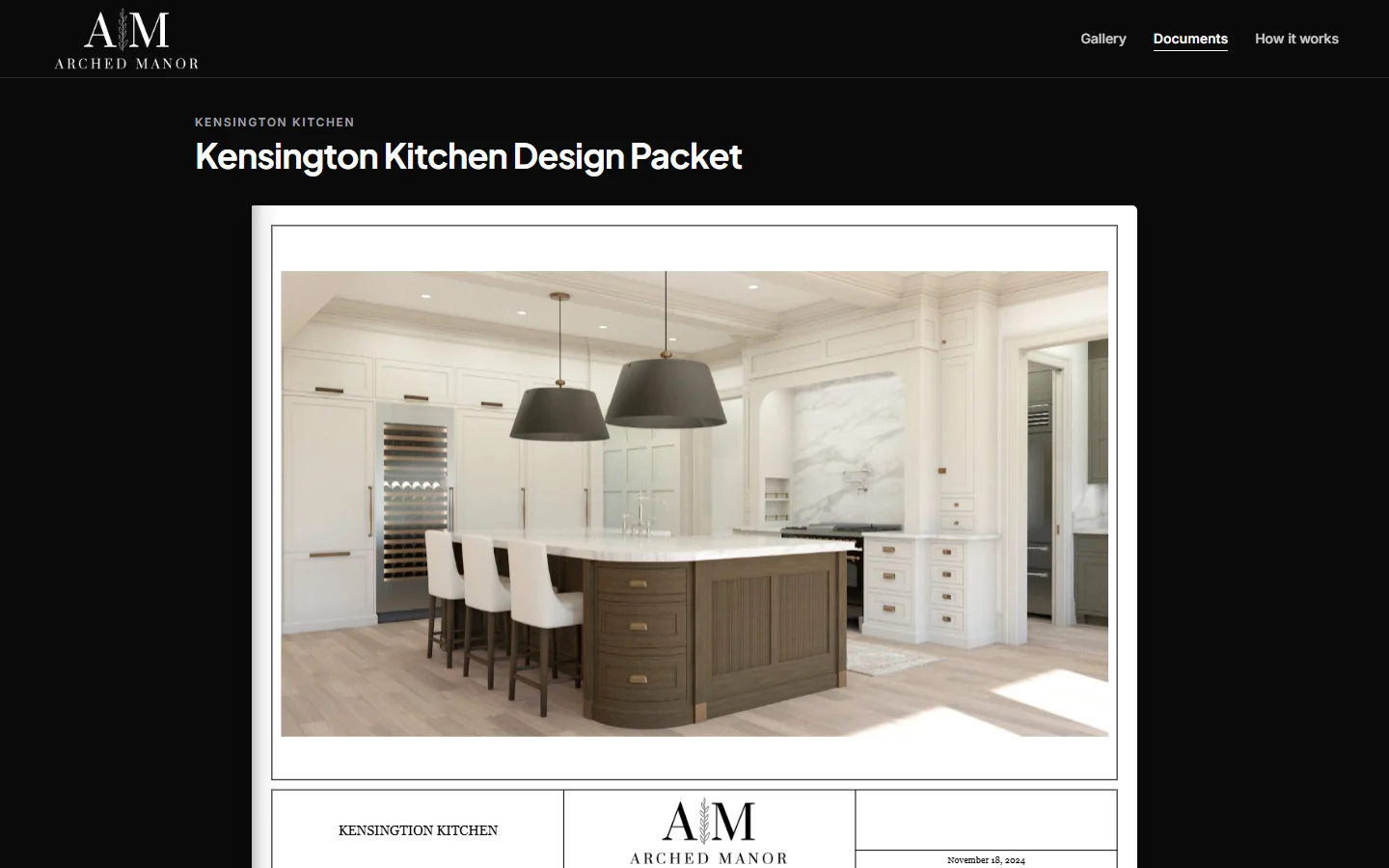
- Only the renders and videos you approved, plus your design documents in a page-turning viewer.
- Your logo as a watermark on every picture, and on every download.
- Password protection, a draft mode, and a personal link for each client, sent by email from your studio.
- See when they looked and what they downloaded.
Collaborate With Clients
Feedback Right on the Render
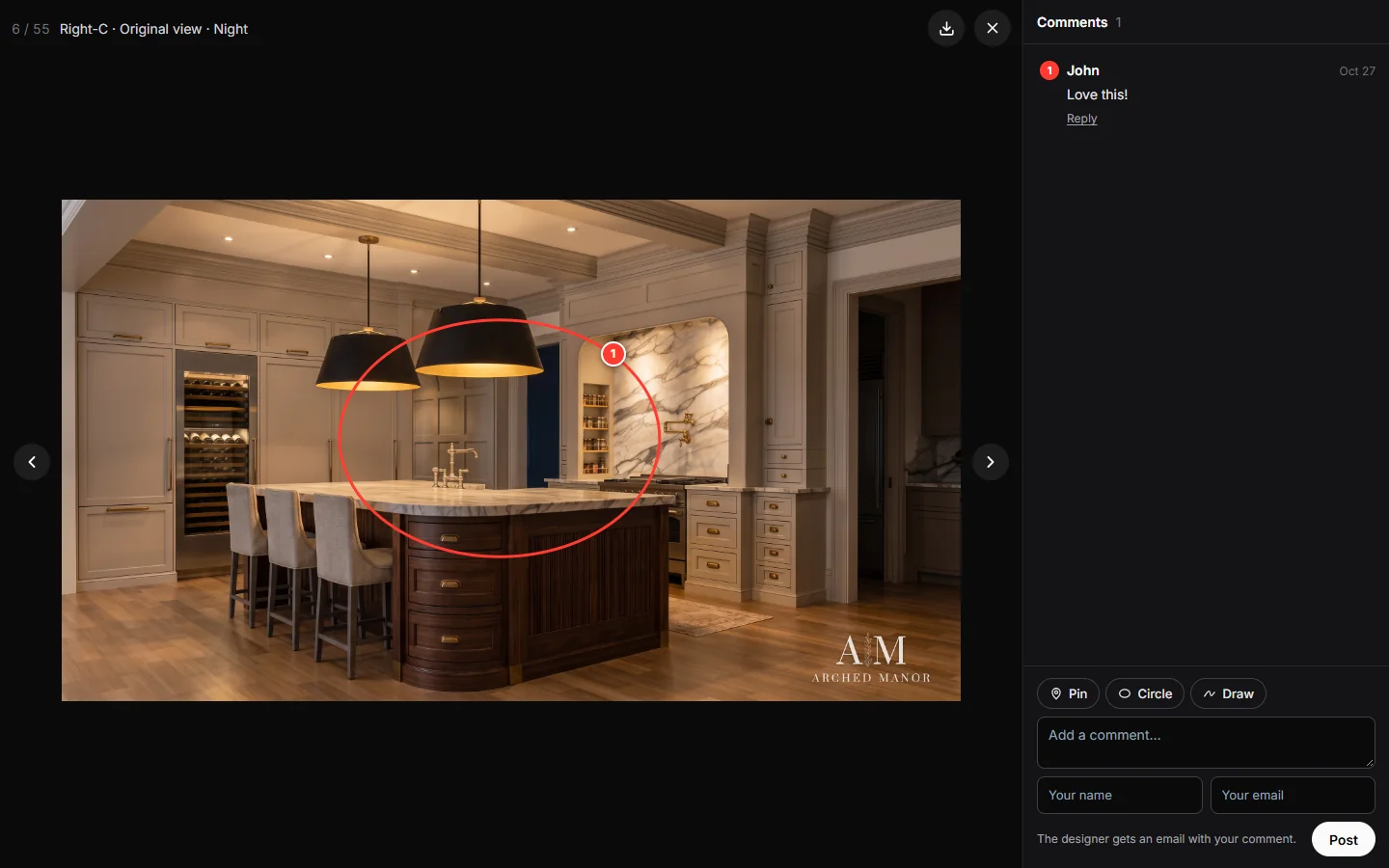
Your client opens a render and marks exactly what they mean: a pin, a circle or a freehand drawing, with a comment. No more "the light on the left, no, the other left".
- You get an email with a link straight to that render; they get one when you reply.
- Comments work on videos too, at the moment in the video.
- An approval box per design option, so "yes, that one" is on record.
- You review on the same page, signed in, and see every comment in one place.
Design Documents
Your Design Packet, Beautifully Presented
Add your design packet, elevations or specs, and the client reads them page by page in a page-turning viewer, with a download button below. Spreadsheets and Word files work too.
How It Works
From SketchUp Scene to Client Approval
- 1
Link the model
Open FOCUSED AI Rendering in SketchUp and link the model to a project. Your scenes, levels and design options come along.
- 2
Render a scene
Pick a scene, set the time of day or weather if you like, and render. It runs on our servers, so your computer stays free.
- 3
Approve and expand
Approve the renders you love, then create new camera angles, times of day and seasons from the website.
- 4
Send it to your client
Publish the client page and send each client their own link. Comments and approvals come back to you by email.
Why It's Better
Why Designers Choose FOCUSED AI Rendering
A traditional render engine gives you control and consistency at the cost of hours of setup. A general AI image app is fast but reinvents your room in every render. FOCUSED AI Rendering keeps your design, the same in every scene, and does the rest.
| FOCUSED AI Rendering | Traditional render engines | General AI image apps | |
|---|---|---|---|
| The same materials, products and look in every scene | ✓ | After hours of setup | Changes every render |
| Renders from inside SketchUp | ✓ | ✓ | Upload screenshots |
| No material and lighting setup to learn | ✓ | — | ✓ |
| Keeps your layout and sizes exactly | ✓ | ✓ | Often redesigns it |
| Your real products and finishes, from photos | ✓ | Model or texture each one | Hit or miss |
| Rendering happens off your computer | ✓ | Needs a strong graphics card | ✓ |
| New camera angles, times and seasons from the web | ✓ | — | — |
| Projects, files and paint colors online | ✓ | — | — |
| A client page with comments and approvals | ✓ | — | — |
FAQ
Questions, Answered
What is FOCUSED AI Rendering?
How does it keep every scene consistent?
Why are other AI renders inconsistent?
Will the AI change my design?
Can it render the products I specified?
Does it do exteriors?
Do I need a powerful computer?
Can I make videos?
Does it come with FOCUSED Scene Manager?
Download & Pricing
Be First to Render With It
FOCUSED AI Rendering is in testing now. Join the waitlist and you'll hear the moment it opens, with a free trial to render your own models.
- 1 Join the waitlist with your email.
- 2 Get the download link the day it opens.
- 3 Start your free trial and render your own model.
Free trial when it opens · No card needed to join the waitlist