
FOCUSED Tools · AI Modeling
Product Photos to a SketchUp Model
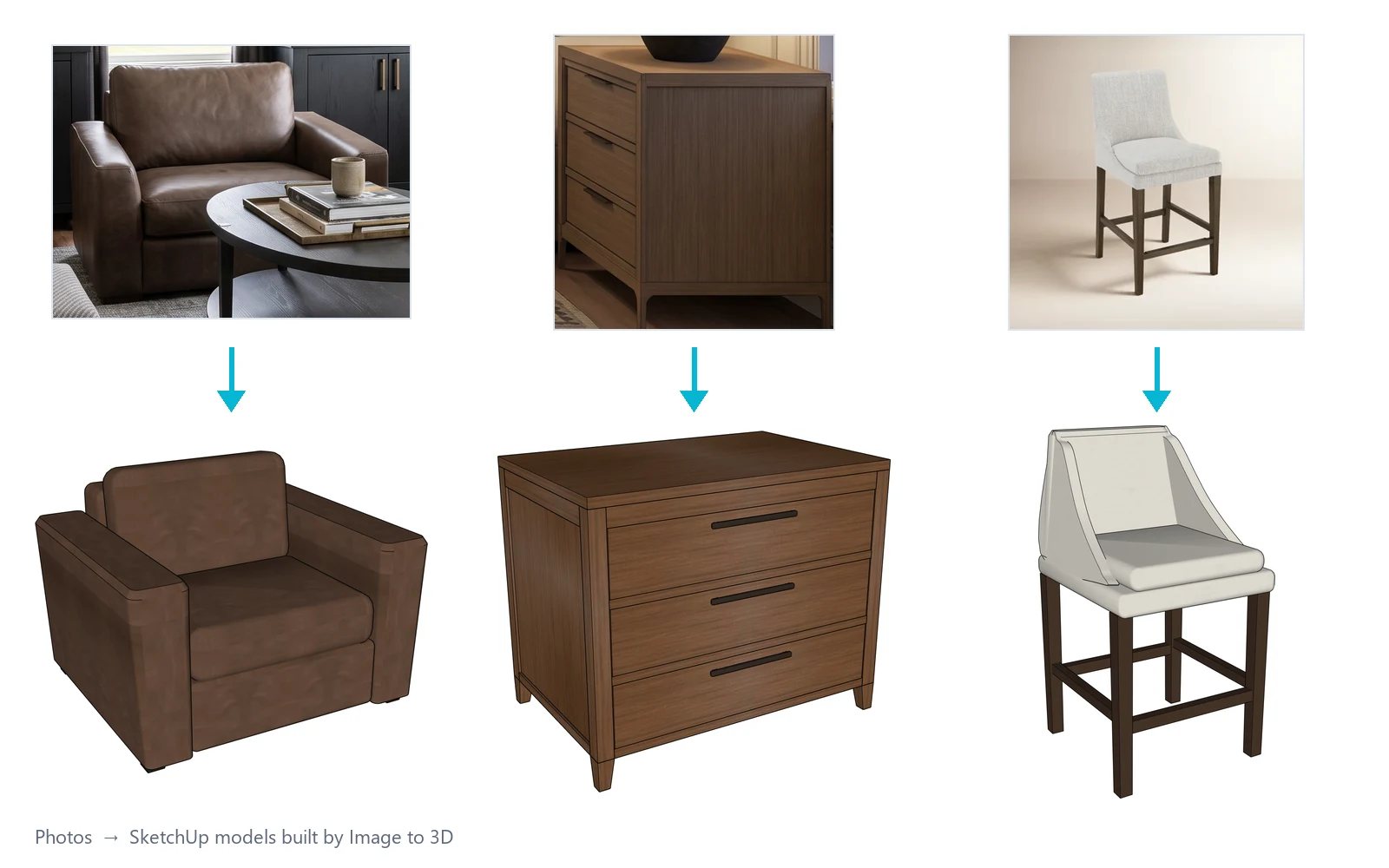
Found the chair, lamp or stool you want, and nobody has modeled it? Drop in its photos and AI builds it in SketchUp: every part named and at true size, grouped, with materials, ready to place.
Part of FOCUSED Tools · Free 7-day trial
Your Photos
Up to Six Angles, Any Background
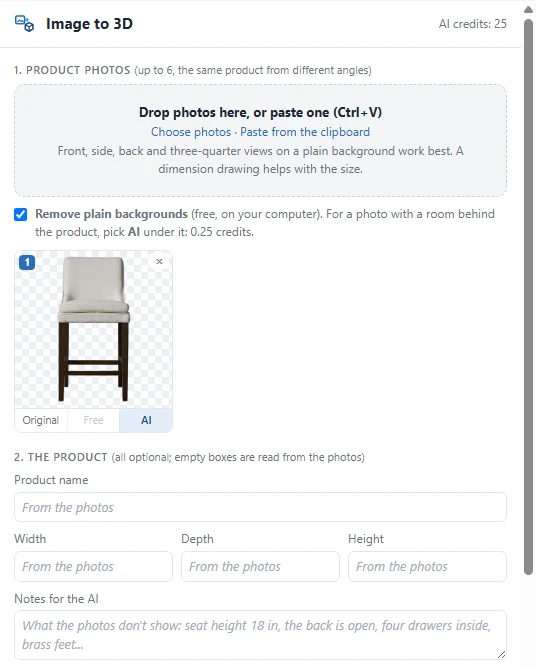
Drop, paste or choose photos of the product: the front, a side, the back, a three-quarter view. The more angles, the better the shape.
- Plain backgrounds removed for free, on your computer, the moment you add a photo.
- AI background removal for a room photo or a render: 0.25 credits, and the room is gone.
- Add the dimension drawing from the product page and the AI reads the sizes off it.
- Type the width, depth or height if you know them, and a note for anything the photos do not show.
Room Photos and Renders Too
Crop It, Cut It Out, Model It
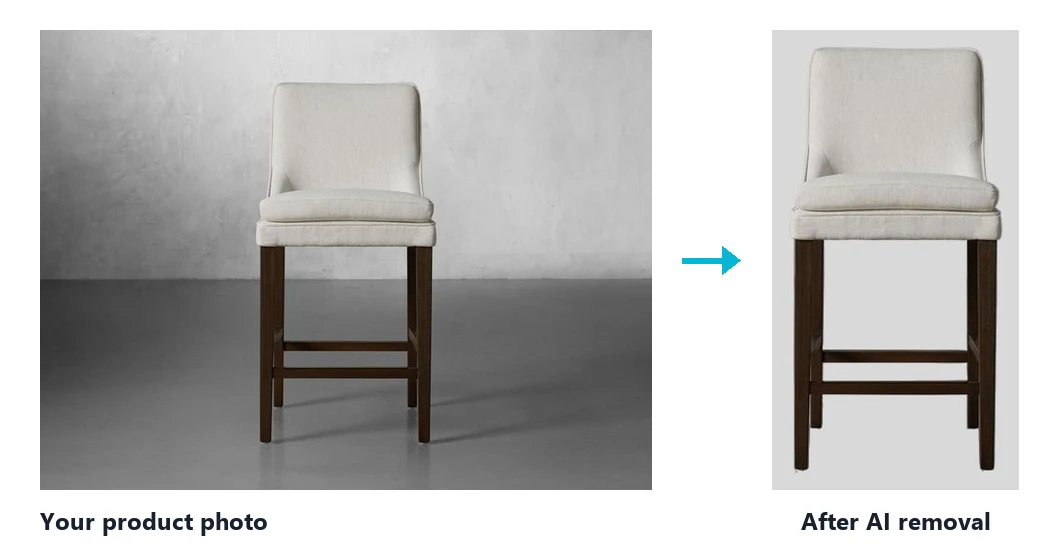
A wall and floor behind it, a room photo, one of your renders? Crop to the piece and pick AI under the photo. The walls, windows, floor and shadows go, and the AI is sent the product on plain gray.
- Anything standing in front of it stays, so tell it what is not part of the product: "the coffee table", "only the guitar, not the stand".
- A drawing is recognized and kept as it is.
A Model You Can Work With
Real Parts, Named and at True Size
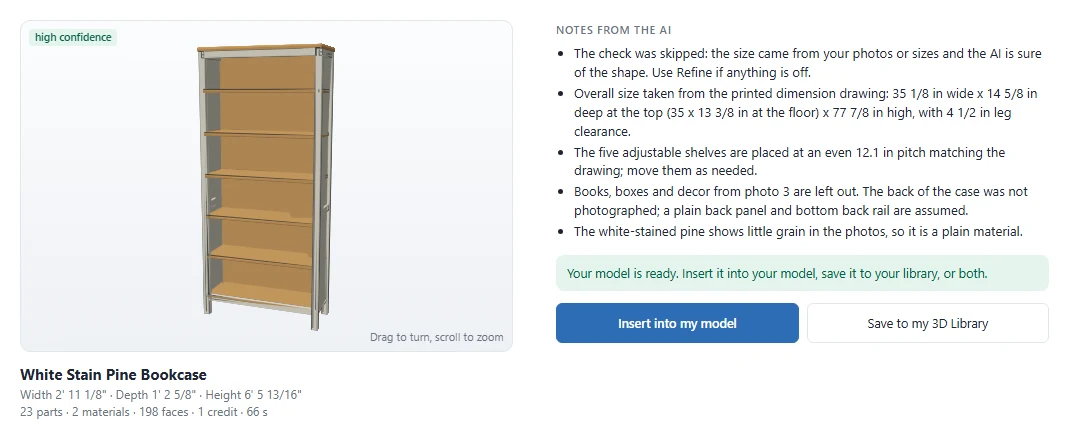
Not a heavy scanned mesh. The AI reads the product into the parts it is made of, and each one is built as clean SketchUp geometry.
- One component named after the product, insertion point at the bottom center.
- Every part a named solid: Front leg, Seat cushion, Shade. Assemblies grouped; matching legs and rails are components.
- Materials named for what they are, textures cut from your photos, roughness and metal (PBR) on SketchUp 2025+.
- Checked against your photos: the AI looks at its model from each photo's angle and fixes what is off.
Straight Into Your Library
Insert It, Save It, or Both
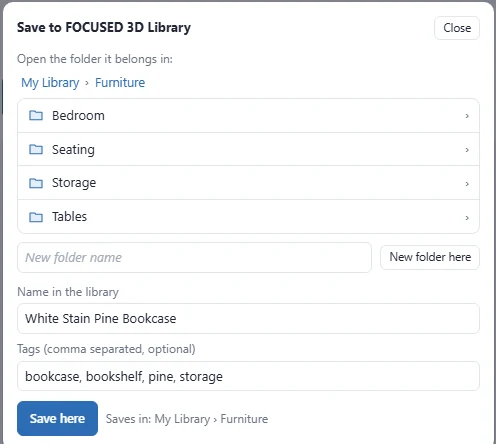
Place it in your model with a click, and keep it for every project after.
- Insert into my model: the component is on your cursor, click to place.
- Save to my 3D Library: drill into your Local Library folders, make a new one if you need it, add tags, save. With a card picture, ready to drag into any model.
- Refine with AI with a note when something is off; copies already placed update.
How It Works
From a Product Photo to a SketchUp Component
- 1
Drop in the photos
Up to 6 photos of the same product from different angles: drop, paste or choose them. A dimension drawing helps most.
- 2
Remove the backgrounds
Plain backgrounds are removed for free on your computer. For a room photo or a render, pick AI under it.
- 3
Type what you know
The name, the width, depth or height, and a note for the AI. All optional: empty boxes are read from the photos.
- 4
Generate, then place it
In 1 to 3 minutes: a clean, named component. Insert it into your model, save it to your 3D Library, or both.
Why It's Better
Why Designers Use Image to 3D
| FOCUSED Image to 3D | Photo-to-mesh AI tools | |
|---|---|---|
| Several photos of one product, from every angle | ✓ | Often one photo |
| True size from your sizes or a dimension drawing | ✓ | Scale it yourself |
| Clean SketchUp parts you can edit | ✓ | One heavy triangle mesh |
| Every part named, grouped, legs as components | ✓ | — |
| Named materials with textures and PBR | ✓ | Baked into the mesh |
| Saved straight to your FOCUSED 3D Library | ✓ | — |
FAQ
Questions, Answered
What photos can I use?
Do I need to type the size?
What does the model look like?
Does it make materials?
What if the model is not quite right?
Can I save it to my 3D Library?
What does it do less well?
Download & Pricing
Coming Soon in FOCUSED Tools
FOCUSED Image to 3D comes with FOCUSED Tools, together with Floor Plan to 3D, Profiles, Bevel, curved Push/Pull and Offset, Scale to size, Stretch, Drop, Move, Curve to Surface, Dummify and the Scene Manager. Each model is paid with FOCUSED AI credits.
Free 7-day trial · Included with FOCUSED Pro