
FOCUSED Tools · Components
Make Dynamic Components Scale Like Any Other Component
Select a dynamic cabinet, a door or anything with formulas and click Dummify. It looks exactly the same, and SketchUp's Scale tool now scales every part of it, end panels, doors and toe kick too.
Part of FOCUSED Tools · Free 7-day trial
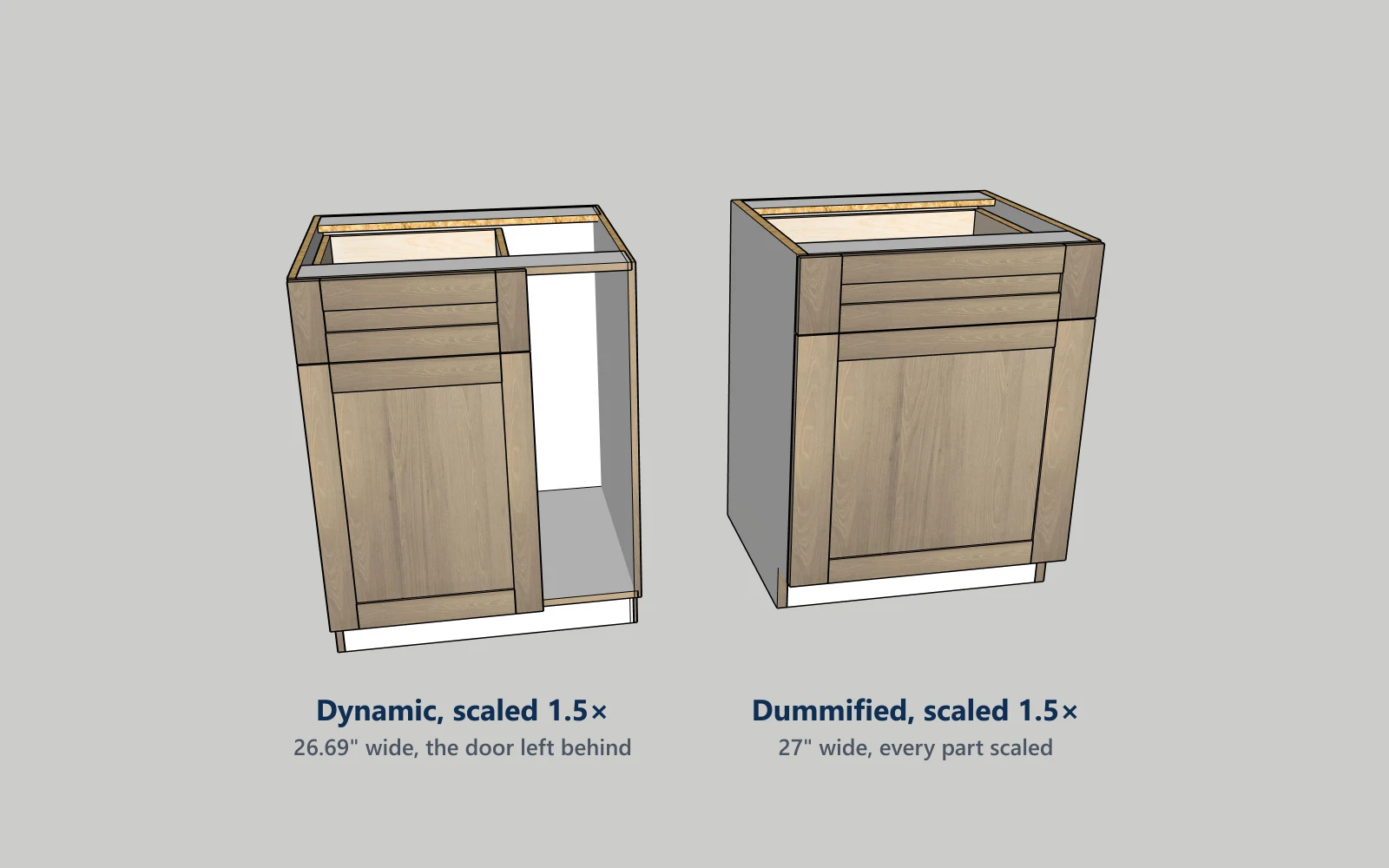
The Problem
Why Scale Breaks a Dynamic Cabinet
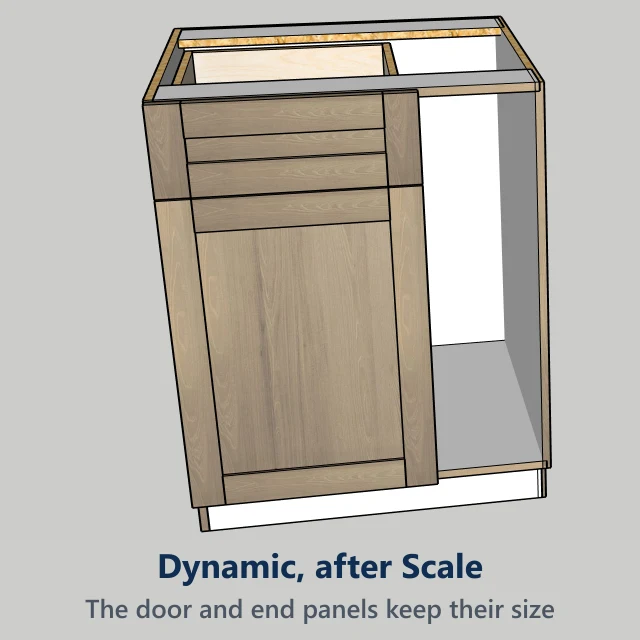
A dynamic component redraws itself from its formulas after every scale. Parts the formulas give a set size keep that size, so the box gets wider and the door, the end panels and the toe kick do not follow.
- An 18" cabinet scaled 1.5 times wider comes out 26.69", not 27".
- Its 0.63" end panels stay 0.63".
- Doors, drawers and panels are dynamic components of their own, so each one redraws too.
One Click
Every Part Scales, Nothing Else Changes
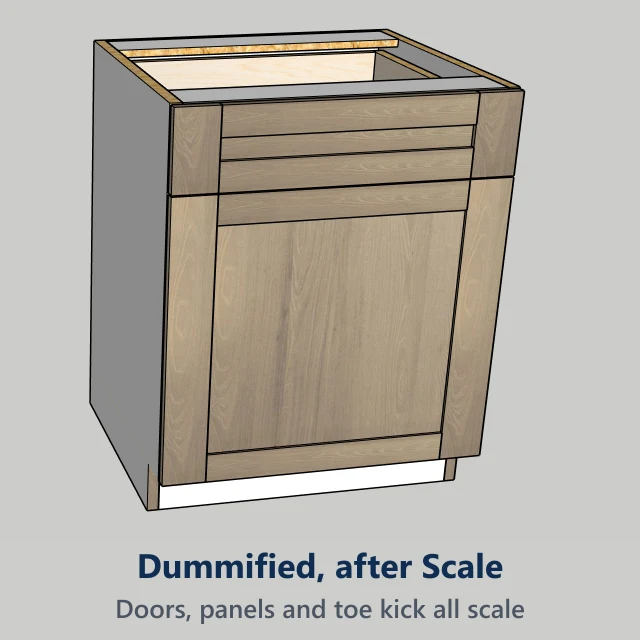
Dummify removes every formula and option, on the cabinet and on every part inside it. Scale the same cabinet 1.5 times wider and it is 27", every part with it.
- It looks exactly as it did: the size and options you last chose.
- Hidden options the formulas kept, like door styles you did not choose, are deleted.
- Select many at once, click them one by one, or right-click for Dummify (make static).
- Other copies keep their formulas, and the 3D Library still places a dynamic one. One undo step.
How It Works
Resizing a Library Cabinet
- 1
Select the cabinets
One cabinet, a whole run of them, or a group holding them. Or click Dummify first and click them one by one.
- 2
Click Dummify
Every formula and option is removed, at every level inside. It looks exactly the same as before.
- 3
Scale it
Use SketchUp's own Scale tool. The whole cabinet scales, doors, end panels and toe kick with it.
Why It's Better
Why Designers Dummify Instead of Exploding
| FOCUSED Dummify | Exploding by hand | |
|---|---|---|
| Removes the formulas at every level inside | ✓ | Explode every level |
| Keeps every part grouped and named | ✓ | — |
| Hidden options deleted | ✓ | Find them by hand |
| Many components at once | ✓ | — |
| Looks exactly as it did | ✓ | ✓ |
| Live Components become plain groups | ✓ | By hand |
FAQ
Questions, Answered
What does Dummify do?
Why does the Scale tool not work on dynamic components?
Will it look different?
What happens to the other copies in my model?
Can I dummify many components at once?
Does it work on SketchUp Live Components?
Download & Pricing
Coming Soon in FOCUSED Tools
FOCUSED Dummify comes with FOCUSED Tools, together with Profiles, Bevel, curved Push/Pull and Offset, Scale to size, Stretch, Drop, Move, Curve to Surface, Floor Plan to 3D and the Scene Manager.
Free 7-day trial · Included with FOCUSED Pro