

FOCUSED SketchUp for
Cabinetry & Built-Ins
Instant Access - Start Anytime!
In this course, you’ll learn how to use SketchUp specifically for cabinetry and built-ins, creating accurate, build-ready 3D models that are designed to be fabricated, not just visualized.
You’ll model real-world projects like built-ins, bars, and custom cabinetry using my proprietary FOCUSED Method™, learn how to generate cut lists and export files for CNC machines, and use AI rendering to produce photorealistic images in minutes – helping you streamline production, reduce errors, and clearly communicate your designs to clients.
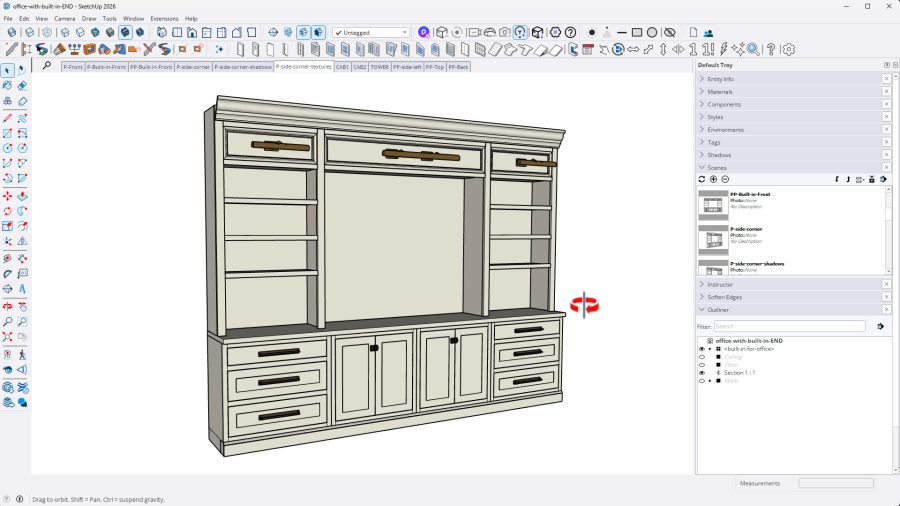
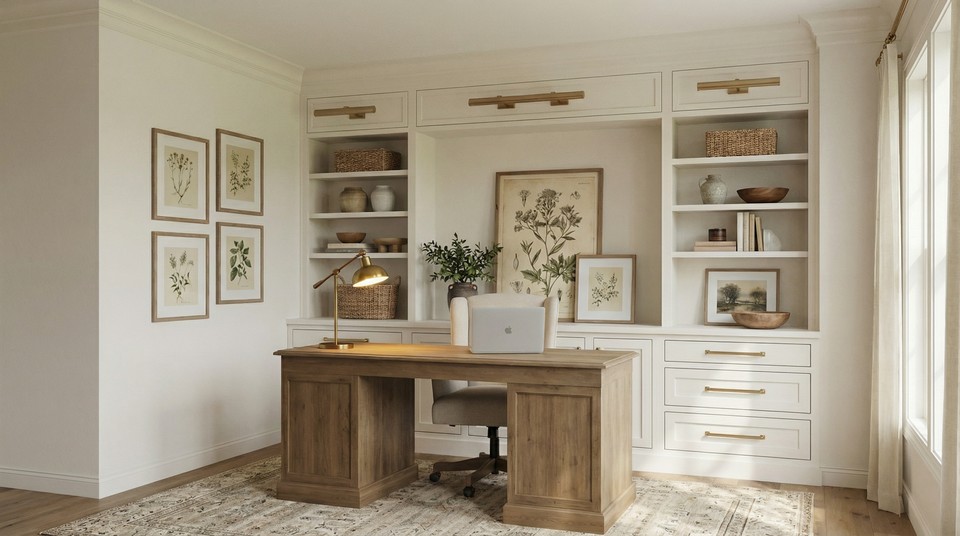
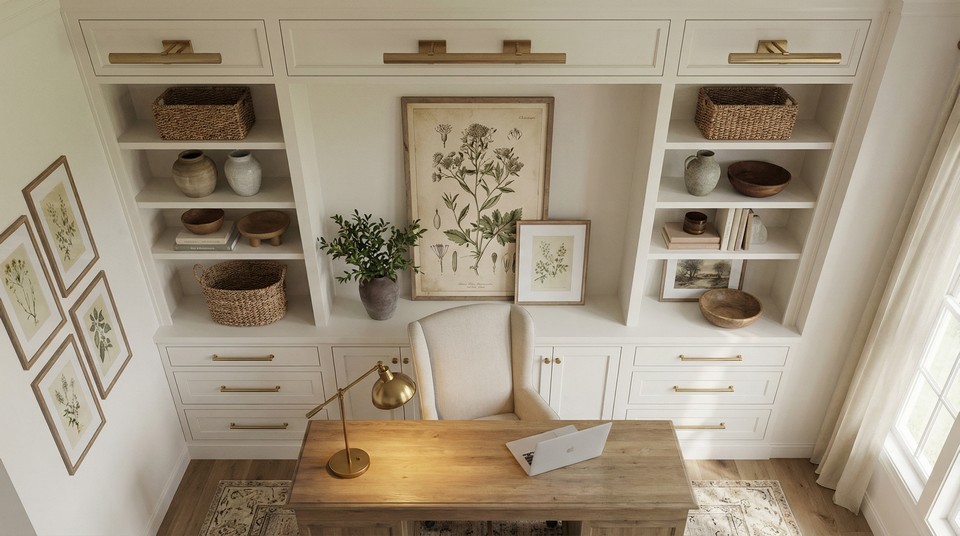
The Built-In You Will Create
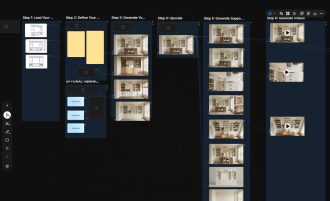
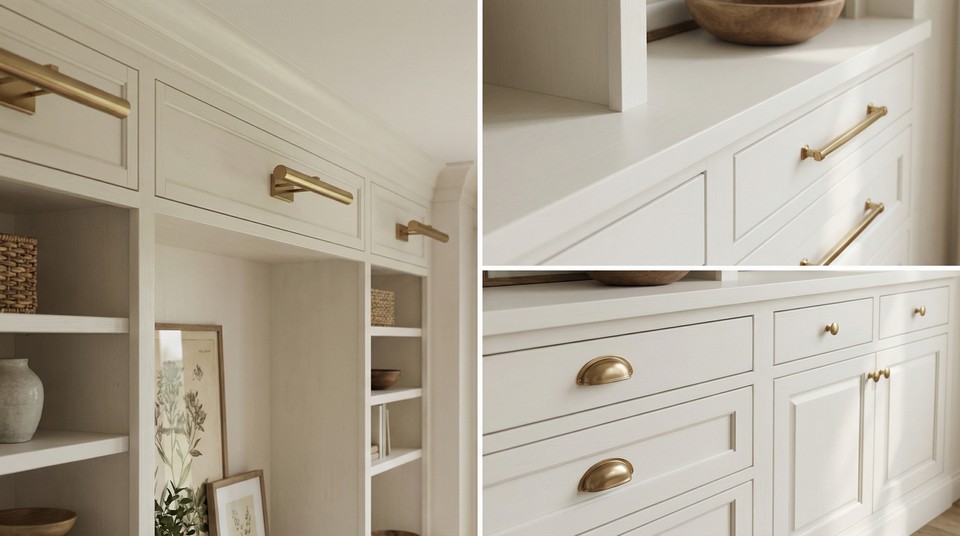
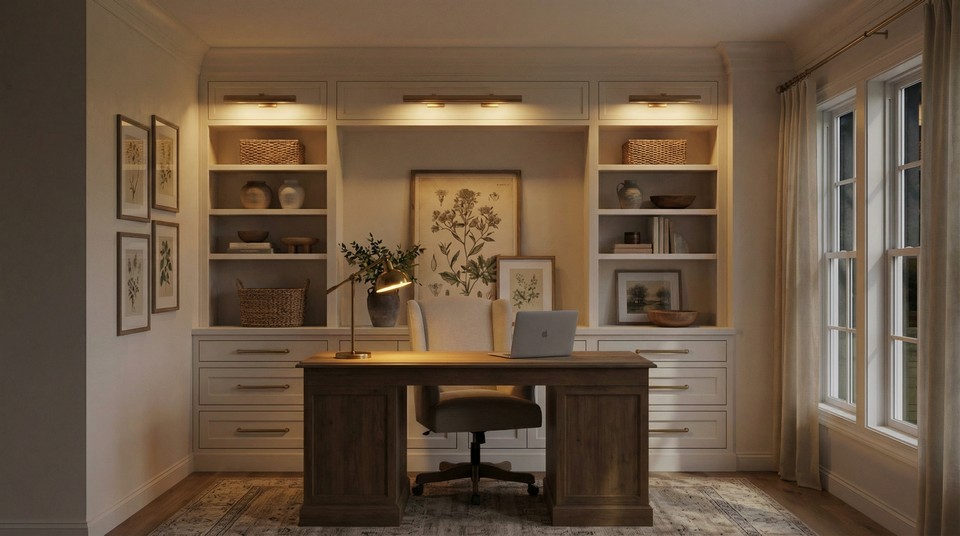
The AI Renders You Will Create
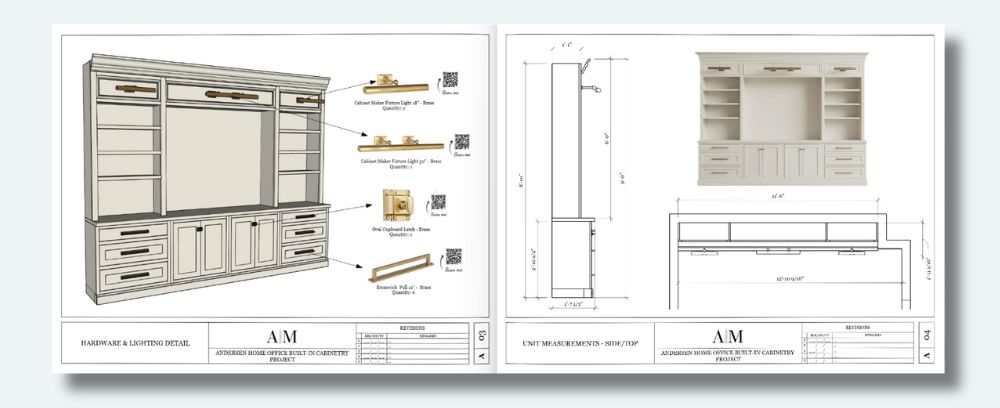
The Design Doc You Will Create
Why I Created This Course
I’m a designer and builder (along with my wife, Megan) for our design firm, Arched Manor. Over the years, I’ve designed and built many custom built-ins, mudroom lockers, dry bars, wet bars, and kitchens for clients around the country. I use SketchUp to clearly communicate these designs and to help clients visualize exactly what’s being built before a single board is cut.
I spent months learning SketchUp from scratch and developed a custom workflow specifically for modeling cabinetry, millwork, and built-ins accurately and efficiently. Along the way, I built a proprietary library of components that allows me to work faster, stay organized, and make changes without rebuilding models from scratch.
I have a broad knowledge of SketchUp and know exactly what designers, builders, and woodworkers need to know to model custom carpentry – which is why this course is called FOCUSED. This training is intentionally limited to only what’s relevant for carpentry and built-ins, saving you time and frustration. As someone who actually designs and builds this work, I know how valuable your time is, and I don’t want you wasting any of it.
Here is What You Will Learn

How to install and configure SketchUp and V-Ray on your PC or Mac

How to use create photorealistic renders in minutes using AI

How to create elevations and PDF design packets for clients and contractors

What tools in SketchUp to use, and which ones to ignore

What AI engine is best for quick renders and what prompts to use

My method of combining elevations, product images, renders, and QR codes.

How to create cut lists from your model and send to CNC machines

How to show your modeled cabinetry in your space using Augmented Reality

My extensions I use daily and how to use them to save time when modeling
Who Is This Course For?
Custom Cabinetmakers
Finish Carpenters
Millwork Designers
Residential Remodelers
Design-Build Contractors
Interior Designers
Woodworkers
Kitchen & Bath Designers
Built-In Furniture Designers
Home Builders
Cabinet Manufacturers
Cabinet Installers
Drafting Technicians
Furniture Makers
DIY Pros
Course
Breakdown
Course Structure
Module 1 - Core SketchUp Training
- PC/WINDOWS: Installing Sketchup
- PC/WINDOWS: Setting up Your Workspace
- PC/WINDOWS: Setup Keyboard Shortcuts
- MAC: Installing Sketchup
- MAC: Setting up Your Workspace
- MAC: Setup Keyboard Shortcuts
- Intro and Cheat Sheet
- Mouse and Navigation
- Using the Keyboard
- The Select Tool
- The Move Tool
- The Line Tool
- The Rectangle Tool
Module 1 - Core SketchUp Training
- Core SketchUp - PC/WINDOWS: Installing Sketchup [6:07]
- Core SketchUp - PC/WINDOWS: Setting up Your Workspace [2:55]
- Core SketchUp - PC/WINDOWS: Setup Keyboard Shortcuts [3:02]
- Core SketchUp - MAC: Installing Sketchup [9:56]
- Core SketchUp - MAC: Setting up Your Workspace [9:55]
- Core SketchUp - MAC: Setup Keyboard Shortcuts [3:56]
- Core SketchUp - Intro and Cheat Sheet [3:42]
- Core SketchUp - Mouse and Navigation [9:16]
- Core SketchUp - Using the Keyboard [4:18]
- Core SketchUp - The Select Tool [4:33]
- Core SketchUp - The Move Tool [14:19]
- Core SketchUp - The Line Tool [11:33]
- Core SketchUp - The Rectangle Tool [6:35]
- The Circle Tool
- The Arc Tool
- The Tape Measure Tool
- The Offset Tool
- The Push/Pull Tool
- The Rotate Tool
- The Scale Tool
- The Paint Bucket Tool
- The Flip Tool
- Groups
- Components
- Outliner
- Tags
- Hiding and Unhiding
- Section Cuts
- Scenes
- The Trimble 3D Warehouse
- Materials in SketchUp
- Applying SketchUp Styles
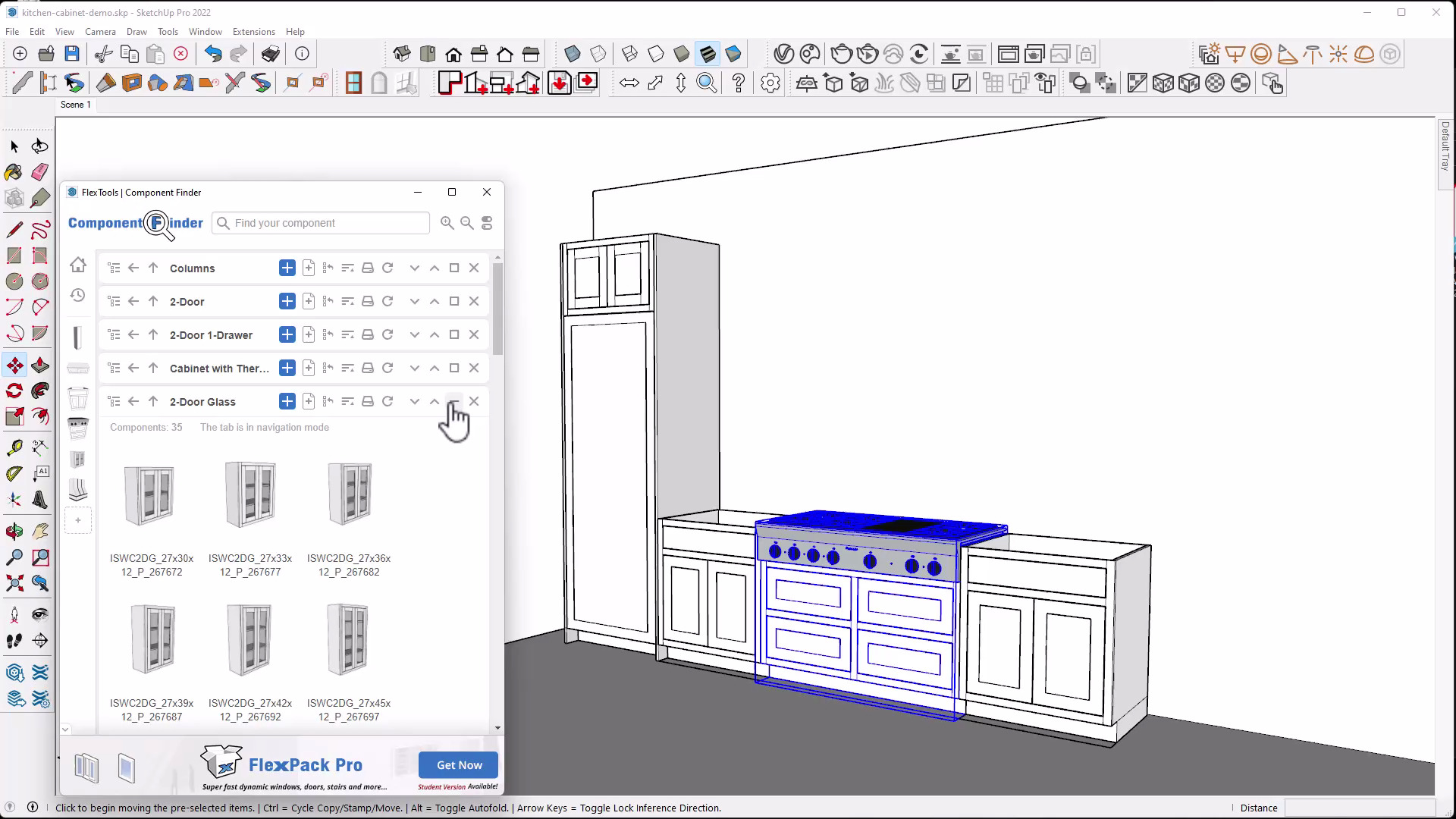
- Component Finder by FlexTools
- Profile Builder
- Setting Up Your Component Library
- Core SketchUp - The Circle Tool [4:47]
- Core SketchUp - The Arc Tool [3:30]
- Core SketchUp - The Tape Measure Tool [5:35]
- Core SketchUp - The Offset Tool [2:59]
- Core SketchUp - The Push/Pull Tool [3:56]
- Core SketchUp - The Rotate Tool [5:11]
- Core SketchUp - The Scale Tool [6:57]
- Core SketchUp - The Paint Bucket Tool [4:29]
- Core SketchUp - The Flip Tool [3:01]
- Core SketchUp - Groups [11:56]
- Core SketchUp - Components [7:59]
- Core SketchUp - Outliner [7:47]
- Core SketchUp - Tags [7:51]
- Core SketchUp - Hiding and Unhiding [3:50]
- Core SketchUp - Section Cuts [8:36]
- Core SketchUp - Scenes [8:45]
- Core SketchUp - The Trimble 3D Warehouse [14:19]
- Core SketchUp - Materials in SketchUp [11:12]
- Core SketchUp - Applying SketchUp Styles [11:20]
- Extensions - Component Finder by FlexTools [6:00]
- Extensions - Profile Builder [14:18]
- Extensions -Setting Up Your Component Library [5:30]
Module 2 - Cabinetry Basics
- How to Model a Kitchen Cabinet
- How to Create a Cabinet Collection
Module 2 - Cabinetry Basics
- Cabinetry Basics - How to Model a Kitchen Cabinet [13:13]
- Cabinetry Basics - How to Create a Cabinet Collection [15:50]
Module 3 - Home Office Built-In Part 1
- Project Overview
- Modeling the Unit
- Adding Lights & Hardware
- Creating a Room and Placing the Unit
- Creating Scenes and Elevations
- Introduction to the AI Rendering Platform
- Photorealistic Rendering with AI
Module 3 - Home Office Built-In Part 1
- Project Overview [05:39]
- Modeling the Unit [42:05]
- Adding Lights & Hardware [10:07]
- Creating a Room and Placing the Unit [24:55]
- Creating Scenes and Elevations [15:24]
- Introduction to the AI Rendering Platform [09:56]
- Photorealistic Rendering with AI [27:44]
Module 4- Core LayOut
- Templates and Document Setup
- The LayOut Interface
- Pages and Viewports
- Text and Labels
- Measurements and Dimensions
- Scrapbooks
- How to Export in LayOut
- Presenting Your Document
Module 4- Core LayOut
- Templates and Document Setup [15:32]
- The LayOut Interface [6:11]
- Pages and Viewports 16:46]
- Text and Labels [8:06]
- Measurements and Dimensions [11:45]
- Scrapbooks [13:44]
- How to Export in LayOut [4:35]
- Presenting Your Document [3:45]
Module 5 - Home Office Built-In Part 2
- Creating a Client Design Pack with LayOut
- Creating a Cut List
- Estimating Materials & Cost
- Exporting to a CNC Machine
- Showing your Unit in Augmented Reality
Module 5 - Home Office Built-In Part 2
- Creating a Client Design Pack with LayOut [67:06]
- Creating a Cut List [26:47]
- Estimating Materials & Cost [08:10]
- Exporting to a CNC Machine [04:13]
- Showing your Unit in Augmented Reality [13:37]
Module 6 - Advanced Topics
- Cabinet Sense - How to Install & Configure
- Cabinet Sense - Basics
- Cabinet Sense - Exporting to a CNC Machine
Module 6 - Advanced Topics
- Cabinet Sense - How to Install & Configure [11:36]
- Cabinet Sense - Basics [23:27]
- Cabinet Sense - Exporting to a CNC Machine
3 FREE Bonus Items
Printable Course Guide with Lesson Notes from Every Module (pdf)

Private Facebook Group Access for support and help from students (and me)
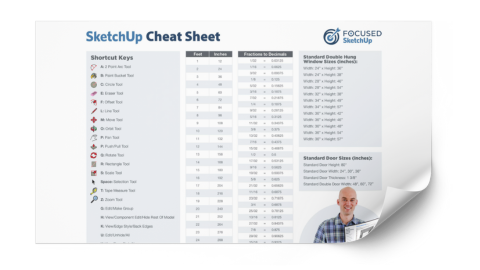
My Printable SketchUp Cheat Sheet
(2-sided)
Enroll Now for Only
$599$499
...or as low as $44 for 12 months using Afterpay below.
Offer Ends 3/31/25 at 11:59 PM PT
3 Payments of $179
...or pay in full with one payment of $497
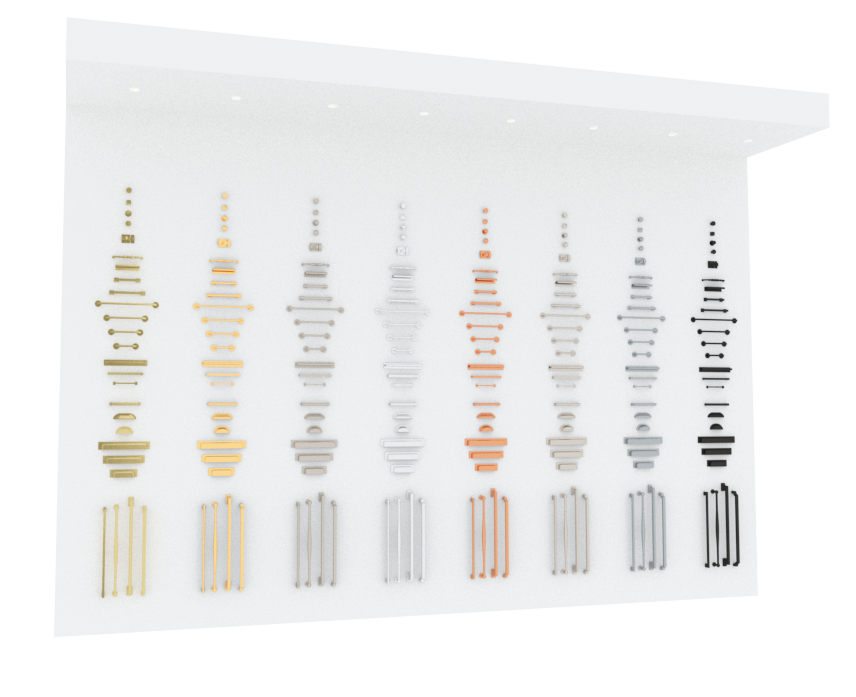
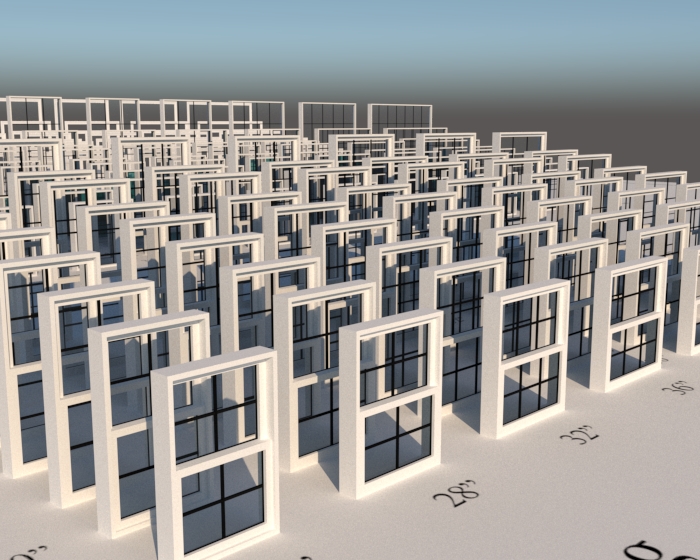
3 Packs of Over 1,000 Downloadable Objects...Absolutely FREE!
Use My 600+ Inset Shaker Cabinets - Watch How Easy It Is:
Hardware Pack
264 Hardware Pieces in 8 finishes such as antique brass, polished nickel, matte black, & more.
Window & Trim Pack
163 Single Pane and Double-Hung Windows with 100 matching pre-made trim casings included.
All Designed To Save You Time While Modeling.
Hear What My Students Are Saying
Real Facebook Reviews
Satisfaction Guarantee
I am so certain you will love this program that I am offering a Risk-Free 14-Day Money Back Guarantee! After 14 days, if you are not satisfied with the course and decide it’s not for you, I will give you a full refund.
All you have to do is contact me within 14 days of purchasing, and I will give you 100% of your money back.
FAQ - Course Content and Structure
This course covers the complete, real-world workflow for modeling cabinetry and built-ins in SketchUp - from fundamentals to fabrication-ready output. You’ll start with core SketchUp setup and modeling essentials, then move into cabinetry-specific techniques like building accurate base, wall, and tall cabinets, organizing components properly, and creating reusable cabinet collections. From there, the course walks through designing a full custom built-in project, including placing it in a room, adding lighting and hardware, and creating clean scenes and elevations. You’ll learn how to produce professional documentation in LayOut, generate cut lists, estimate materials and costs, and export files for CNC workflows. The course also covers modern presentation techniques, including AI-powered rendering to create photorealistic images and short videos in minutes, plus guidance on using visuals to communicate more clearly with clients and trades and to grow your business.
After completing this course, you’ll be able to confidently model cabinetry and built-ins in SketchUp using clean, professional structure that reflects real-world construction. You’ll know how to design base, wall, and tall cabinets, as well as fully custom built-ins, and organize them in a way that makes revisions, documentation, and collaboration easy. You’ll be able to create elevations, dimensions, cut lists, and material estimates, export files for CNC or shop workflows, and produce clear documentation for clients and trades. On top of that, you’ll be able to turn your models into polished, photorealistic images and short videos using AI in a matter of minutes, helping you present ideas more clearly, reduce back-and-forth, and move projects from concept to build with confidence.
This course is absolutely suitable for beginners, but it doesn’t stop there. It starts with clear, foundational SketchUp training so you don’t need prior experience to follow along, then progressively moves into cabinetry and built-in workflows that even experienced users often struggle with. If you’re brand new, the course will give you a structured, confidence-building path from day one. If you already use SketchUp, it will help you clean up your modeling habits, learn proper cabinetry structure, and adopt more efficient, professional workflows. The goal is to meet you where you are and move you forward quickly, without assuming you already “know the right way” to do things.
No, the only prerequisites are that you have a working computer (no iPads) that can handle SketchUp and have a three-button mouse (can be purchased easily from amazon if you don’t have one).
The course syllabus is shown above and highlights each lesson in the program. Once you enroll in the course, the Course Guide is also available to download and print, and it has ample space for you to add your own notes as you go through the lessons.
Yes - this course is very hands-on. You won’t just watch techniques in isolation; you’ll build along with me on real projects. The core project is a complete custom home office built-in, modeled from start to finish. You’ll go through the process of structuring the cabinetry correctly, placing it into a room, creating scenes and elevations, producing documentation, generating cut lists, and preparing files for fabrication. Along the way, each module reinforces what you’re learning through practical application, so by the time you finish, you’ve not only learned the concepts - you’ve actually built something you can reference, reuse, and adapt for real client or shop projects.
FAQ - Duration and Timing
The course includes 6 modules, 63 lessons, and about 11 hours of instruction total.
Yes. You can go as fast or as slow as you want. There are no deadlines and no required schedule.
You get lifetime access. That means you can revisit lessons anytime as your projects and skills evolve.
FAQ - Delivery and Format
All lessons are delivered through on-demand, pre-recorded video training. You can watch anytime, from anywhere.
The majority of the lessons are recorded on SketchUp 2026. The CORE lessons are recorded on SketchUp 2024, but are still applicable.
Yes. The course includes downloadable cabinet and hardware packs, a printable course guide, and a printable cheatsheet.
Yes! When you enroll in the course, you will get access to the private Facebook group just for students. This is the preferred way to get support during (and after) the course. You will retain your access to this group even after the bootcamp ends. You can also email our support team directly.
Yes. You’ll get access to my custom AI template that turns your SketchUp models into photorealistic images and short videos in minutes.
FAQ - Technical Requirements
You will need a desktop or laptop that is fairly new (~5 years) that is capable of running SketchUp. I also recommend a three-button mouse for your computer (left, right, scroll wheel). I also recommend an AI platform that does require a monthly subscription. This is not mandatory to take the course, but if you want to generate photorealistic images and videos, you will need to subscribe to it.
No, an iPad will not work for this course. The app for SketchUp for the iPad does not allow extensions and will not work for this course. You can, however, use the iPad to view the course lessons while you work in parallel on your desktop or laptop (which has SketchUp).
No, SketchUp has a 7 day free trial that you can use to take this course. After that, you will need to subscribe to their monthly or annual plan. Monthly plans are around $99 and annual plans are around $399.
Yes, the course is compatible with any operating system – the lessons are viewed over the web with a browser (Chrome recommended). The lessons are recorded on a system using a Windows operating system. SketchUp works on a PC and a Mac.
No. FSCBI focuses on clean modeling and AI-assisted rendering, so you don’t need a high-end rendering workstation.
Not at all. CNC exporting is taught step-by-step, and you can use or ignore that part depending on your workflow.
FAQ - Payment and Pricing
The course is $497 USD, or you can choose a payment plan of three monthly payments of $179.
Yes, at checkout, you can choose a payment plan of three monthly payments of $179.
Within the first 14-days of purchasing, if you are not 100% satisfied, simply let me know and I will give you a full refund! This means that anytime within 14 days after purchasing, you can request a full refund. This is a rare thing in virtual learning, but I'm happy to offer this so you have peace of mind when purchasing. Any request past 14 days will not be valid.
The AI platform that I demonstrate inside the course does require monthly subscription. You do not have to subscribe to take this course, but if you want to use this template, you will need to subscribe. Also, certain extensions shown inside this course do require a paid license. More information about that is contained in the lessons. It's up to you whether or not you want to purchase the extensions.
Yes. As workflows and tools evolve, updates are added to the course and included with your purchase.
Here is Everything You Get
Instant Access - Start Anytime!
$599$499
...or as low as $44 for 12 months using AfterPay below.
Offer Ends 3/31/25 at 11:59 PM PT
3 Payments of $179
...or pay in full with one payment of $497
STAY IN THE LOOP
Join the FOCUSED Family
My Newsletter will keep you in the loop on all things SketchUp. And I won’t spam you with all kinds of fluff – I keep it FOCUSED!